Photo Size Converter on Android and iPhone: Change Size and Format
A photo size converter changes the size (KB, MB or pixels) and the format in one pass. Here is how to do it on Android or iPhone with ResizePing.
Published October 28, 2026
A photo size converter changes two things at once: how big the photo is (in KB, MB or pixels) and what format it is saved in (JPG, PNG or WEBP). ResizePing does both in one run on Android and iPhone. Your files never leave your device.
Need a photo at this size? ResizePing resizes photos to exact dimensions or a file size on iPhone and Android. Get it on Google Play or the App Store.
What "convert" can mean
| You want | What to set |
|---|---|
| A photo under a KB or MB limit | Mode: Target size |
| A photo at a set width and height | Mode: Dimensions (or Percent for a simple scale-down) |
| A different file type | The format in Choose output |
| A size and a type together | Pick the mode and the format, then Run once |
If you only need to reduce the size, see Photo Size Reducer on Android and iPhone. This page is for when the format matters too.
How to convert size and format in one pass
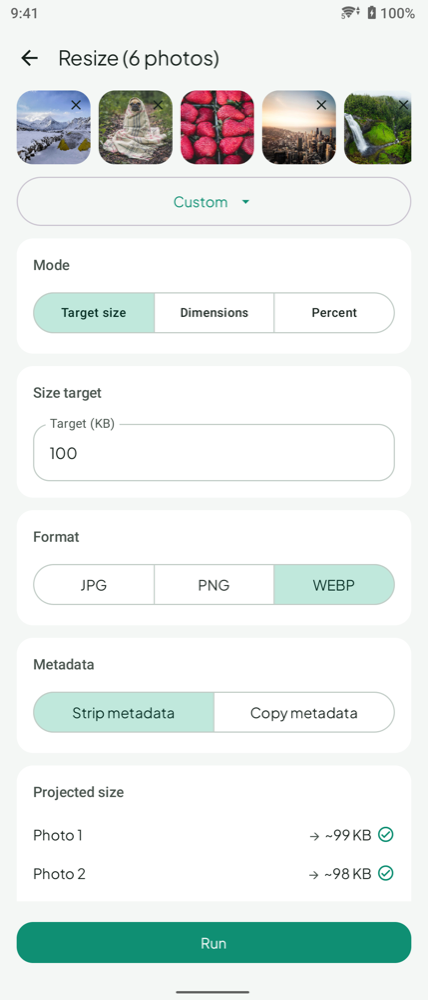
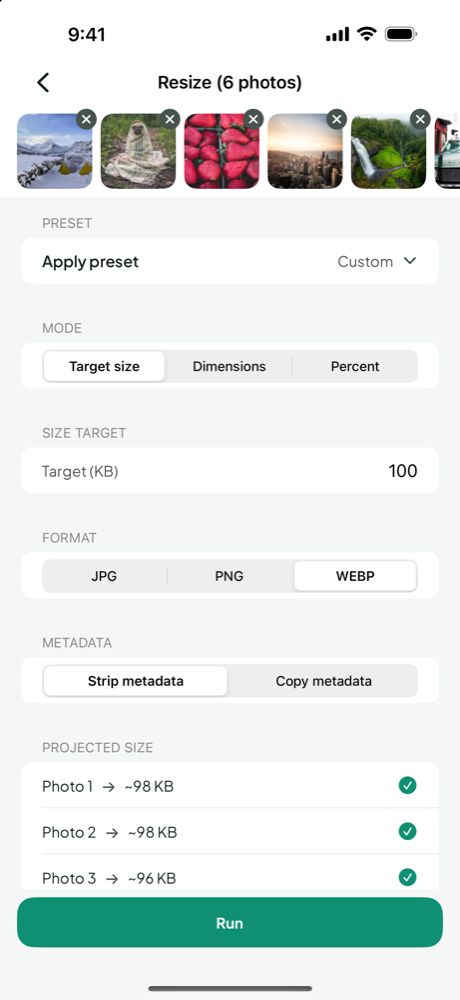
- Open ResizePing and choose your photo, or several photos for a batch.
- Pick the Mode: Target size for a KB or MB limit, or Dimensions or Percent for pixels.
- Enter the value, for example the number of KB in Target (KB), or the width and height in pixels.
- In Choose output, pick JPG, PNG or WEBP.
- Choose a preset: Best, Balanced or Smallest.
- Check the Projected size shown for each photo.
- Tap Run, then open the saved file and check its size and format.
If a target can't be reached, ResizePing warns you before you run. Lower the pixel dimensions first and set the target again.
Which formats work
- Output: JPG, PNG and WEBP, on both Android and iPhone.
- Input: HEIC and PNG photos on Android and iPhone. WebP photos on Android only.
Pick the format the upload form asks for. Check the saved file's size and format afterwards.
Guides for specific conversions
- Convert HEIC to JPG on Android or iPhone
- Turn an iPhone HEIC photo into a small JPG for an upload
- Convert PNG to JPG on Android and iPhone
- Convert JPG to PNG on Android and iPhone
- Convert WebP to JPG on Android
- Convert WebP to PNG on Android
Size limits that come with a format
Many uploads name a type and a size together. For worked examples at common limits, see 100KB Photo Size: Target 100 KB on Android or iPhone and Resize an Image to 50 KB on Android or iPhone. If the limit is in pixels, read How to Resize a Photo on Android and iPhone.
Other things to know
- Batch: convert one photo or many in a single run, each with its own projected size.
- Location data: stripped by default, so a shared copy doesn't carry where the photo was taken.
- Originals: keep the original in case a form needs a different size or type later.
FAQ
What is a photo size converter?
It is a tool that changes a photo's size, either file size in KB or MB or pixel dimensions, and can also change its format. ResizePing does both on Android and iPhone.
Can I change the size and the format at the same time?
Yes. Pick the Mode and value, choose JPG, PNG or WEBP in Choose output, and tap Run once.
Can I convert a WebP photo on iPhone?
WebP input is available on Android only. On iPhone, the supported inputs here are HEIC and PNG photos.
How do I know the result will fit the limit?
ResizePing shows a projected size before you run. After Run, check the saved file's size and format, because the projected size is an estimate.
Will my photos be uploaded anywhere?
Your files never leave your device.
Related guides
- Resize an Image to 60 KB on Android or iPhone
- Resize an Image to 250 KB on Android or iPhone
- Photo Size Reducer on Android and iPhone
- How to Resize a Photo on Android and iPhone
- Convert HEIC to JPG on Android or iPhone
- Convert PNG to JPG on Android and iPhone
- 100KB Photo Size: Target 100 KB on Android or iPhone
- Resize an Image to 50 KB on Android or iPhone