Resize an Image to 50 KB on Android or iPhone
Portal wants a photo under 50 KB? Type 50 in ResizePing's Target (KB) field on Android or iPhone, check the projected size, and pick the right format.
Published October 27, 2026
To resize an image to 50 KB, open the photo in ResizePing on Android or iPhone, set Mode to Target size and type 50 in the Target (KB) field. 50 KB is a common cap on exam, job and visa portal photo uploads and is roomier than 20 KB.
Need a photo at this size? ResizePing resizes photos to exact dimensions or a file size on iPhone and Android. Get it on Google Play or the App Store.
Steps
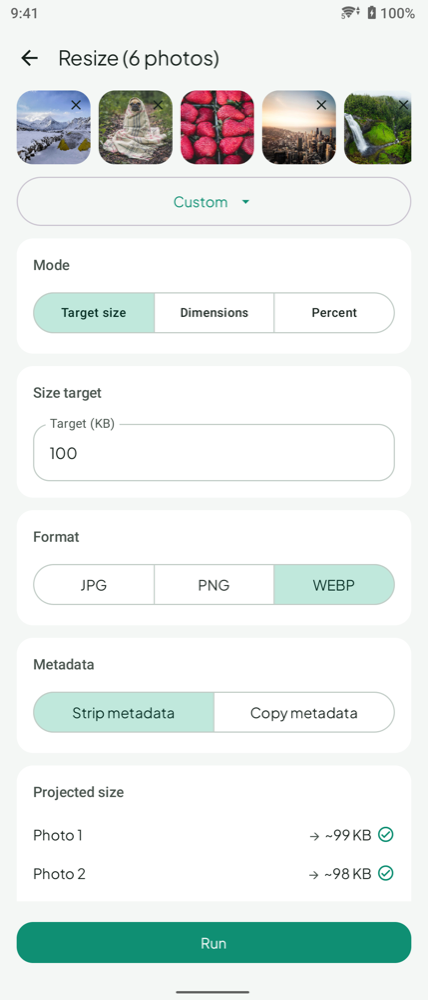
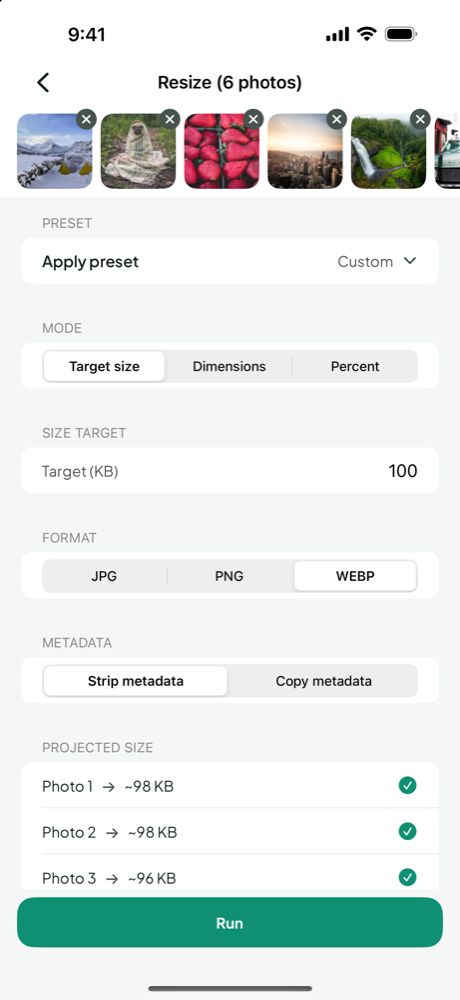
- Open ResizePing and choose the photo, or several photos.
- Change Mode to Target size.
- Enter 50 in Target (KB). Whole numbers above 0 are accepted; anything else shows "Enter a number".
- Choose JPG, PNG or WEBP to match what the portal lists. Strip metadata is on by default; leave it unless the form asks otherwise.
- Check the Projected size shown for each photo.
- Tap Run and look at the saved file's size before uploading.
Never uploaded to our servers.
Landing just under 50 KB
The projected size is an estimate, so the saved file can differ from it. If the portal's limit is strict, type 48 in Target (KB) instead of 50 and check the real size of the result before you upload.
If 50 KB is out of reach
ResizePing tells you when 50 KB can't be reached and shows the smallest size it can get to. Then lower the resolution with Dimensions or Percent, run it, and set Target size to 50 on the smaller result. If the portal allows more room, pick a larger limit from the sizes below.
50 KB vs other sizes
- 20 KB: much tighter: Resize an Image to 20 KB on Android or iPhone.
- 10 KB: tighter still: Resize an Image to 10 KB on Android or iPhone.
- 30 KB: How to Resize a Photo to 30 KB for an Exam or Job Form.
- 60 KB: a little more room: Resize an Image to 60 KB on Android or iPhone.
- 100 KB: more room: How to Reduce Photo Size to 100 KB on iPhone and Android.
- 150 KB: Resize an Image to 150 KB on Android or iPhone.
- Not sure which limit applies: Resize an Image to 20 KB or 50 KB.
What to know
- ResizePing works on photos. It does not have signature, ID or face modes, and it does not change backgrounds.
- You can process one photo or a batch.
- Android and iPhone both have Target size mode.
FAQ
What if the form says "up to 50 KB"?
Type 50, or a little lower such as 48, in Target (KB). Then check the real size of the saved file, because the projected size is only an estimate.
Why is the result different from the projected size?
The projected size is an estimate shown before you run. The saved file's size is the one that counts, so read it before you upload.
Can I do several photos at once?
Yes. You can process one photo or a batch, and each photo shows its own projected size.
Which format should I choose?
The one the portal asks for. ResizePing offers JPG, PNG and WEBP.
Do Android and iPhone work the same way?
Yes. Both have Target size mode with the Target (KB) field and a projected size.
Related guides
- Resize an Image to 20 KB or 50 KB on Android or iPhone
- Resize Image in KB on Android or iPhone (10 KB to 2 MB)
- Resize an Image to 20 KB on Android or iPhone
- Resize an Image to 150 KB on Android or iPhone
- Resize an Image to 300 KB on Android or iPhone
- How to compress image size on Android and iPhone step by step
- How to Resize a Photo to 15 KB for a Form Upload
- 100KB Photo Size: Target 100 KB on Android or iPhone
- How to Compress an Image to 200 KB for a Visa or Portal Upload
On a computer
On a computer instead? Ping Tools Lab has a browser tool: Resize Image to 50 KB.