How to Reduce Photo Size to 100 KB on iPhone and Android
Need to reduce photo size to 100 KB for a job, exam, or visa upload? KB limits vs pixels, honest phone options, online tradeoffs, and ResizePing on-device.
Published September 24, 2026
You picked a photo on your phone. The form says maximum 100 KB — sometimes 50 KB, sometimes 20 KB. The deadline is tonight. You are not trying to learn photography; you need the file to pass validation.
The short answer: to reduce photo size to 100 KB (or another exact cap), you must shrink how many bytes the file takes on disk — usually by lowering compression quality, reducing pixel dimensions, or both. Cropping alone helps only if it removes enough pixels. Changing DPI in a photo editor does not by itself change the upload limit the form checks.
This guide covers what KB limits actually mean, what your phone can do without installing anything, when a website compressor is worth the privacy tradeoff, and how ResizePing can hit an exact kilobyte target on your device if you want a dedicated tool.
Why photo size in KB is not the same as pixels or DPI
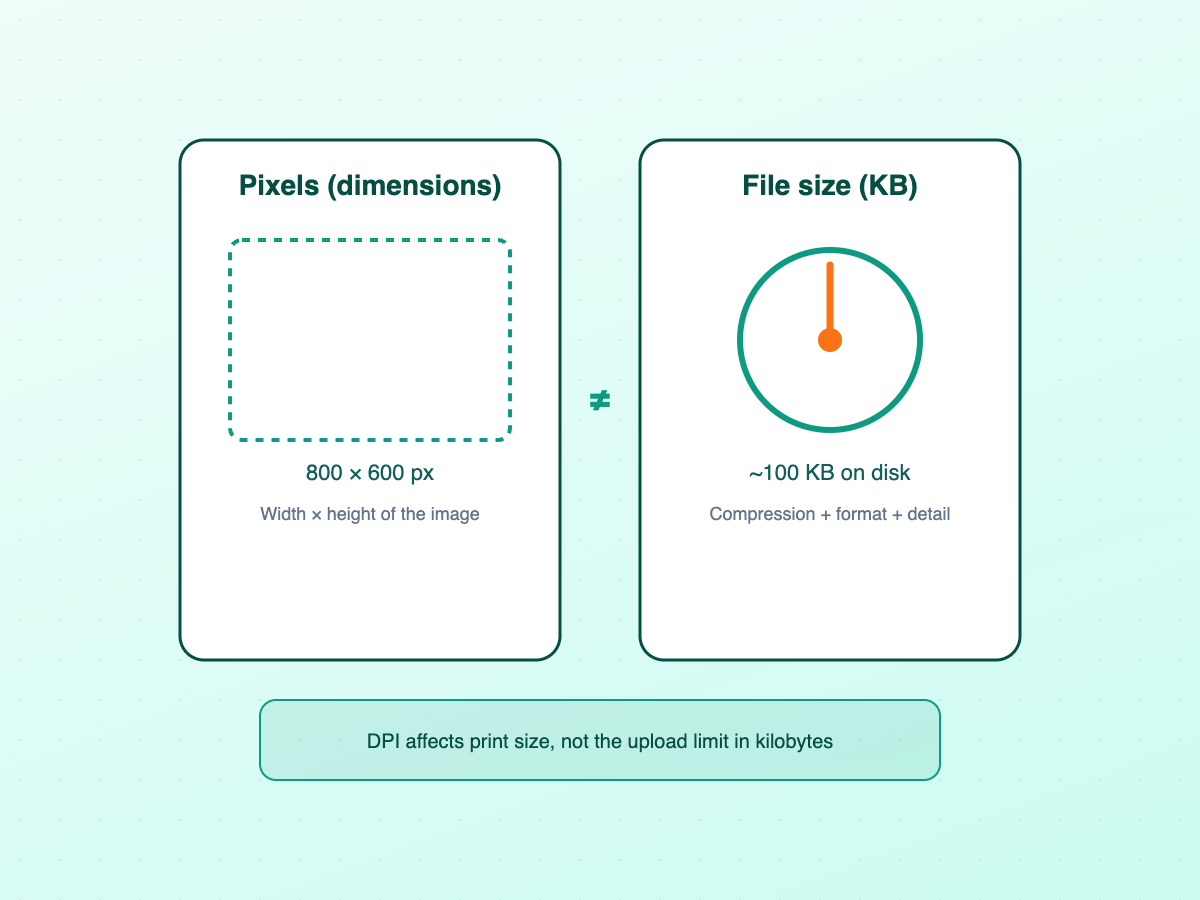
Government portals, university admissions, and job sites often show both numbers: “maximum 100 KB” and “minimum 200 × 200 pixels”. That confuses people because camera apps talk in megapixels, not kilobytes.
| What the form mentions | What it actually controls |
|---|---|
| File size (KB or MB) | How heavy the saved file is on disk — what most upload validators count |
| Width × height (pixels) | How many dots make up the image — affects sharpness and often file size |
| DPI (dots per inch) | How pixels map to printed size — useful for passport print specs, not a substitute for KB |
A large pixel image can still compress to a small KB file if the scene is simple and JPEG quality is low. A small pixel image can still fail a 20 KB cap if the detail is noisy. That is why “resize image to 50 KB” searches are common alongside “reduce photo size in KB on iPhone” — people need the weight, not just shorter edges.
If the form also lists dimensions (for example 35 × 45 mm for a passport photo), treat that as a separate requirement. ResizePing offers three resize modes: Target size for an exact KB or MB cap; Dimensions for pixel width and height or print units (mm, cm, inch) with DPI; and Percent to scale by percentage. They are different jobs in the app, and mixing them up is a common reason uploads fail even after “resizing”.
Quick ways to reduce photo size before you install anything
Built-in tools can help, but few phones expose exact kilobyte targets. They are still worth trying when you are close to the limit.
On iPhone and iPad — Crop in Photos to match the form’s aspect ratio; try Mail’s smaller attachment sizes when offered; or use Shortcuts actions such as Resize Image / Convert Image, then check KB in Files. None of these stop at an exact 100 KB target.
On Android — Some Gallery apps (Samsung among them) expose resize or export tools, but labels and limits vary. Avoid “print to PDF” hacks for JPG-only forms — they often fail validation.
On both — Converting HEIC or PNG to JPG can help; screenshotting the image is a rough last resort that may blur text.
If you only need to get “a bit smaller”, these may be enough. If the portal rejects the file three times with different KB numbers, you usually need a tool that targets file size, not just fewer pixels.
Online photo resizers when you need an exact KB target
Search for “compress photo to 20 KB” or “resize photo for online application form” and you will find browser-based compressors. They often work, with caveats:
| Approach | Upside | Downside |
|---|---|---|
| Online compressor | Fast, no install, sometimes offers a KB slider | You upload identity documents to a third party |
| Desktop editor (export quality) | Stays on your computer | Not helpful if you only have your phone |
| On-device app (ResizePing, others) | File stays on the phone; you pick targets | Another app to install |
For passport scans, signatures, and national ID photos, uploading to an unknown server is a real privacy decision. Prefer on-device processing when the image is sensitive — the same reason many people tighten who can see their profile photo on messaging apps they use daily.
If you do use a website, close the tab when finished, avoid saving your login on shared PCs, and read whether the service keeps copies.
How to reduce photo size to 100 KB with ResizePing
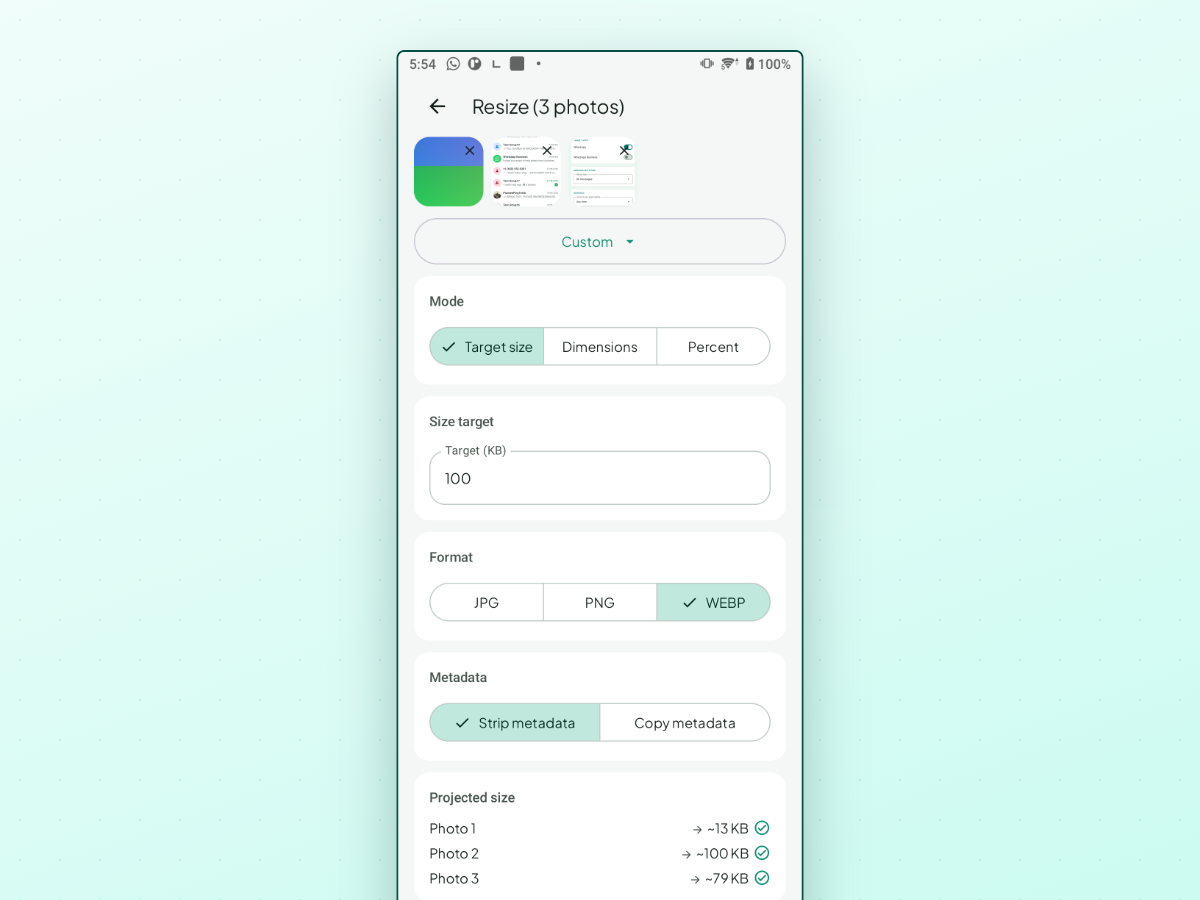
ResizePing is one option built for exact file size and exact dimensions on Android and iPhone. Processing stays on your device; you choose photos through the system photo picker. The app shows a projected size before you commit so you are not guessing.
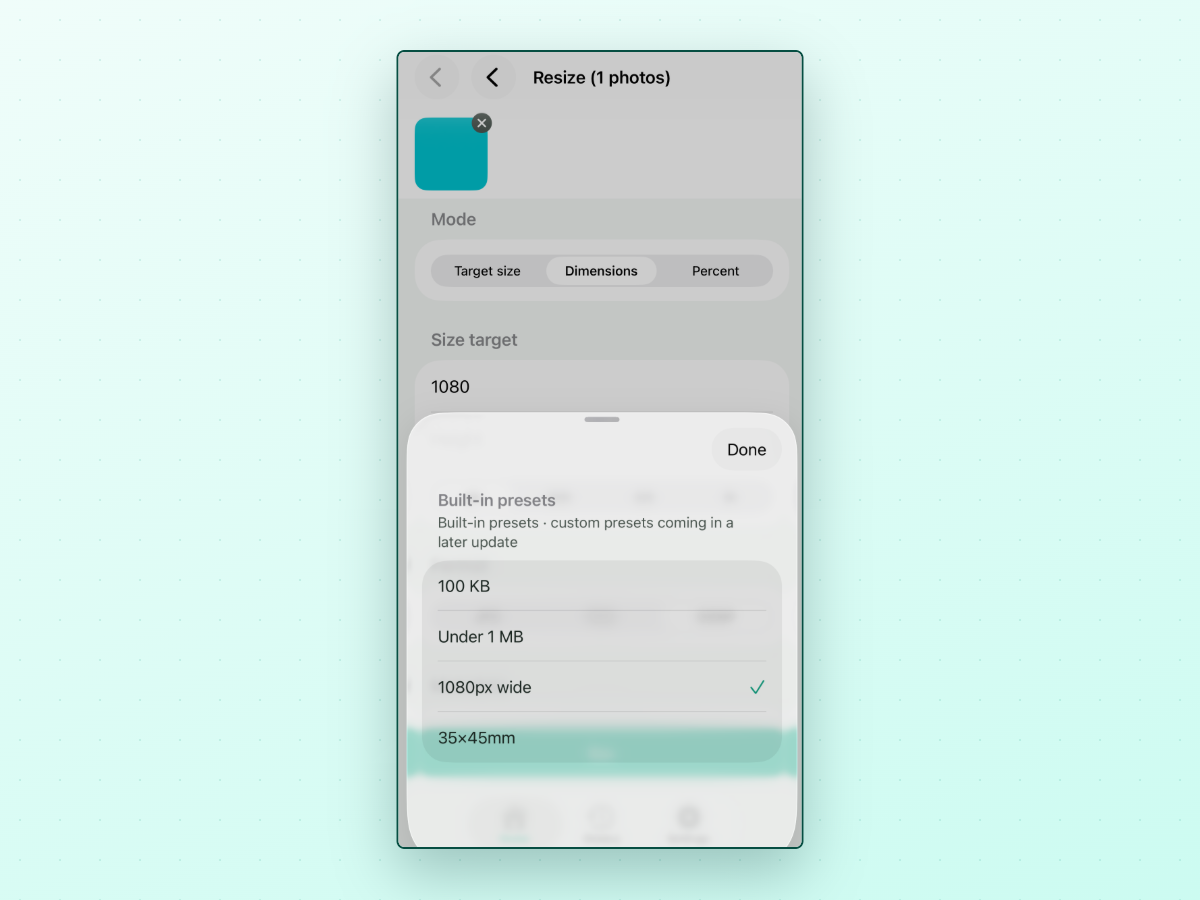
On both platforms you get Target size, Dimensions, and Percent as separate modes; presets 100 KB, 1 MB or under, Web — 1080 px wide, and Passport photo — 35 × 45 mm; JPG, PNG, and WEBP output; Strip metadata or Copy metadata; Projected size before Run; and History with status and format filters plus before → after sizes. Batch runs show per-item progress you can cancel.
Steps (Target size → 100 KB)
- Select photo(s) on the home screen (or share into ResizePing from Gallery).
- Set Mode to Target size, then pick the 100 KB preset or type 100 in Target (KB).
- Choose JPG if the form requires it; leave Strip metadata on unless told otherwise.
- Read Projected size. A warning means the smallest honest result may still sit above your cap.
- Tap Run, then share or save. Android writes to Pictures/ResizePing by default (or a folder you chose); iPhone saves to Photos.
If you want the product overview, start at the ResizePing mini-site.
Common upload limits (20 KB, 50 KB, 100 KB, and more)
Exact caps vary by country and form builder, but these appear often:
| Typical cap | Where you see it | Practical note |
|---|---|---|
| 20 KB | Older government signature uploads | Very tight — expect smaller pixel dimensions, not quality tweaks alone |
| 50 KB | Compact ID scans, thumb impressions | Search phrase “resize image to 50kb” — same workflow as 100 KB, stricter |
| 100 KB | Passport photos, many “upload photo” fields | Default target in ResizePing’s preset list |
| 200 KB | Slightly newer portals | Easier headroom; still verify after export |
| 1 MB | Brochure-style limits | ResizePing includes 1 MB or under as a preset |
When a form lists both KB and pixels, handle dimensions first (Dimensions mode or the passport preset), then Target size if KB is still too high.
What if the form’s limit is smaller than your photo can go?
Dense scans hit a floor: Projected size may show We’ll get as small as possible, meaning the app will output the smallest honest result it can — not a fake KB. If History or Files still shows a file above the cap, retake with simpler backgrounds or fewer pixels per the form’s dimension rules. Do not blur text to cheat validators.
Checklist before you upload a photo to an online form
- Format — JPG unless the form allows PNG or PDF.
- Dimensions — Match listed width/height, not just KB.
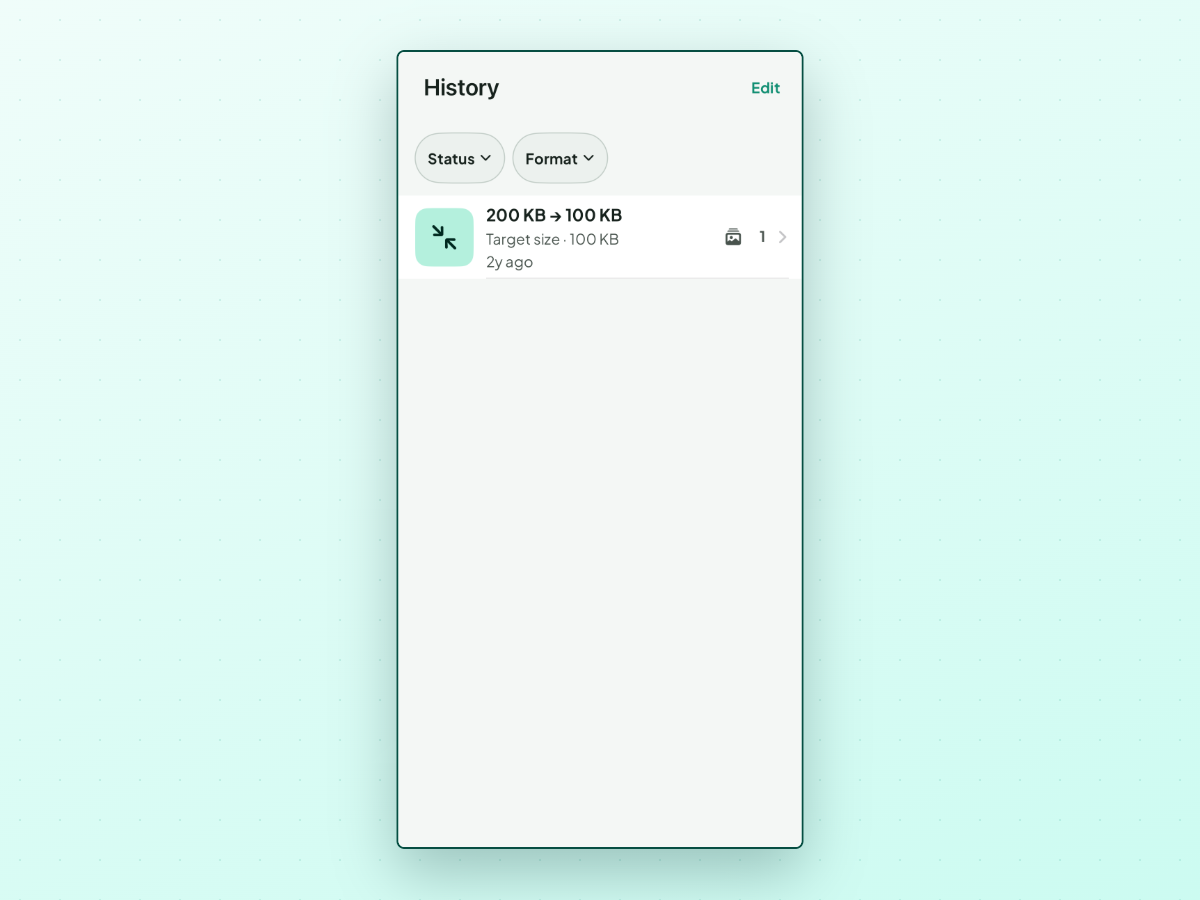
- File size — Read KB in Files or a History row (for example
200 KB → 100 KB). - Composition — Retake if background, face, or signature rules fail.
- Privacy — Prefer on-device tools for ID photos over upload sites.
If the portal only says “invalid image”, change one setting at a time and re-check the exported file.
Frequently asked questions
How do I reduce photo size to 100 KB on iPhone quickly?
Use Photos to crop if you only need a rough shrink, or use an on-device resizer when you need the file under an exact cap. On ResizePing, pick the 100 KB preset or enter 100 in Target (KB), confirm Projected size, export as JPG, then verify the size in Files or History before uploading.
Can I compress a photo to 20 KB or 50 KB on Android?
Yes, in principle — the same Target size mode accepts any KB value, not just 100. Very low caps may be unreachable for detailed photos; the app warns you when it will deliver the smallest result it can instead of pretending to hit the number.
Why does my photo show 2 MB but the form wants 100 KB?
The camera saved a high-resolution JPEG or HEIC with lots of detail. Megabytes reflect pixel count and quality; the form counts kilobytes on the compressed file. You need recompression and often fewer pixels — not just renaming the file.
Does changing DPI reduce file size in KB?
DPI changes how pixels map to printed inches. Upload validators typically read the encoded file size and pixel dimensions. Use DPI when a form specifies print size (for example 35 × 45 mm at 300 DPI), not as a shortcut around a KB limit.
Is an online compressor safe for passport or ID photos?
It uploads your document to someone else’s server. For one-off tourist forms that may be acceptable; for government ID, many people prefer on-device apps such as ResizePing that process locally. The right answer depends on your risk tolerance, not on marketing claims.
If exact kilobyte targets keep blocking your uploads, ResizePing is one on-device option on Google Play and the App Store — with batch resize, print-size dimensions, and History when you need to prove the last run really landed under the limit.