How to Convert HEIC to JPG on Android or iPhone
A site wants JPG and your photo is HEIC? ResizePing converts it to JPG, PNG or WEBP on your phone and shows the before and after size. Never uploaded to our servers.
Published October 23, 2026 · Last updated October 26, 2026
Some websites, forms and apps ask for a JPG and will not accept a HEIC photo. ResizePing converts HEIC to JPG, PNG or WEBP on your Android phone or iPhone, one photo at a time or several at once, so you can send the file where JPG is required. Never uploaded to our servers.
Need a JPG from a HEIC photo? ResizePing converts and resizes photos on iPhone and Android. Get it on Google Play or the App Store.
Steps to convert a HEIC photo
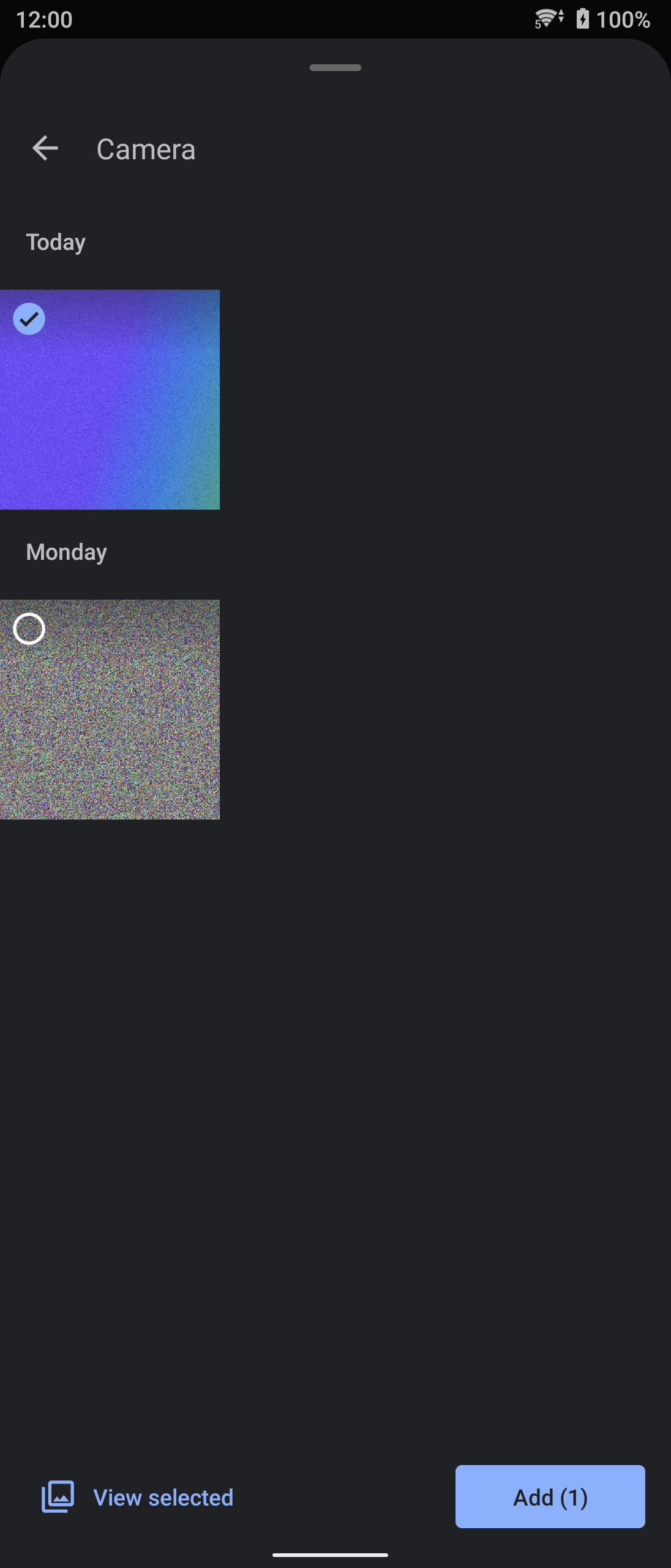
The steps are the same on Android and iPhone. The screenshots below are from Android.
- Install ResizePing on your phone and open it.
- Pick the HEIC photo you want to convert. To convert several, select them together and they run as a batch.
- Choose JPG as the output format. PNG and WEBP are also available.
- Choose a quality level: Best, Balanced or Smallest.
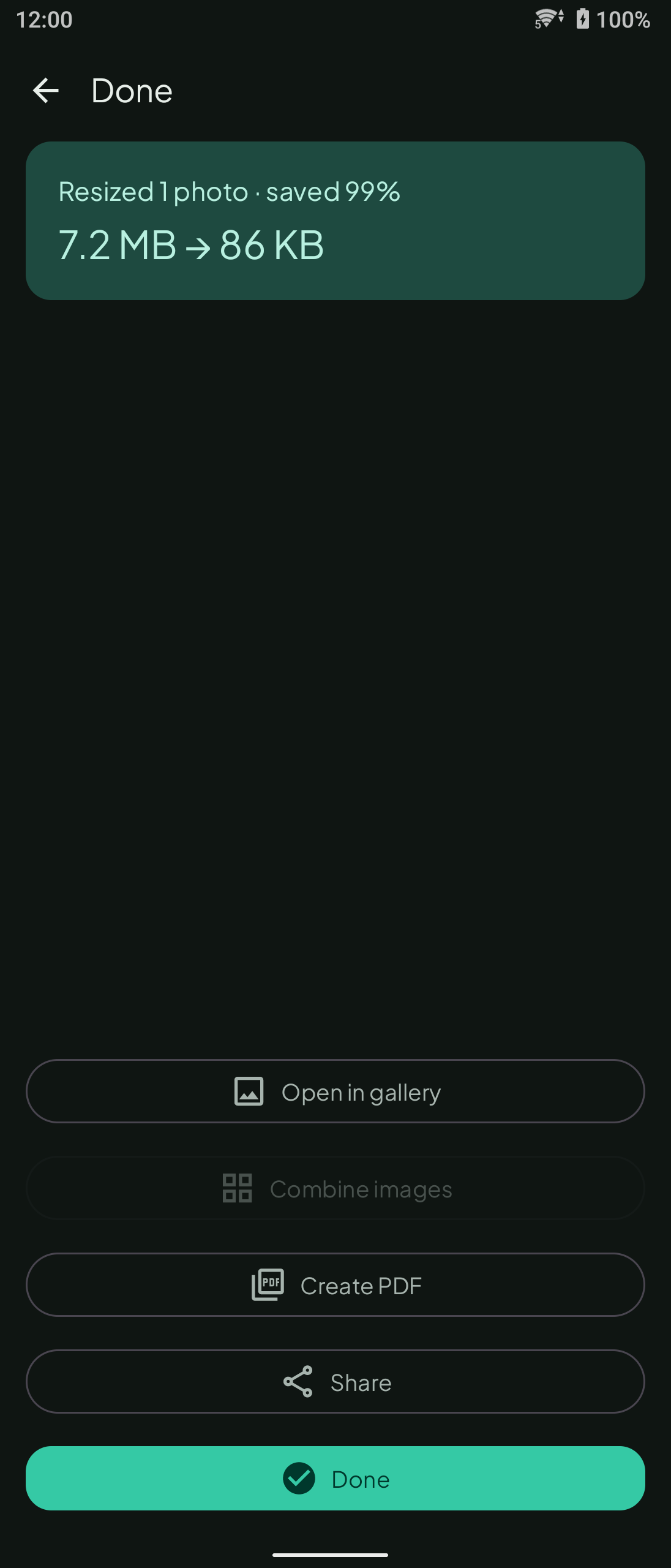
- Run it and open the result screen. It shows the before and after size, and you can open the photo in your gallery, share it or finish from there.
Which output format to pick
Pick JPG when a website, form or app asks for JPG, since that is the format most often requested. PNG and WEBP are available as output if the place you send the photo accepts them. Choose the format before you run the conversion, because the result is saved in the format you picked. If you need to convert an existing PNG image to JPG instead, see how to convert PNG to JPG on Android and iPhone.
What the quality levels do
Best favours image quality, Smallest favours a small file, and Balanced sits between the two. Check the before and after size on the result screen before you keep the file. In our test run, with Target size 100 KB and JPG selected, a 7.2 MB photo came out at 86 KB.
Location data and privacy
Location data is stripped by default, so the photo you send does not carry the place where it was taken. ResizePing runs on your phone. Never uploaded to our servers.
FAQ
- Does ResizePing upload my photo? No. Never uploaded to our servers.
- Can I convert more than one HEIC photo at once? Yes. ResizePing handles a single photo or a batch.
- Does it work on iPhone and Android? Yes, HEIC input and JPG, PNG or WEBP output work on both. On Android, opening HEIC photos needs Android 9 or newer.
- Can I convert to PNG or WEBP instead of JPG? Yes. The output can be JPG, PNG or WEBP.
- Is location data kept in the converted file? It is stripped by default.
- How do I know how much smaller the file is? The result screen shows the before and after size.
- What if the converted file is still too large? Run the conversion again with Smallest, then compare the before and after size on the result screen. To aim for a specific size, see how to reduce photo size to 100 KB.
Related
Related guides
On a computer
On a computer instead? Try the browser version: Convert HEIC to JPG at Ping Tools Lab.