How to Compress a Video to 100 MB on Android
Video too big to send? ResizePing resizes it toward a size you choose on Android, and shows the estimated size before you run it. Never uploaded to our servers.
Published October 23, 2026 · Last updated October 26, 2026
A video that is too large for an email, a form or a chat upload needs to be smaller before you can send it. ResizePing's video tool resizes a video toward the size you choose: 500 MB, 200 MB, 100 MB or a custom size. It shows the estimated size before you run it. Never uploaded to our servers. This guide covers the Android app; the video tool is also in the iPhone app.
Need a smaller video? ResizePing compresses videos to a size you choose, with an estimate first, on iPhone and Android. Get it on Google Play or the App Store.
Steps to compress a video
- Install ResizePing on your Android phone and open it.
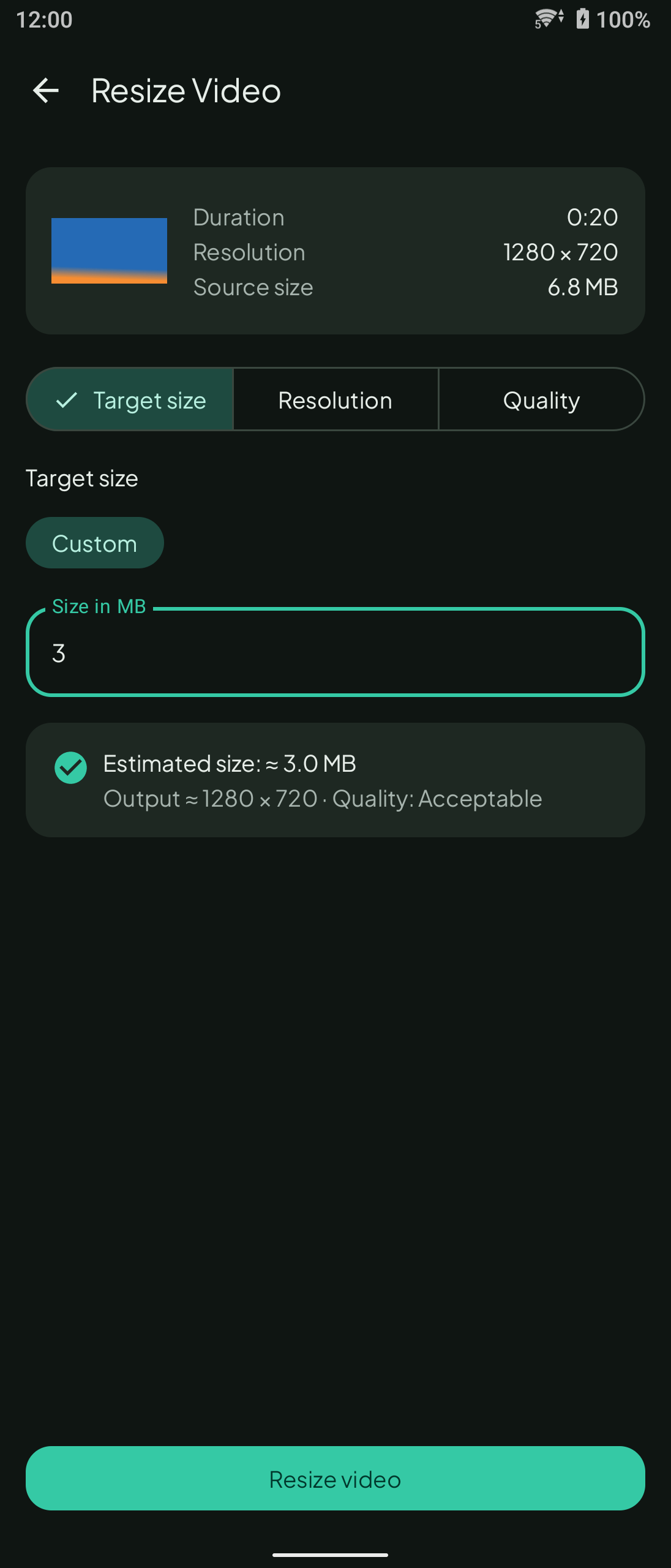
- Open the video tool and pick the source video. The screen shows its duration, resolution and source size.
- On the Target size tab, choose 500 MB, 200 MB or 100 MB, or Custom and type a size in MB.
- Check the estimate. The estimated size is shown before you run anything.
- Tap Resize video and open the result screen. It compares the before and after size.
Read the estimate before you run
The estimate is a projection, not a promise of an exact file size. In the example, a 20-second 1280 x 720 video of 6.8 MB with a custom 3 MB target shows "Estimated size: about 3.0 MB". If the estimate is still larger than you need, pick a smaller target and check it again before you run the job.
Choosing a target size
Pick the smallest option that meets the limit you need: 100 MB, 200 MB or 500 MB. Use Custom when the limit is a different number. The estimate tells you what to expect before you run the job, so you can change the target without starting over. The video tool also has Resolution and Quality tabs if you would rather set those directly. For a general walkthrough of resizing a video on Android and iPhone, see how to resize a video on Android and iPhone.
Where the work happens
The video runs on your phone. Never uploaded to our servers, so the video is not sent anywhere to get it to the target size.
FAQ
- What target sizes can I pick? 500 MB, 200 MB, 100 MB or a custom size.
- Can I see the size before I run it? Yes. The estimated size is shown first.
- Does the video go to a server? No. Never uploaded to our servers.
- Will the result be exactly the size I typed? Not exactly. The estimate is a projection, so check the before and after size on the result screen.
Related
- ResizePing: Resize and Compress
- Convert video to MP3 on Android and iPhone
- Turn video clips into GIFs on Android and iPhone
- How to send photos on WhatsApp without losing quality
- Convert HEIC to JPG on Android or iPhone
- ResizePing articles
On a computer
On a computer instead? Try the browser version: Compress Video to a Target Size at Ping Tools Lab.