How to Send Photos on WhatsApp Without Losing Quality
Learn how to send photos on WhatsApp without losing quality using the HD button, document sharing, cloud links, or pre-compressing before you send.
Published October 14, 2026
You take a sharp photo on your phone — a landscape, an event portrait, or a document with fine print. You open WhatsApp, pick the image, and hit send. But when the recipient opens it, the edges look soft, textures blur together, and zooming in reveals compression noise.
The reason is simple: by default, WhatsApp compresses photos heavily before sending them. With billions of media messages transmitted every day, WhatsApp prioritizes fast delivery and minimal cellular data usage above image fidelity. Through the standard picker, WhatsApp reportedly downscales resolution to roughly 1600 pixels on the longest side and applies lossy JPEG compression, stripping camera metadata in the process.
For quick reactions or casual snaps, that tradeoff makes sense. But when you need to send family photos, creative work, client proofs, or important documents, automatic downsampling is frustrating.
There are genuine ways to solve this. Whether you want to send pictures in high definition inside the chat, transmit the exact uncompressed raw file, share full albums, or prepare the file on your device beforehand, this guide walks through how to send photos on WhatsApp without losing quality and explains the honest tradeoffs of each approach.
Why WhatsApp compresses photos by default
The default pipeline explains why standard sharing softens image clarity:
- Bandwidth and delivery speed: Full-resolution photos from modern cameras typically weigh 3 MB to 20 MB. If every photo sent uncompressed, chats would consume gigabytes of cellular data, transfers would stall in poor coverage areas, and device storage would fill rapidly.
- Aggressive downsampling: Standard mode reduces pixel dimensions. A 12 MP camera photo (4032 × 3024 pixels) is reportedly scaled down to roughly 1600 × 1200 pixels before compression even begins.
- Lossy re-encoding: WhatsApp re-encodes the image using lossy JPEG compression. This removes subtle color transitions, creates blocky artifacts along contrast edges, and smears fine textures.
- Metadata stripping: Camera EXIF metadata (lens model, aperture, shutter speed, ISO, color profile) is discarded during the compression pass.
If you need sharp images, you have to steer around this default pipeline.
Comparing your options at a glance
Depending on whether you prioritize chat convenience, byte-for-byte perfection, or manageable file sizes, you have four distinct paths:
| Method | Resolution preserved | Compression applied | EXIF metadata | Best for |
|---|---|---|---|---|
| WhatsApp HD Mode | Higher (reportedly up to ~4096 px) | Light JPEG compression | Partial / stripped | Everyday chats where you still want an inline preview bubble |
| Send as Document | 100% original dimensions | None (original file sent) | Kept (original file) | Professional photos, printing, design assets, and fine text |
| Cloud Storage Link | 100% original dimensions | None by WhatsApp (depends on host) | Kept (original file) | Large albums, wedding galleries, and multi-file batches |
| On-device pre-compression | Custom (e.g. 1080p, 4K) | Controlled on device | User selectable | Sending lighter files without letting WhatsApp crush details |
Here is how each option works and where its limitations lie.
Option 1: Use WhatsApp's built-in HD quality setting
Meta introduced an official high-definition photo sharing toggle in WhatsApp on Android and iOS, allowing you to send photos with noticeably higher resolution inside chat threads.
How to send an HD photo in a chat
- Open your chat in WhatsApp.
- Tap the media attachment icon (the paperclip on Android, or the + button on iPhone) and select Gallery or Photos.
- Choose the photo you want to share.
- On the editing screen, tap the HD icon at the top of the screen.
- Select HD quality from the sheet that appears, then tap send.
When delivered, a small "HD" badge appears on the image bubble in the chat, confirming the higher-resolution version was sent.
How to make HD quality the default upload setting
If you do not want to tap the HD button every time, you can set WhatsApp to prefer higher quality across all eligible media:
- Open WhatsApp and go to Settings (the three-dot menu on Android, or the Settings tab on iPhone).
- Tap Storage and data > Media upload quality.
- Select HD quality.
(Note: On older WhatsApp builds, this menu showed "Auto (recommended)", "Best quality", and "Data saver". Recent updates replaced this with "Standard quality" and "HD quality" across platforms).
Limitations of WhatsApp HD mode
While HD mode is a meaningful improvement over standard compression, it has clear boundaries:
- It is still compressed: HD mode increases the resolution ceiling (up to roughly 4096 pixels on the long edge), but it still runs a lossy JPEG compression pass. Fine textures and dynamic range are still slightly softened.
- Unavailable on lower-resolution photos: The HD option may not appear for small or low-resolution images.
- Chat messages only: HD is a chat-message option and may not apply to Status updates or profile pictures.
- Higher data consumption: HD photos are larger than standard ones, so sending several uses more data and takes longer on cellular.
Option 2: Send photos as a Document (no photo compression)
If your goal is to send a photo in its original quality — keeping every byte, color profile, and piece of sensor data intact — the built-in answer is to send the image as a Document.
Because WhatsApp treats documents as generic files rather than previewable chat media, it bypasses the image processing pipeline completely. The file is sent as-is, without WhatsApp's photo compression, so it should arrive matching your original.
How to send a photo as a document
On Android:
- In the chat, tap the Attach paperclip icon next to the message field.
- Tap Document.
- Tap Browse documents (or Choose from gallery / internal storage depending on your phone model).
- Navigate to your device's photo storage (typically
Internal storage > DCIM > Cameraor your system file browser). - Select the photo or photos you want to send, then tap Select and confirm sending.
On iPhone:
- In the chat, tap the + button next to the message field.
- Tap Document.
- On recent versions of WhatsApp for iOS, tap Choose photo or video directly, or browse the Apple Files app.
- If choosing via Files, save the photo to Files first (open Apple Photos > tap Share > tap Save to Files).
- Select the image file, tap Open, then tap Send.
Why document sharing works and its tradeoffs
Sending as a document avoids WhatsApp's photo compression: no downscaling or re-encoding of the image. Camera EXIF metadata (aperture, shutter speed, ISO, color profile) is kept with the original file, and WhatsApp supports document transfers up to 2 GB per file.
However, document sending introduces three clear friction points:
- No inline thumbnail in chat: The recipient sees a file tile with the filename and size, rather than an instant preview in the chat timeline.
- Manual opening and saving: The recipient must tap the document tile to open it. It will not automatically appear in their phone's camera roll unless saved manually.
- Heavy data usage: Transmitting uncompressed 10 MB to 25 MB camera photos over mobile data is bandwidth-heavy and slow on weak connections.
Option 3: Share a cloud storage link
When you have a batch of high-resolution pictures — such as vacation albums, event photos, or a client gallery — sending dozens of files through WhatsApp can clutter the conversation and consume the recipient's device storage.
Uploading original files to cloud storage and sharing a link is the cleanest alternative:
- Google Drive or Google Photos: Select photos in Google Photos, tap Share, and tap Create link. In Google Drive, place files into a folder, set access to "Anyone with the link", and copy the URL.
- Apple iCloud Photos: Select photos in Apple Photos on iPhone, open the Share sheet, and tap Copy iCloud Link. The link allows recipients on any device to view and download full-resolution copies.
- OneDrive or Dropbox: Both let you create shared folder links with read-only download permissions.
Cloud links keep photos in their uncompressed format, stay out of WhatsApp's media compression, and let recipients selectively download only the images they want. The tradeoff is that the recipient must leave WhatsApp to view the files, and cloud storage accounts have storage limits that fill up over time.
Option 4: Compress or resize the photo yourself before sending
What if you want to avoid WhatsApp's aggressive downsampling without sending a heavy 15 MB file over cellular data?
If you rely on WhatsApp's standard compression, you have zero control over how your picture is processed. On the other hand, if you compress photo for whatsapp beforehand on your device, you decide the exact balance:
- Choose the exact pixel dimensions (such as keeping a clean 1080p, 2048p, or 4K width).
- Choose the target file weight (such as setting an exact cap like under 1 MB or under 500 KB).
- Review output clarity before the picture leaves your phone.
Once resized to a balanced size, you can send the file as a Document (so WhatsApp does not alter it further) or as an HD chat photo.
Built-in phone resizing options
Some phones include basic resizing tools in their gallery editors:
- Samsung Gallery: Open an image in Samsung Gallery, tap the pencil edit icon, tap the three dots in the corner, and select Resize. Samsung offers preset reduction percentages (80%, 60%, 40%, or 20%). While convenient, it only scales pixel dimensions down and does not let you specify an exact target size in kilobytes or megabytes.
- Google Photos and Apple Photos: Neither app includes a native tool to dial in an exact target file size or specific pixel resolution on-device without using third-party shortcuts or external utilities.
Using a dedicated on-device tool
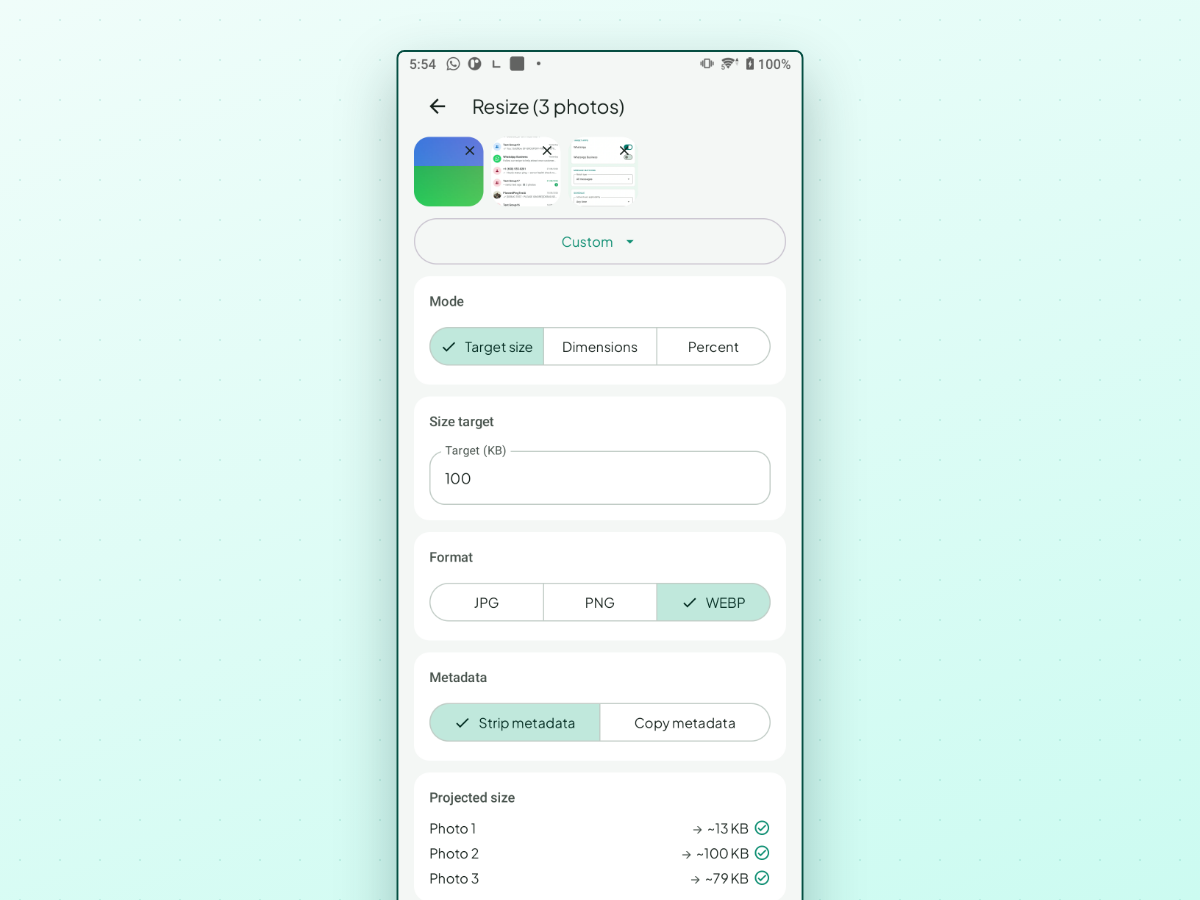
If you want a dedicated utility to hit an exact file size or exact dimensions on your phone, ResizePing is one option built for this workflow on Android.
ResizePing processes images directly on your device rather than uploading them to an external server. You pick photos through your system photo picker, choose Target size mode to hit an exact file weight (such as under 100 KB, 500 KB, or 1 MB), or choose Dimensions mode to set exact pixel measurements. It shows a live projected output size before you commit to the job, handles single images or batch resizing, and removes image metadata (including location data) by default, with a Copy metadata option.
Using presets to balance sharpness and file size
Picking the right target depends on how the recipient plans to view the picture:
1. For viewing on smartphone screens
- Target dimensions: 1080 pixels wide or 2048 pixels on the long edge.
- Target file size: ~300 KB to ~800 KB.
- Result: Sharp rendering on modern smartphone displays. Because the file is already optimized, you save data without noticing visual degradation on a phone screen.
2. For desktop viewing or social media posts
- Target dimensions: 2560 pixels to 3840 pixels (4K).
- Target file size: ~1 MB to ~2 MB.
- Result: Retains clean textural details for laptop and desktop monitors while keeping file sizes lightweight enough to send smoothly over messaging apps.
3. For printing, framing, or detailed cropping
- Target dimensions: Full original sensor resolution (do not downscale).
- Target file size: Full original file weight.
- Result: Use Option 2 (Send as Document) or Option 3 (Cloud Storage Link). Never rely on chat image compression when physical ink and paper are involved.
Practical checklist: which method should you choose?
To quickly pick the best way to send photos on WhatsApp for your situation, use this checklist:
- Quick chat sharing where clarity still matters: Use WhatsApp's HD mode (Option 1). It gives you a sharper inline chat bubble without manual file management.
- Text, receipts, tickets, or client proofs: Send as a Document (Option 2). Preserving sharp high-contrast text is critical, and standard WhatsApp compression often makes fine print illegible.
- Large photo albums or event sets: Send a Cloud storage link (Option 3). It spares both phones' internal memory and lets everyone download only the pictures they want.
- Weak cellular reception or metered data: Pre-compress or resize beforehand (Option 4), then send the optimized file. You preserve edge sharpness while controlling exactly how many megabytes leave your device.
If you frequently need to prepare photos for messaging, web forms, or email limits and want to dial in exact file weights or dimensions on your phone, ResizePing on Google Play is one focused tool built for this workflow.