Convert Photos to PDF on Android and iPhone: Combine JPGs Into One PDF
Convert photos to PDF on Android or iPhone with ResizePing: add your JPGs, set the order, and choose 1, 2 or 4 photos per A4 page.
Published October 23, 2026 · Last updated October 26, 2026
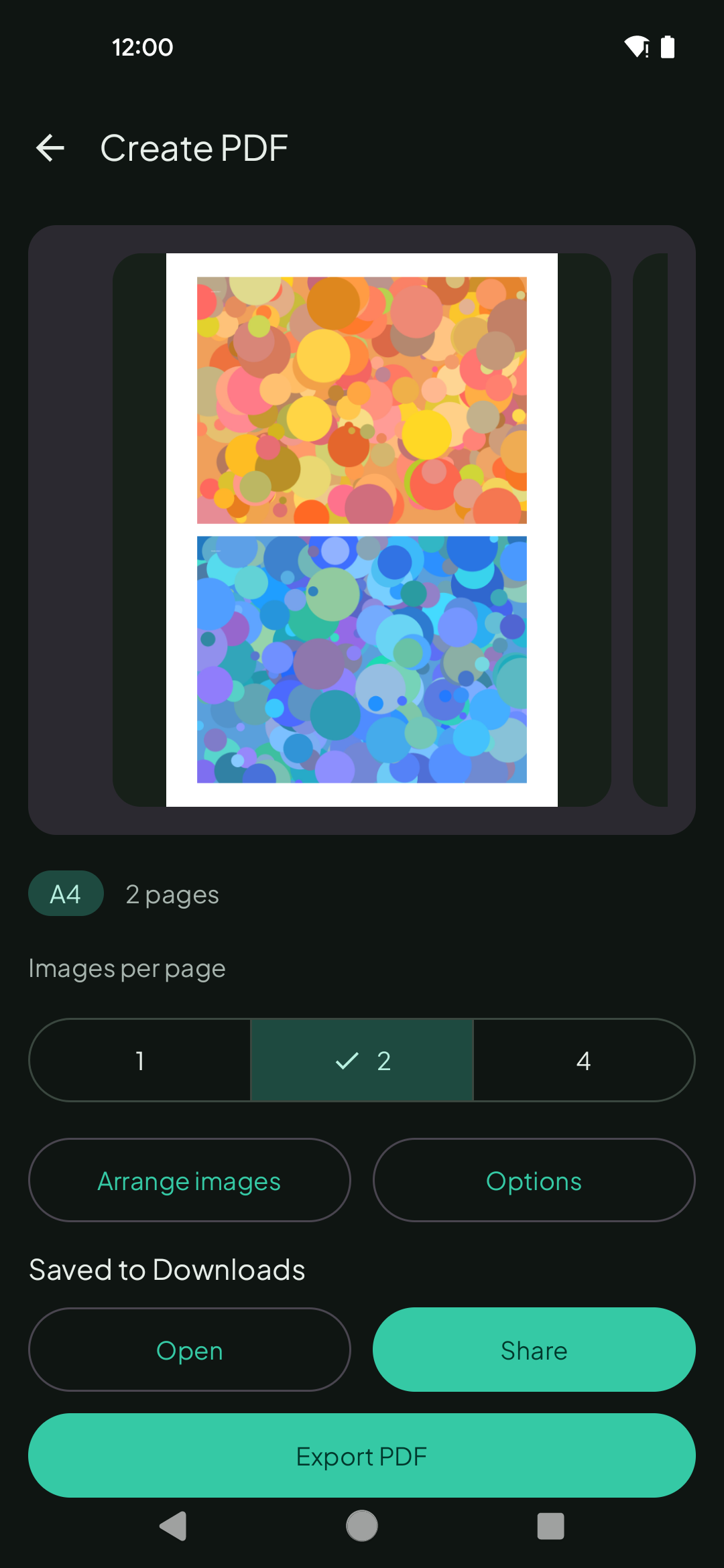
Want to convert photos to PDF on your phone? An application asks for your documents as a single PDF, but all you have is a handful of photos, and the portal only accepts one file. ResizePing turns JPG and other photos into one PDF on Android and iPhone, with 1, 2 or 4 photos per A4 page, in portrait or landscape.
Need to turn photos into a PDF? ResizePing puts photos on A4 pages, one, two or four per page, on iPhone and Android. Get it on Google Play or the App Store.
Steps
The steps are the same on Android and iPhone. The screenshot is from Android.
- Install ResizePing and open the photos-to-PDF tool.
- Add your photos. You can also share them in from Photos, Files or Drive.
- Put them in the order the form needs.
- Choose 1, 2 or 4 photos per A4 page, and portrait or landscape.
- Create the PDF, check the result screen, then Share or Done.
A single picture instead of a PDF
If you need one image rather than a PDF, ResizePing can combine photos into one picture: vertical, horizontal, or a 2, 3 or 4-column grid. You can reorder them and set the spacing, margin and background colour.
If the PDF is too big
ResizePing can also set photo sizes to an exact file size before you build the PDF. ResizePing also has a PDF compressor on Android and iPhone. Check the result size before you upload. See how to get a PDF under 200 KB.
What to know
- Never uploaded to our servers.
FAQ
- How do I turn a JPG into a PDF on my phone? Open the photos-to-PDF tool in ResizePing, add the photo, and create the PDF. It works on Android and iPhone, and you can add several photos to one PDF.
- How many photos fit on a page? 1, 2 or 4 per A4 page.
- Can I choose portrait or landscape? Yes.
- Does it upload my photos? No. Never uploaded to our servers.
- Can I make one picture instead? Yes. Combine photos vertically, horizontally or in a 2, 3 or 4-column grid.
Related
- ResizePing
- How to compress image size on Android and iPhone
- Extract audio from video to MP3 on Android and iPhone
- Turn video clips into GIFs on Android and iPhone
- Merge PDF files on Android and iPhone
- How to reduce photo size to 100 KB
- Resize a photo to passport size (35x45 mm)
- Convert HEIC to JPG on Android or iPhone
- JPG to PDF Under 200 KB on Android and iPhone
On a computer
On a computer instead? Try the browser version: Convert Images to PDF at Ping Tools Lab. To join photos into one picture instead of a PDF, try Join Images Online.