Open a WhatsApp Chat From a QR Code or Image on Android (Not WhatsApp Web Login)
How to scan a QR code or image that holds a phone number or wa.me link and open that WhatsApp chat on Android with ClickPing. Not WhatsApp Web login.
Published October 28, 2026
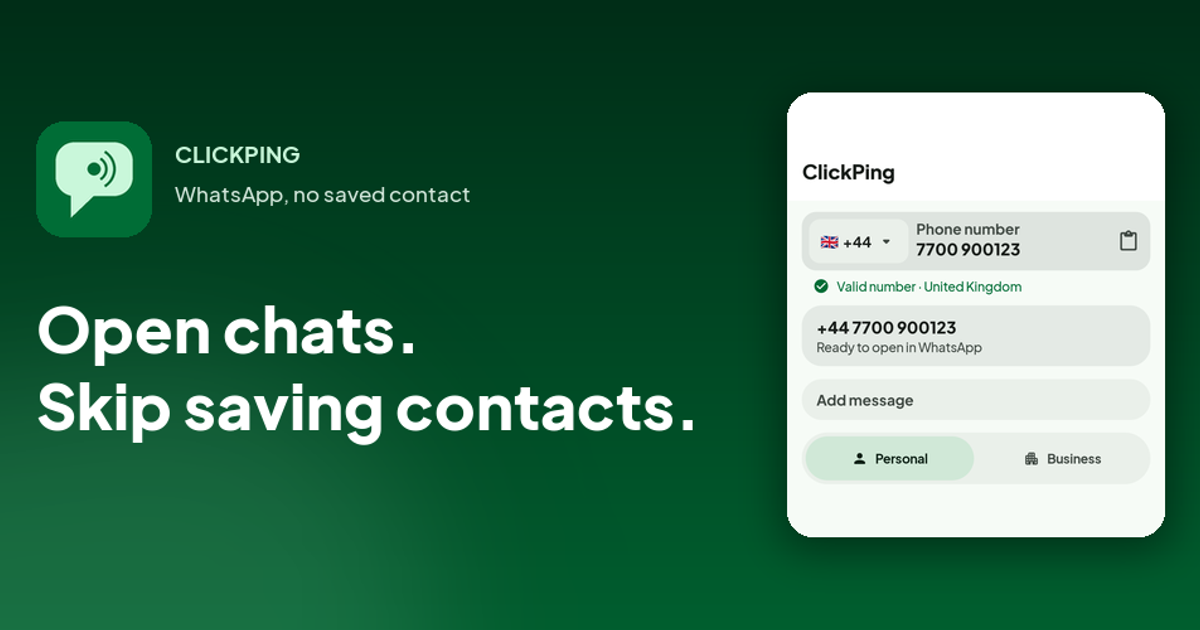
You find a QR code on a flyer, a shop window or a business card, or someone sends you an image of one. If it holds a phone number or a wa.me link, you can open that WhatsApp chat without saving a contact. This guide is about doing that on Android with ClickPing. Not affiliated with WhatsApp.
It is not about WhatsApp Web login and not about WhatsApp's own scanner. For WhatsApp Web or desktop, open WhatsApp on your phone and go to Settings > Linked devices > Link a device. To add a contact by their WhatsApp code, use the QR icon next to your name in WhatsApp Settings.
Want to message someone without saving their number? ClickPing opens the chat for you without adding a contact. Get it on Google Play or the App Store.
What this covers (and what it doesn't)
Covered: scanning a QR code, or sharing an image, that contains a phone number or a wa.me link, then opening the WhatsApp chat for that number. ClickPing opens a chat for a valid WhatsApp number without saving it to your contacts.
Not covered: logging in to WhatsApp Web or the desktop app, and adding a contact through WhatsApp's own code. Those are done inside WhatsApp, using the paths in the intro above.
What the QR code or image has to contain
The code or image needs to hold a phone number or a wa.me link. ClickPing reads that number and works from it. If there is no number in the code or image, there is nothing to open, and no chat will start.
Not every QR code holds a number. Many point to a website, a menu or a payment page, and those are outside what this guide covers.
Steps on Android
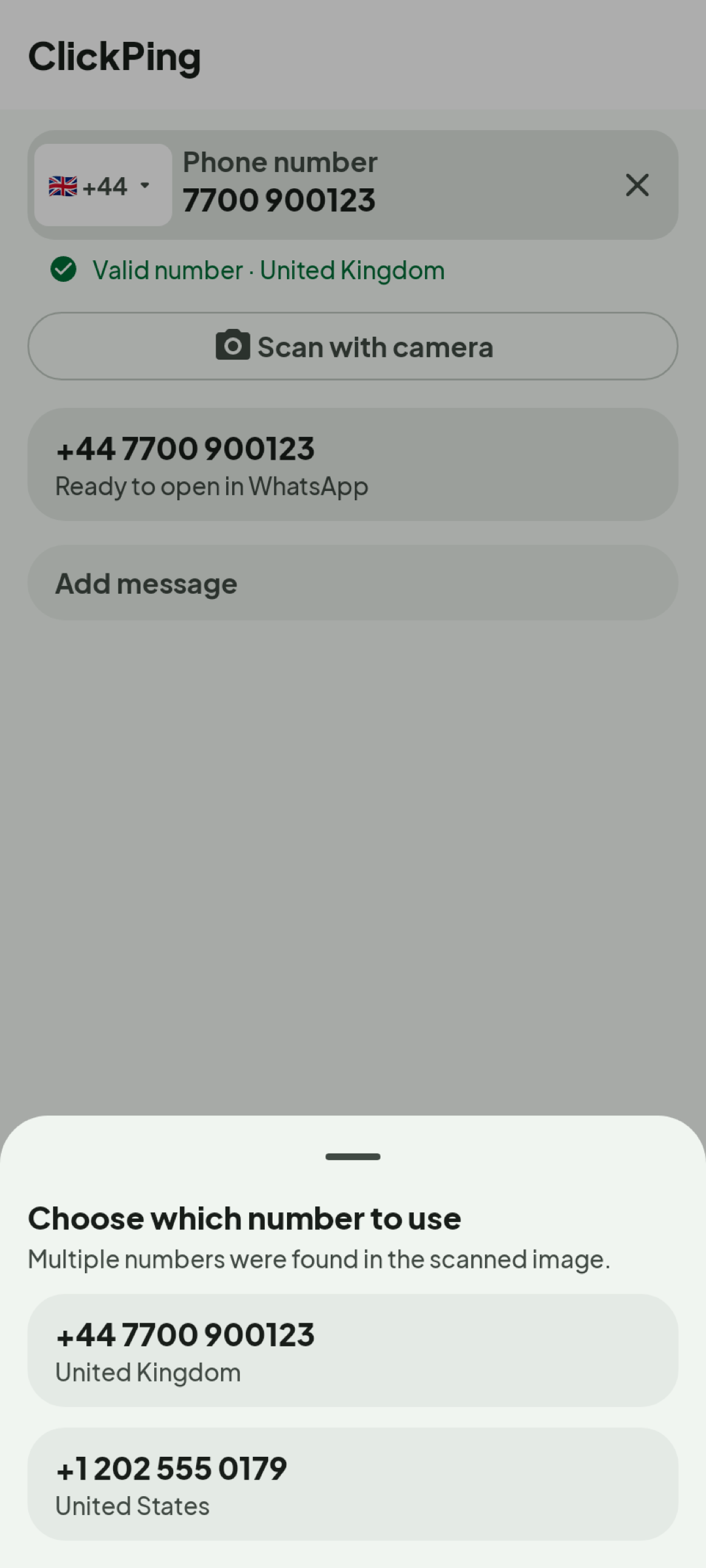
The exact screens can change between versions, so these steps are kept general.
- Open ClickPing on your Android phone.
- Choose to scan.
- Point the camera at the QR code. If you already have the code as an image, share the image into ClickPing instead.
- ClickPing reads the number and shows it to you before anything opens.
- Confirm, and the chat opens in WhatsApp.
Besides QR codes and shared images, you can scan a number with the camera, type or paste it, or share it from another app.
Pick the number and check the preview
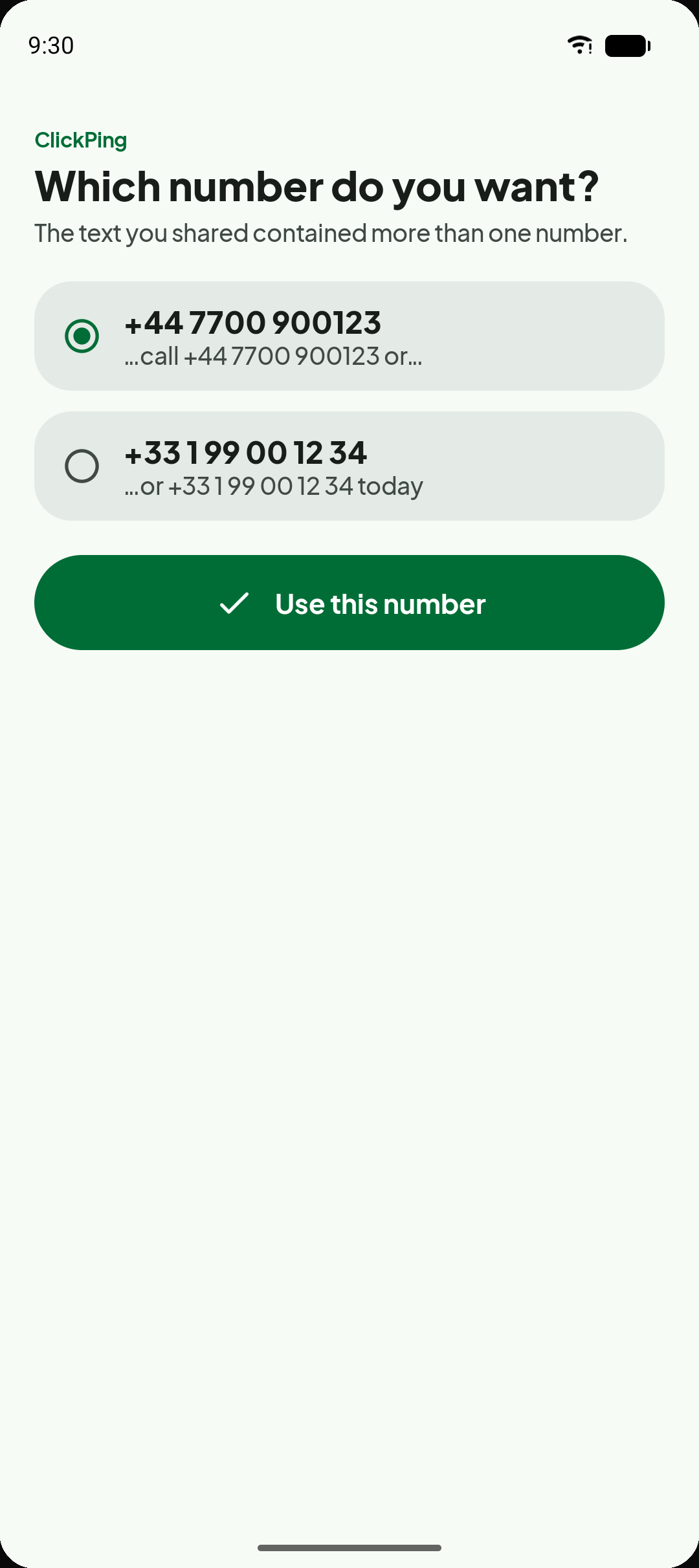
If the text or image holds several numbers, you pick the one you want to open. ClickPing sorts out the country code when it is needed and shows a preview before opening, so you can check the number it is about to use. Numbers you open are not saved to your contacts, and ClickPing keeps no list of them.
WhatsApp or WhatsApp Business
You choose whether the chat opens in WhatsApp or WhatsApp Business. ClickPing remembers your choice.
FAQ
- Is this WhatsApp Web login? No. To link WhatsApp Web or desktop, open WhatsApp on your phone and go to Settings > Linked devices > Link a device.
- Does it work on iPhone? Scanning a QR code or a shared image is Android only. This guide covers Android only.
- What if the QR code has no number in it? Then there is nothing for ClickPing to open. It needs a phone number or a wa.me link.
- Does it save the number to my contacts? No. Numbers you open aren't saved to your contacts, and ClickPing keeps no list of them.
- Can I use WhatsApp Business? Yes. You choose between WhatsApp and WhatsApp Business, and ClickPing remembers it.