How to open a WhatsApp chat from a number in a photo or text
Got a number in a screenshot, photo or email? Open a WhatsApp chat from it without saving a contact. Share a screenshot on Android, or scan or paste it on iPhone.
Published October 21, 2026
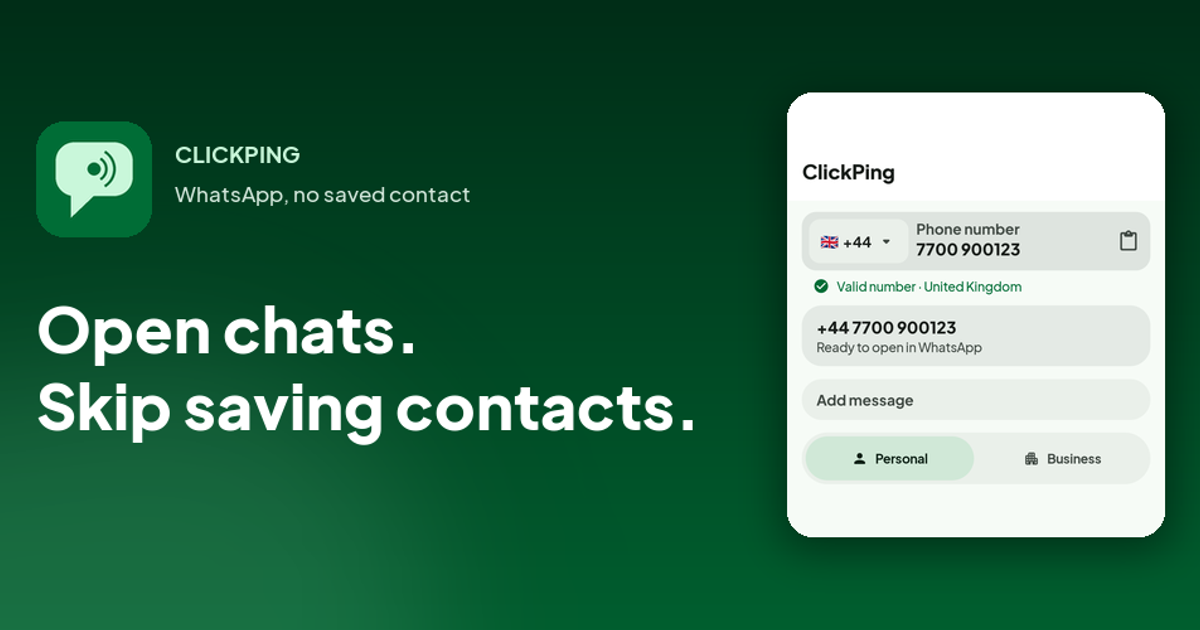
Someone sends you a screenshot with a phone number on it, or you copy a number out of an email, an invoice, or a web page. You want to message that number on WhatsApp, but saving a contact for a one-off chat feels like clutter. ClickPing opens the WhatsApp chat for a valid WhatsApp number instead. The numbers you open are not saved to your contacts, and ClickPing keeps no list of them. ClickPing works on Android and iPhone. Not affiliated with WhatsApp.
Ways to get the number in
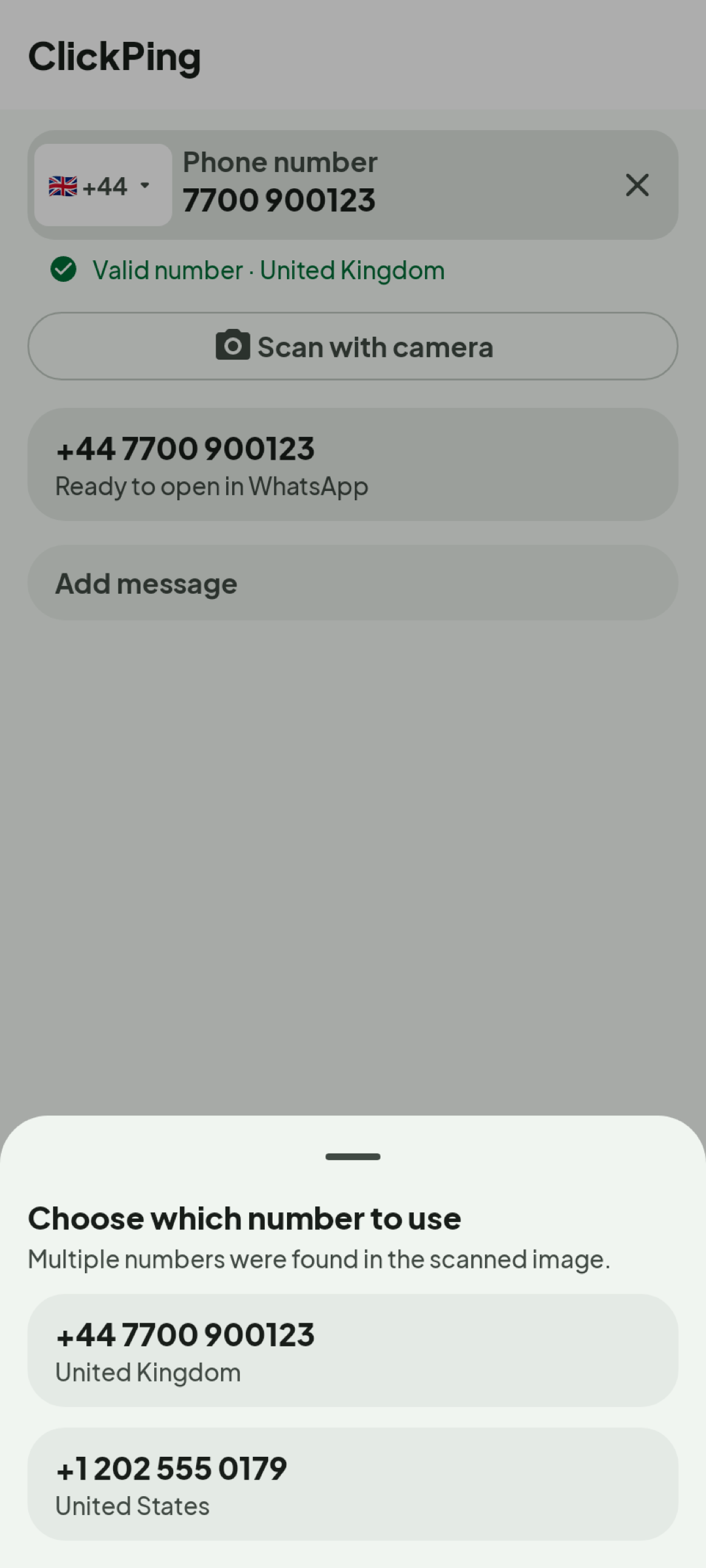
There are several ways to hand the number to ClickPing:
- Type it or paste it.
- Share it from another app, for example the one where the email is open.
- Scan it with the camera, pointing the camera at a printed number such as a business card, a flyer, or a shop sign.
On Android you can also scan a QR code or a shared image, tap a number through the "Open with" menu, or start from a home-screen shortcut or the Quick Settings tile. Those extra inputs are Android only.
Pick the number and check the preview
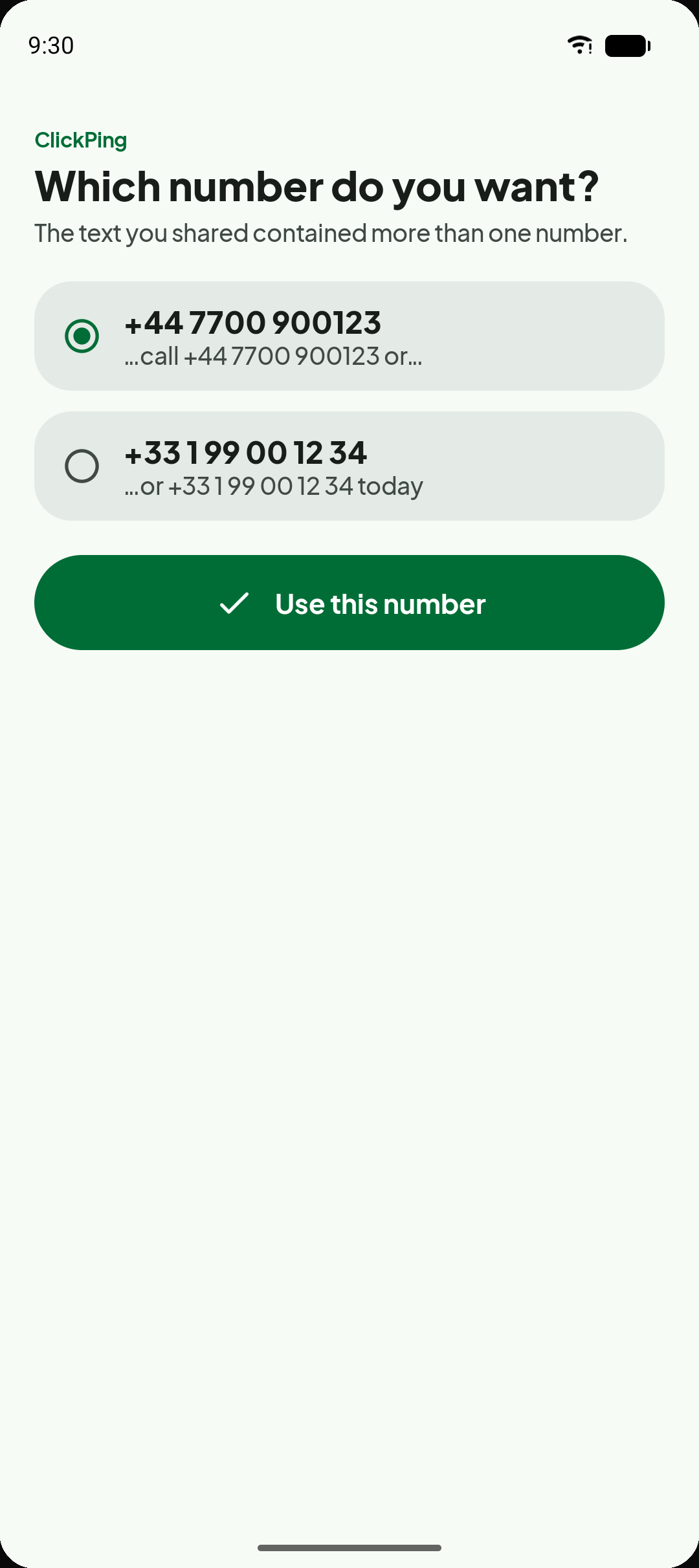
If a block of text contains more than one number, ClickPing lists them so you can pick the one you want. ClickPing also sorts out the country code when it is needed, and shows a preview before it opens anything, so you can see the number it is about to use. You confirm what it found before the chat opens.
WhatsApp or WhatsApp Business
You choose whether a chat opens in WhatsApp or WhatsApp Business, and ClickPing remembers your choice.
What happens when the chat opens
ClickPing hands the number to WhatsApp, and the chat opens there. From the same number you can also call, send an SMS, copy it, share it, or save it as a contact using your phone's own apps.
Where this helps
The same flow fits marketplace sellers answering a buyer, deliveries and bookings, independent workers taking a new enquiry, and numbers that arrive from a web page, an email, or an invoice.
A note on privacy
Numbers you open aren't saved to your contacts, and ClickPing keeps no list of them. The app shows a banner ad.
FAQ
- How do I message a number from a screenshot? Type or paste the number, or point the camera at it. On Android you can also share the screenshot to ClickPing to scan it. If there is more than one number, pick the one you want, check the preview, and the WhatsApp chat opens.
- Can I scan a number off a photo? Yes. Point the camera at the number and ClickPing reads it, then you confirm what it found before the chat opens.
- Do I need to save the number as a contact? No. The numbers you open are not saved to your contacts.
- Can I choose WhatsApp or WhatsApp Business? Yes. ClickPing remembers your choice.
- Does it work on iPhone? Yes, on Android and iPhone. Scanning a QR code or a shared image, the "Open with" menu, the home-screen shortcut and the Quick Settings tile are Android only.