How to Auto Send a WhatsApp Message on Android
WhatsApp has no built-in auto send for your own messages. Here is how to make a message go out at a set time on Android, with a worked business example.
Published October 30, 2026
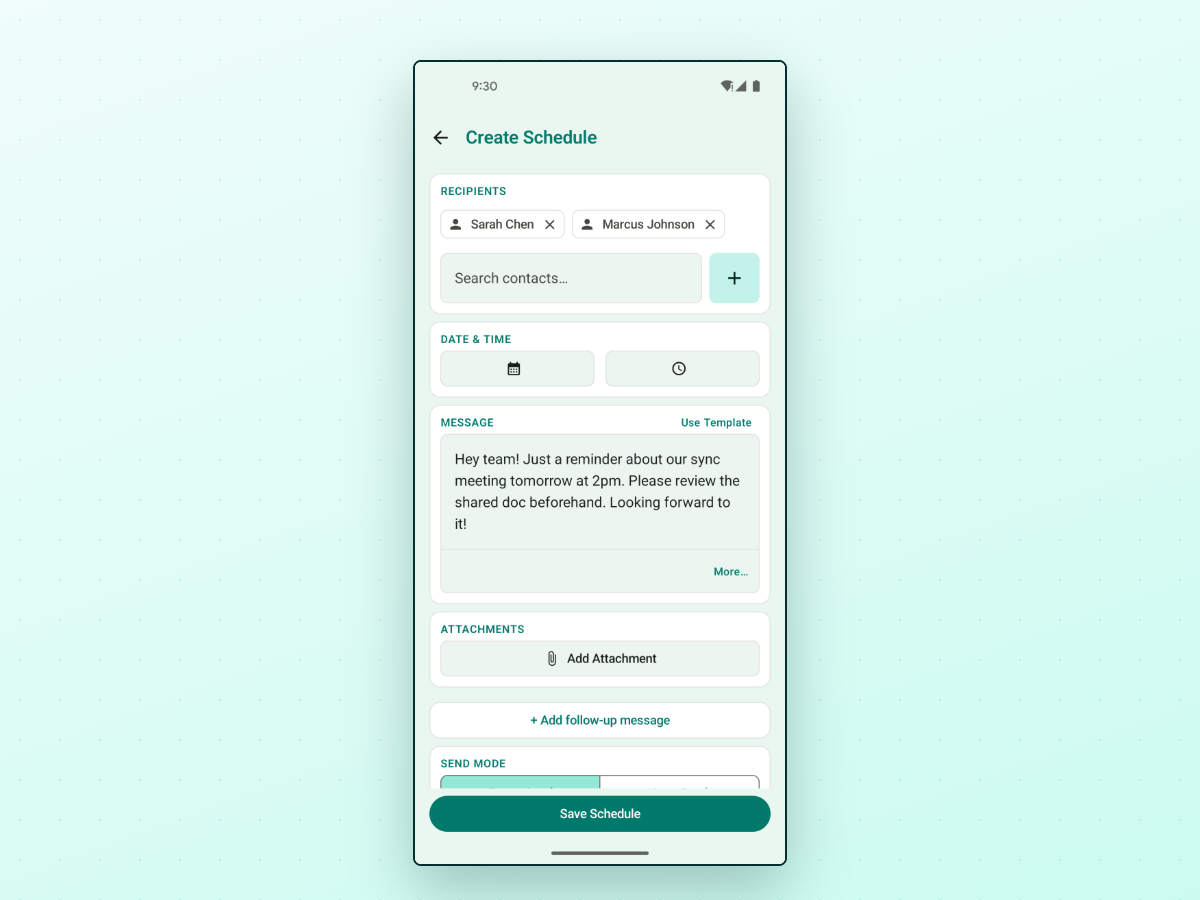
You wrote the message. You know who gets it and when. What you want is for it to auto send a WhatsApp message at that time, without you having to be at your phone. Here is what WhatsApp can and can't do, and how to set it up on Android.
Want to schedule WhatsApp messages on Android? PlannedPing is a scheduler for WhatsApp and WhatsApp Business messages. Get it on Google Play.
The short answer
WhatsApp has no built-in auto send for personal messages. You can't write a message today and tell WhatsApp to send it tomorrow at 9 am.
The WhatsApp Business app does have automatic messages, but those are auto-replies: an away message when someone writes to you after hours, or a greeting when a new contact writes first. They answer people. They don't start a conversation at a time you choose. That is a different job.
A scheduler app fills the gap. You write the message, pick the time, and the app sends it for you when the time comes. For the wider picture, see how to schedule a message on WhatsApp.
A worked example: a quote follow-up
Dana runs Dana's Painting. On Monday she sends a quote to Sam. She knows that a polite nudge two days later is a good habit, but by Wednesday she is on a ladder and forgets.
So when she sends the quote, she sets up the follow-up right away:
Hi Sam, it's Dana from Dana's Painting. Just checking you got the quote on Monday. Happy to answer any questions or adjust the scope. No rush, and thanks for considering us.
In the app, Dana doesn't type "Sam" by hand. Message templates can fill in the customer's first name and the date for her, so one saved template works for every customer. She picks Sam, picks Wednesday morning, and moves on.
The same idea works for an appointment reminder:
Hi Sam, a reminder that we start on the living room tomorrow morning. Please let me know if anything has changed.
Only message people who expect to hear from you. A timed message looks like any other message from you, so the wording should read like you wrote it that day.
How to set it up in PlannedPing
- Pick the recipient. Choose a contact, a WhatsApp group, or a saved recipient list.
- Write the message. Type it, or start from a saved template.
- Set the date and time. This is when the message should go out.
- Choose Auto Send. The other option is Tap to Send, covered below.
- Save. The schedule appears in your list.
You can also add a follow-up step to the same schedule. It is sent a set time after the first message, so Dana's quote message and her nudge can live in one schedule instead of two. If the message should repeat, see how to schedule recurring WhatsApp messages.
PlannedPing works with WhatsApp and WhatsApp Business on your phone. It does not use the WhatsApp Business API.
Auto Send vs Tap to Send
Auto Send completes the send for you at the scheduled time. It does this using Android's Accessibility Service, which you turn on during setup. The app has a Setup Center that walks you through what needs enabling.
How well Auto Send works depends on your phone and your WhatsApp version. Phone makers handle background activity differently, and WhatsApp updates can change how its screens behave. Test on your own phone first: schedule a message to yourself a few minutes ahead and see what happens before you rely on it for a customer.
Tap to Send shows a reminder notification at the scheduled time. You tap it and send. It is the safer choice when you want a last look at the message, or when a message is sensitive.
Which one fits? See manual vs auto scheduling. You choose per schedule, so you can mix both.
Free and Premium
PlannedPing is free to download. The free version shows banner ads and has limits on things like how many schedules and templates you can have. Premium is a subscription that lifts those limits.
Frequently asked questions
Can WhatsApp send a message automatically at a set time?
Not for your own messages. WhatsApp Business can auto-reply to people who write to you, but it can't send a message you wrote at a time you pick. For that you need a scheduler app.
Is auto send the same as auto-reply?
No. Auto-reply answers an incoming message. Auto send delivers a message you wrote at a time you set, to someone who hasn't written to you first.
Will Auto Send work every time?
Not guaranteed. It depends on your phone, your WhatsApp version, and whether the Accessibility Service stays enabled. Test it on your phone first, and use Tap to Send for messages that matter most.
Can I use it with WhatsApp Business?
Yes. PlannedPing works with both WhatsApp and WhatsApp Business on your phone.
Related
- How to schedule a message on WhatsApp
- Manual vs auto WhatsApp scheduling
- How to schedule recurring WhatsApp messages
PlannedPing is independent and is not affiliated with WhatsApp or Meta.