How to Schedule Recurring WhatsApp Messages on Android
Schedule recurring WhatsApp messages on Android: honest options from calendar reminders to repeat sends in PlannedPing, plus templates and reliability limits.
Published September 24, 2026

You want the same WhatsApp message to go out again and again — rent on the first of the month, a weekly team check-in, or a birthday wish every year. Scheduling recurring WhatsApp messages on Android sounds simple until you look for a repeat button and find there isn't one.
WhatsApp is built around sending now. Anything on a cadence lives outside the chat — a reminder you act on, a business workflow, or an Android app that automates the send on your phone. This guide walks through those paths fairly, including where they break down, and how repeat options work in a dedicated scheduler.
Why repeat WhatsApp messages are hard on Android
Recurring messages combine two jobs: remembering that today is the day, and sending the same text to the right chat. Calendar apps handle the first; WhatsApp handles the second only when you press send. What most people want is the send step on a schedule without rebuilding the habit every week.
On Android that usually means background work at a specific time — alarms, notifications, or accessibility-based automation — and manufacturers differ in how aggressively they restrict it.
Can WhatsApp send recurring messages by itself?
Not today, in the way most people mean. Normal WhatsApp and WhatsApp Business on Android have no setting to "send this every Monday at 9 am." Starred messages, pinned chats, and mutes do not schedule outbound sends.
Beta outlets have reported native scheduled messages in development. Until that ships on your phone, assume repeat WhatsApp message workflows need a workaround or a third-party Android scheduler.
Option 1: Phone or calendar reminders (manual each time)
Write the message once, then create a recurring event or reminder in Google Calendar, Samsung Reminder, or another app you already use. When the alert fires, open the chat and send.
Good for: low volume, wording you want to review every time, or groups where the text changes week to week.
Limits: Dismiss the notification while busy and the send may slip. This is remember to send every day, not send whatsapp message every day automatically — slower, but you stay in control.
Option 2: WhatsApp Business built-in tools
WhatsApp Business automation targets incoming messages, not repeating outbound reminders on a clock:
| Tool | What it actually does |
|---|---|
| Away message | Auto-replies when someone messages you outside hours you set |
| Greeting message | Auto-replies the first time a new contact writes to you |
| Quick replies | Saved snippets you insert manually; you still press send |
| Labels | Organize chats — no timed send |
A weekly WhatsApp reminder to your team still requires you (or another tool) to send it. Quick replies speed up each send but do not replace a scheduler. For appointment-style wording, see WhatsApp appointment reminders for salons and barbers.
Option 3: Desktop or browser extension schedulers
Some people schedule from WhatsApp Web via extensions or desktop companions. Tradeoffs: the linked session must stay active, quality varies when the web client changes, and you grant access to a live session. Fine for occasional one-offs from a laptop; less ideal for daily or weekly cadences on a phone you carry every day.
Which repeat interval matches your reminder?
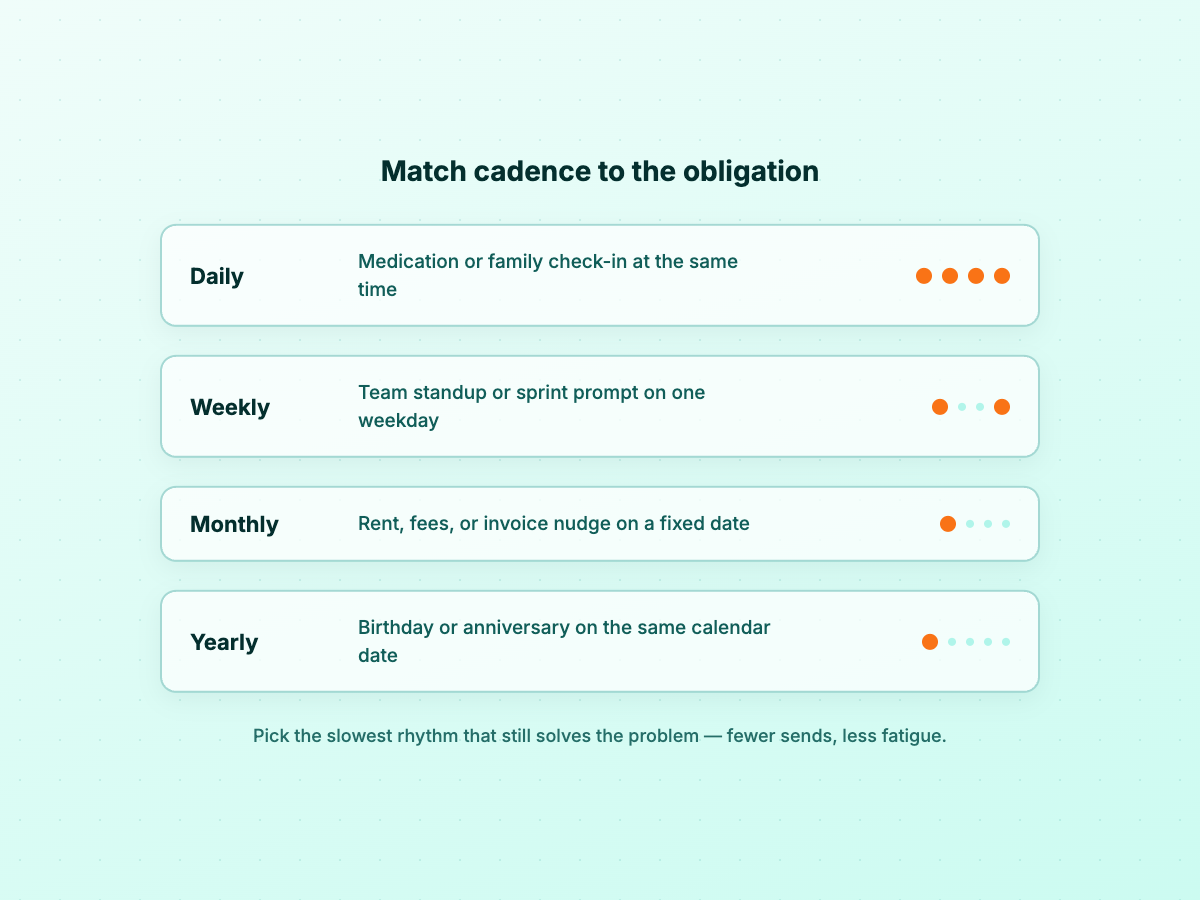
Before you touch any app, pick the cadence that matches the obligation — not the anxiety. Slower is usually kinder to recipients. A weekly whatsapp reminder beats a daily ping when the content does not change.
| If the goal is… | A sensible starting cadence |
|---|---|
| Daily medication or family check-in | Daily (same time each day) |
| Weekly team standup or sprint prompt | Weekly (specific weekday) |
| Rent, fees, or invoice nudge | Monthly (same date or last day of month) |
| Birthday or anniversary | Yearly (same date each year) |
How PlannedPing handles repeat schedules on Android
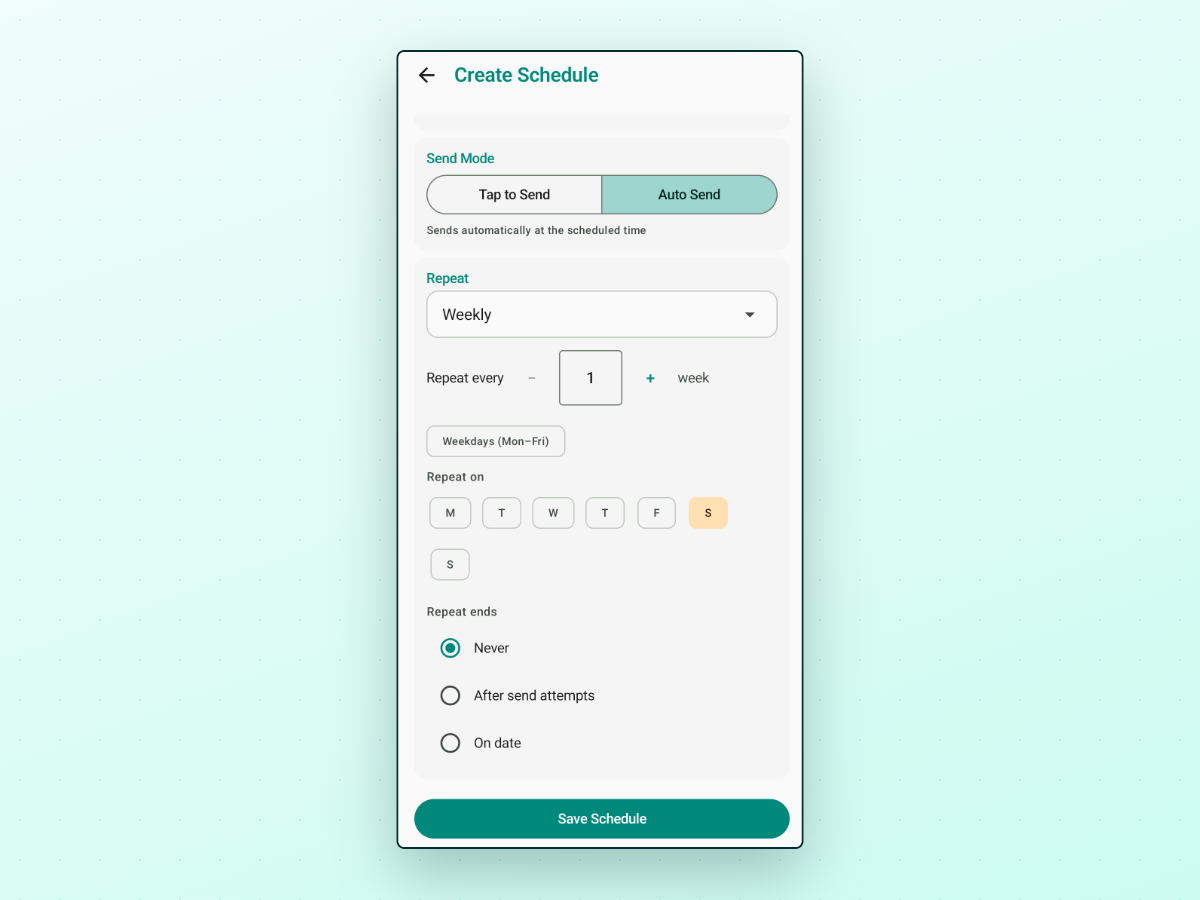
PlannedPing schedules WhatsApp and WhatsApp Business messages on Android, including repeats. It is not affiliated with WhatsApp or Meta; it uses the same accessibility-based model described in how to schedule WhatsApp messages on Android.
On Create Schedule, open Repeat (starts at Does not repeat) and choose Hourly, Daily, Weekly, Monthly, or Yearly. Repeat every sets an interval — for example every 2 weeks or every 3 months.
Weekly repeats add Repeat on weekday circles and a Weekdays (Mon–Fri) shortcut. Monthly repeats include Last day of month when it applies. Yearly repeats anchor to the date you schedule from. You still set recipients, message body, first occurrence time, and send mode as on any one-time schedule.
Set when a repeat should stop
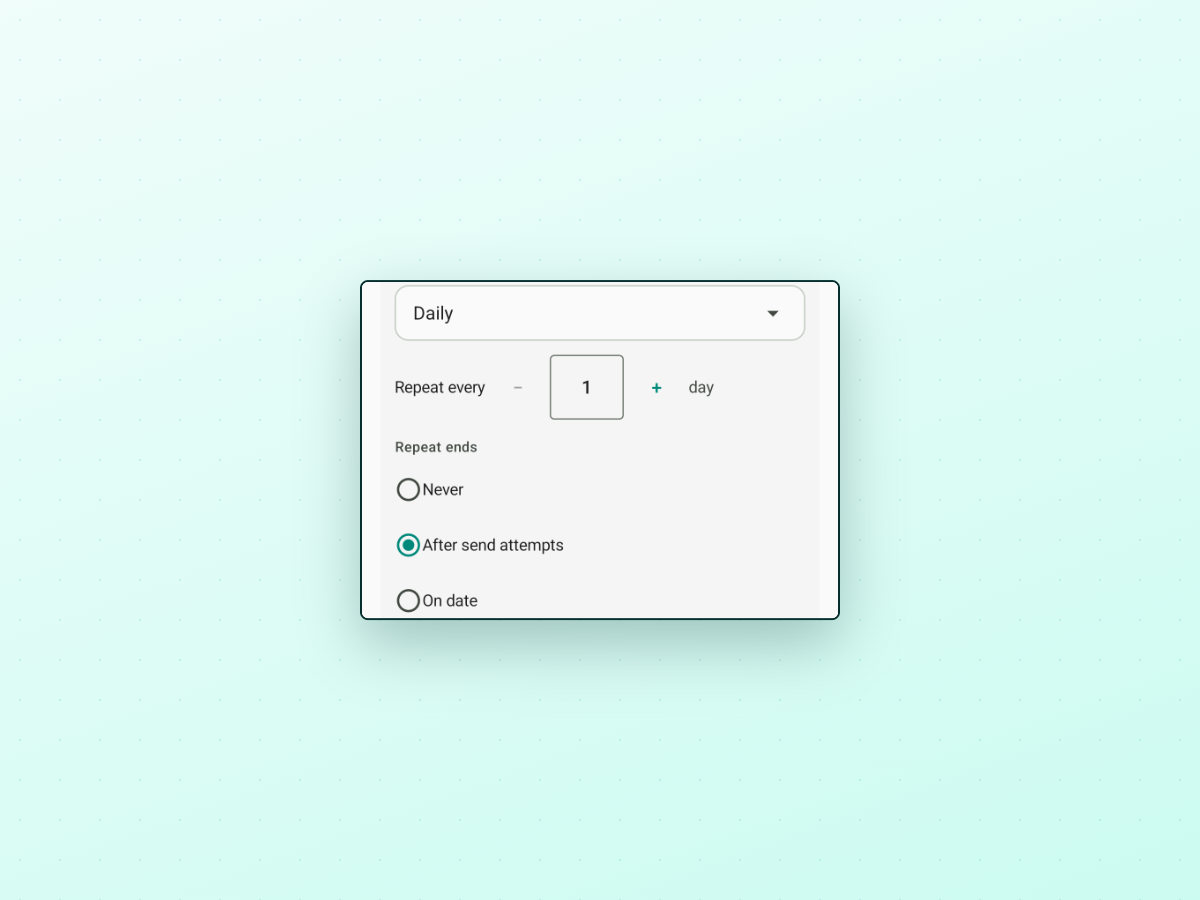
Open-ended repeats are easy to forget you created. PlannedPing's Repeat ends section offers:
- Never — continues until you pause, cancel, or delete.
- After send attempts — stops after a count you enter (send attempts, including blocked or failed tries, not only successful deliveries).
- On date — stops after the last occurrence on or before the date you pick.
For "remind five times, then stop," use After send attempts. For a season with a known end, On date is clearer.
Manual vs auto send for repeating messages
Auto Send hands delivery to PlannedPing at the scheduled time; Tap to Send fires a notification so you confirm each occurrence.
Use auto when the text is stable, the recipient expects the message, and Android setup is complete (accessibility and battery optimization in the Setup Center). Use tap-to-send when you want a human gate every time — sensitive threads or last-second edits. See manual vs auto WhatsApp scheduling. You can mix modes per schedule.
Message templates you can reuse
Adapt names and dates; only send to people who expect these messages.
Daily family check-in:
Good evening — just checking in. How was your day? A thumbs-up is fine.
Weekly team prompt:
Morning team — share your top priority this week and anything blocking you.
Monthly rent or fee reminder:
Hi [name], friendly reminder that [rent/fee] for [month] is due on [date].
Yearly birthday:
Happy birthday, [name]! Hope today is a good one.
More business tone in WhatsApp Business follow-up message examples.
Keep recurring schedules visible in one list
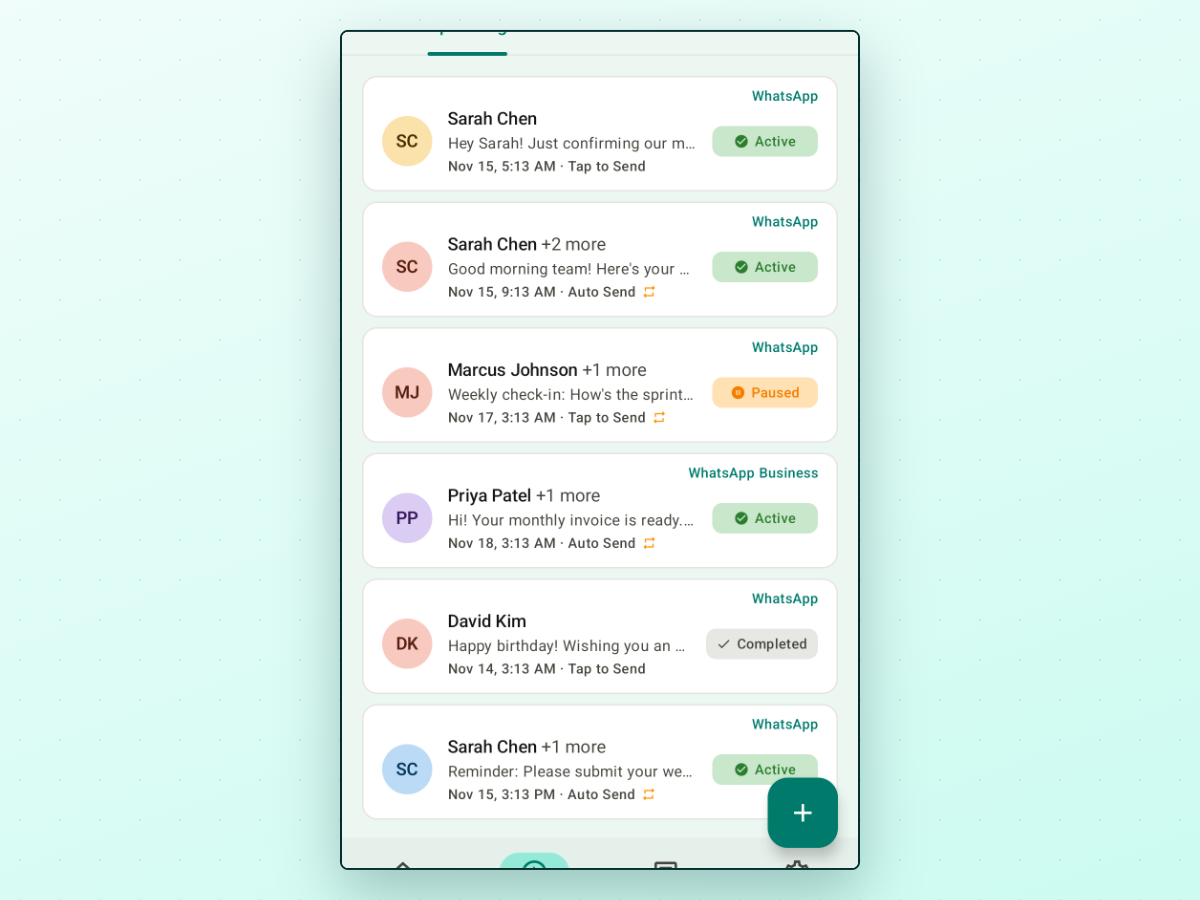
PlannedPing's Schedules tab groups upcoming, paused, and completed entries. Recurring items show a repeat icon next to the send mode so you can spot a repeat whatsapp message series at a glance. Open a schedule to pause, snooze, duplicate, or delete without rewriting the rule.
What can still go wrong on Android
No Android scheduler promises carrier-grade uptime. Hands-free repeats depend on:
- Accessibility service — Auto Send needs it enabled; if Android disconnects it, scheduled sends fail until you re-enable it.
- Battery optimization and OEM restrictions — can delay alarms; the Setup Center flags steps for Samsung, Xiaomi, Huawei, and others.
- Device and network at send time — the phone must be on and WhatsApp needs connectivity when the message goes out.
Treat the first few occurrences as a test run: send to yourself or a test chat, confirm the repeat advances as expected, then point it at the real audience.
Frequently asked questions
Does WhatsApp have a built-in recurring message feature?
Not for scheduling your own outbound messages on a repeating clock. Business automation replies to inbound chats; it does not replace a weekly reminder you initiate.
Can I send a WhatsApp message every day automatically on Android?
Only with tooling outside WhatsApp — typically an Android scheduler using alarms and, for hands-free send, accessibility automation — or by responding to a daily reminder yourself. Any automatic path depends on permissions, battery settings, and the phone being available at send time.
What is the difference between a weekly and monthly WhatsApp reminder?
Weekly fires on the weekdays you select (for example every Monday); monthly on a chosen day of the month (such as the 1st or last day). Pick weekly for standups and monthly for bills.
Are browser extensions safe for repeating WhatsApp messages?
They vary. Extensions need access to your WhatsApp Web session and may break when the web client updates. For long-running repeats on a phone you carry every day, a dedicated Android app with clear permission disclosure is usually easier to audit than a random extension.
Will recipients know the message was scheduled?
WhatsApp does not label a message as "scheduled" in the chat. It looks like a normal message from you — which is why consent and expected content matter on repeats.
If you want to schedule recurring WhatsApp messages on Android with hourly, daily, weekly, monthly, or yearly options — intervals, weekday selection, and end conditions — PlannedPing is one option built for that workflow. Start with one low-stakes repeat, verify it fires twice the way you expect, then expand.