WhatsApp Appointment Reminders for Salons and Barbers
No-shows cost a chair its whole hour, and most clients who miss one simply forgot. A reminder the day before fixes a lot of that — here's how to send them over WhatsApp without turning it into a second job.
Published August 11, 2026
A client books a cut for Thursday at 3:30. It's Thursday at 3:45, the chair is empty, and you're not getting that hour back. Nine times out of ten they weren't being rude — they booked eleven days ago and forgot.
That's the whole problem, and it has an unglamorous fix: remind them the day before. Salons and barbershops reach for WhatsApp to do it because that's already where clients answer, and because a reminder they can reply to is a reminder that lets them reschedule instead of vanish.
This guide covers the practical ways to send those reminders, what each costs you in time, the message wording, and the rules you need to respect so your number stays healthy.
Who this actually helps
Not every business needs this. It earns its keep when:
- Bookings are made well in advance. A walk-in barbershop has no no-show problem. A salon booking colour appointments three weeks out has a real one.
- The slot is long or the service is prepped. A 20-minute trim that goes unfilled stings. A three-hour balayage with mixed product is a different loss.
- You're a one-chair or two-chair operation. There's no front desk to make the calls, so the reminder either gets automated or it doesn't happen.
- Clients rebook on a rhythm. Every four weeks, every six weeks. Those are the appointments most easily forgotten, because nothing about them is special.
If you run a busy multi-stylist salon with a receptionist and proper booking software, skip ahead — option 1 is probably already sitting unused in a settings screen you've never opened.
First: what you're actually trying to send
Worth being precise, because "appointment reminders" gets used for two very different messages:
- The confirmation, sent right after booking: "you're booked for Thursday the 14th at 3:30." Useful, but it's not what prevents no-shows — nobody forgets an appointment they made ten minutes ago.
- The reminder, sent 24 hours or so before: "see you tomorrow at 3:30." This is the one that recovers slots, because it arrives while the client can still tell you they can't make it.
Send only one of them, send the reminder. Everything below is about that message.
Option 1: Your booking software already does this
If you take bookings through a salon booking platform, appointment reminders are almost certainly a built-in feature — usually by SMS or email, sometimes by WhatsApp, depending on the platform and your region. Open its notification or reminder settings before you build anything yourself.
Why it's the best option when it applies: the reminder is tied to the actual booking. Move the appointment and the reminder moves with it. Cancel it and the reminder disappears. Nothing else in this article gives you that, because nothing else knows your calendar.
Where it falls short: WhatsApp delivery through a booking platform generally runs on the official WhatsApp Business Platform, which means an approved sender and pre-approved message templates, arranged by whoever provides your booking software. Some platforms support it; many don't offer it at all and will send an SMS instead. If your clients read WhatsApp and ignore SMS — which is the situation in a lot of markets — that gap is the reason people go looking for something else.
Check this first anyway. Building a manual system on top of software that already does it automatically is a bad trade.
Option 2: WhatsApp Business built-in tools
WhatsApp Business is a separate app from regular WhatsApp, and it has genuinely useful automation — but be clear-eyed about what that automation does, because none of it sends a reminder at a time you choose:
- Away messages auto-reply to people who message you outside hours you set. Triggered by them, not by the clock.
- Greeting messages auto-reply the first time a new contact writes in.
- Quick replies save canned text behind a shortcut, so typing a reminder takes two keystrokes instead of forty. You still press send yourself, one chat at a time.
- Labels mark chats — "booked Thursday", "needs rebooking" — so you can find the right people to message.
Used together, labels plus quick replies are a real system: each evening, open the label for tomorrow's clients, fire the quick reply into each chat. For a shop with four or five appointments a day, that's five minutes and no extra software. It's the most underrated option here.
What it isn't: automatic. If your evening ends at a client's chair rather than at your phone, this is the system that quietly stops happening in week three.
Option 3: A calendar reminder and your own thumb
The zero-setup version. When you book someone, add a calendar event for the appointment and set its notification for the day before. When it fires, open the chat and send the reminder.
Why it's good: nothing new to install, nothing to grant, and it's tied to the appointment itself — if you move the booking in the calendar, the reminder moves too. That's the same property that makes option 1 strong, with nothing to set up.
Where it falls short: it fires once per appointment, so a full book means a stream of notifications through your evening, each needing you to open WhatsApp and type. It works beautifully at three appointments a week and falls apart at three a day.
Option 4: An Android scheduling app
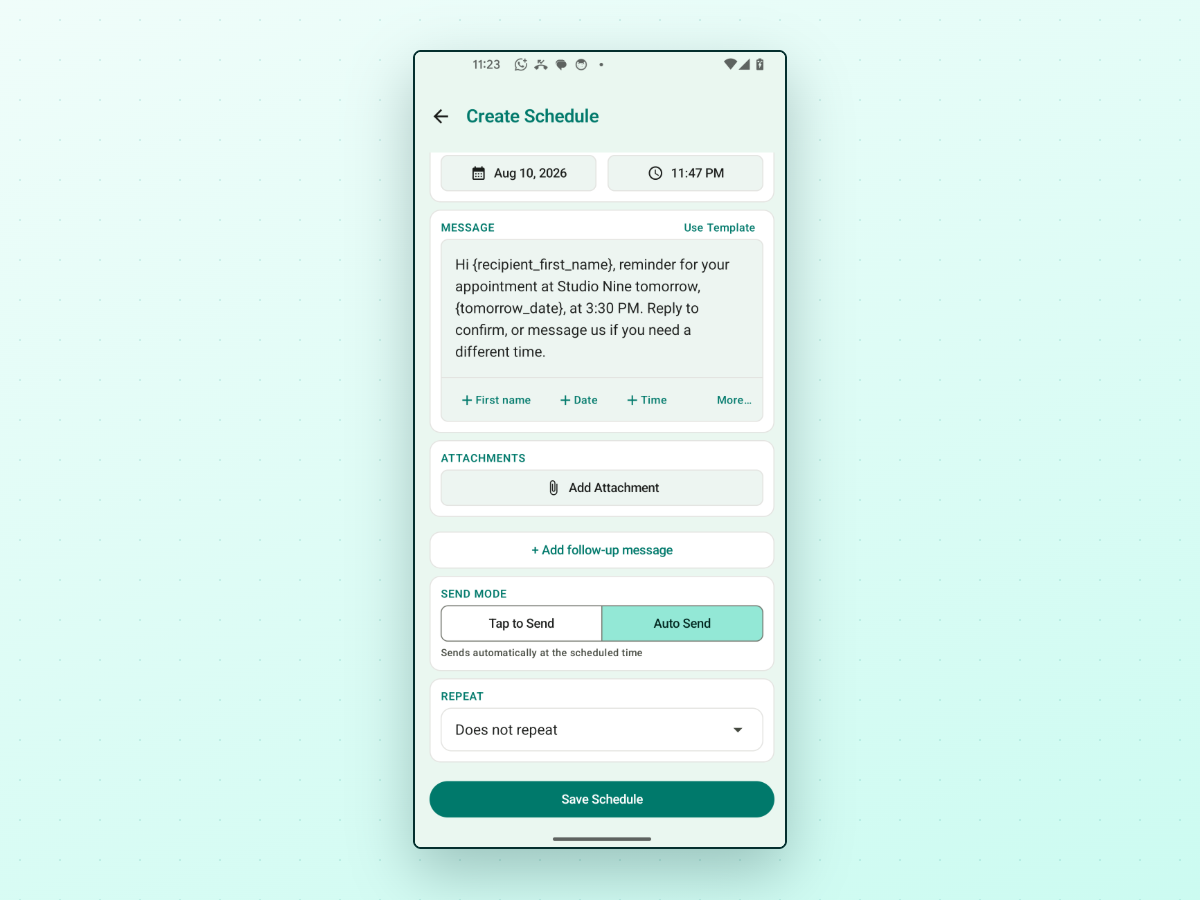
WhatsApp itself has no scheduling hook — no official way to hand it a message and a time. So Android scheduling apps do it by driving the WhatsApp interface on your phone at the scheduled moment: opening the chat, placing the text, tapping send, the same way your thumb would. On Android that's typically done through the accessibility service, which is why these apps ask for it.
That mechanism has honest consequences, and any shop relying on it should know them before the first client is depending on it:
- Accessibility access is a real trust decision. You're granting one app the ability to observe and act inside another. Grant it deliberately, to an app whose privacy posture you've actually looked at.
- Battery optimization can kill it. Several Android manufacturers freeze background apps aggressively. An app that's asleep at 6 pm doesn't send your 6 pm reminders. Exempting the scheduler from battery optimization is often the difference between working and not.
- Sending unattended means getting past your lock screen. This is the prerequisite most people don't see coming. If the phone is locked at 6 pm, something has to unlock it before WhatsApp can be driven — which is why an app offering fully automatic sending will typically need your device lock password stored inside it, on top of accessibility access. Modes where the app prompts you and you tap once avoid that, in exchange for you having to be there.
- The phone has to be on and available at send time — which for a shop phone that lives in a drawer is worth a thought.
- It doesn't know your calendar. This is the big one. A scheduling app sends the message you told it to at the time you told it. If the client reschedules, you have to go and change the reminder yourself, and if you forget, you'll cheerfully remind someone about an appointment that no longer exists.
What you get in exchange is the thing options 2 and 3 can't give you: the reminder goes out whether or not you're holding your phone.
Personalising without retyping

The reason a scheduled reminder feels less robotic than it sounds is placeholders — short tokens in the message that get replaced with real values when it sends.
The useful trick for appointment reminders is that these resolve at send time, not when you write the message. A token for tomorrow's date, in a reminder scheduled for the day before the appointment, prints the appointment date — without you typing it. Write the message once, reuse it for every client, and the name and date fill themselves in.
Be aware of the limit, because it shapes how you work: placeholders like these know the send time, not your calendar. There's no "appointment time" token, because the app has no idea what time the appointment is. The time has to be typed into each reminder yourself — which in practice means one scheduled reminder per client, not one broadcast to a list. That's slower to set up, and it's also the thing that stops this from becoming a mass-messaging habit.
The wording that works
Keep it short, name the shop, state the time, and make replying easy. A reminder that reads like a marketing blast gets ignored.
Standard day-before reminder:
Hi [name], reminder for your appointment at [shop] tomorrow, [date], at [time]. Reply to confirm, or message us if you need a different time.
When you want a firmer confirmation (long or high-value services):
Hi [name], you're booked at [shop] tomorrow, [date], at [time] — that's [service], about [duration]. Reply YES to confirm, or let us know as early as you can if you need to move it. See you soon!
For a chair you'd like filled if they cancel:
Hi [name], see you tomorrow at [time] for your appointment at [shop]. If anything's changed, tell us today and we'll get the slot back on the book — no problem at all.
Rebooking nudge (for clients on a rhythm, sent a few weeks after the last visit — this one is outreach, not a reminder, so see the consent section below):
Hi [name], it's been about six weeks since your last cut at [shop] — want me to hold your usual slot? Reply and I'll book it in.
After a no-show, which is a message worth having ready and worth sending without heat:
Hi [name], we missed you today. Things happen — message us when you'd like to rebook and we'll find a time.
Three wording notes that matter more than they look:
- Say the shop name. Clients book at several places. "Your appointment tomorrow at 3:30" from an unsaved number is a message that gets ignored.
- Ask for a reply. The point of using WhatsApp instead of SMS is that replying is frictionless. A reminder that invites a reschedule turns a no-show into a moved appointment.
- Don't stack emoji or offers into it. A reminder carrying a promotion reads as marketing and gets muted along with the marketing.
Consent, and keeping your number healthy
This is the section to not skim, because the downside is your business number.
- Only message people who gave you their number for this. A client who booked an appointment and handed over a mobile is expecting to hear about that appointment. That same client did not necessarily agree to your promotions. Reminders are wanted; blasts are not.
- Ask, once, at booking. "Is it OK if I send you a WhatsApp reminder the day before?" It takes two seconds, it settles the question permanently, and if the answer is no you've learned something useful about that client rather than finding out by being blocked.
- Handle opt-outs immediately. If someone says stop, stop — for everything, including reminders if that's what they meant. Note it wherever you keep client details.
- Don't bulk-send. WhatsApp's rules prohibit unsolicited and automated bulk messaging, and numbers that send many similar messages to people who don't reply are exactly what its spam detection is built to catch. The reasonable pattern is a handful of individual reminders a day to clients who booked. Blasting a contact list is how a number gets flagged, and no app changes that.
- A blocked or reported number is not recoverable on a schedule. If your shop's number goes down, so does the channel your clients use to book. That's a heavier risk than any missed slot.
A cadence that actually reduces no-shows
You don't need many messages. You need the right one.
- One reminder, 24 hours before. This is the workhorse. Early enough that the client can still rearrange their day, late enough that they won't forget again.
- Optionally, a short one on the morning of — but only for long or high-value appointments. For a 20-minute trim it's noise.
- Nothing else. Two reminders for one haircut is where clients start muting the shop.
If you're currently sending nothing, add the 24-hour reminder and change nothing else for a month. Count your no-shows before and after. That's the only measurement that matters, and it's more honest than any claimed percentage in an article — including this one.
What each option costs you
| Booking software | Business labels + quick replies | Calendar reminder | Scheduling app | |
|---|---|---|---|---|
| Sends without you | Yes | No | No | Only in its automatic mode |
| Knows when a booking changes | Yes | You do | Yes, if you move the event | No — you edit it manually |
| Setup effort | Low, if you have it | Low | None | Moderate (permissions, battery) |
| Ongoing effort | None | Daily, a few minutes | Per appointment | Per appointment to schedule |
| Works at 3 appointments/day | Yes | Yes | No — an evening of notifications | Yes |
| Works at 15 appointments/day | Yes | Gets heavy | No | Setup time adds up |
| Extra permissions to grant | No | No | No | Accessibility, plus a lock password for unattended sending |
Read that table honestly and a lot of shops land on option 1 or option 2. The scheduling app earns its place in a specific gap: you don't have booking software that sends WhatsApp reminders, your evenings are unreliable, and you'd rather the message went out on its own.
If you go the scheduling-app route
A short checklist, worth ten minutes once:
- Grant accessibility access deliberately, having read what you're granting and to whom.
- Exempt the app from battery optimization, and check for a manufacturer-specific "auto-start" or "protected app" toggle — several Android brands have one beyond the standard setting.
- Test a reminder on yourself a few minutes out, before a real client is relying on it.
- Decide, deliberately, between unattended and prompted sending. Unattended sending generally requires handing the app your device lock password so it can wake the phone; the prompted alternative asks you to tap a notification and needs no such thing. Whichever you pick, don't solve the lock-screen problem by removing your screen lock — it's a shop phone with client numbers on it.
- Build the habit of editing the reminder when a booking moves. This is the failure mode that embarrasses you in front of a client, and it's the one no setting prevents.
- Re-check after major WhatsApp or Android updates. The mechanism depends on the WhatsApp interface staying where it was.
Where this leaves you
- You have booking software → open its reminder settings first. Nothing else stays in sync with your calendar.
- A handful of appointments a day, and you're on your phone in the evening → WhatsApp Business labels plus quick replies. Five minutes, no extra software.
- A few appointments a week → a calendar reminder and send it yourself.
- No booking software, unreliable evenings, reminders that need to go out regardless → an Android scheduling app, set up properly and tested.
If you land in that last group and want to schedule WhatsApp or WhatsApp Business reminders from Android, PlannedPing is one option built for this workflow: reminders composed ahead of time with the name and date filled in at send, a choice between Auto Send, which goes out on its own at the scheduled time, and Tap to Send, which notifies you and sends when you tap, and no account or login — schedules stay on the phone. Both modes need accessibility access; Auto Send additionally needs your device lock password, per the checklist above. What it does and doesn't do is on the features page; check it against the table above before you commit your evenings to it.