WhatsApp Message Templates for Follow-Ups: Copy-and-Paste Examples
Ready-to-copy WhatsApp follow-up templates for quotes, enquiries, appointments and payments, plus how to save them so you never retype the same message.
Published October 27, 2026
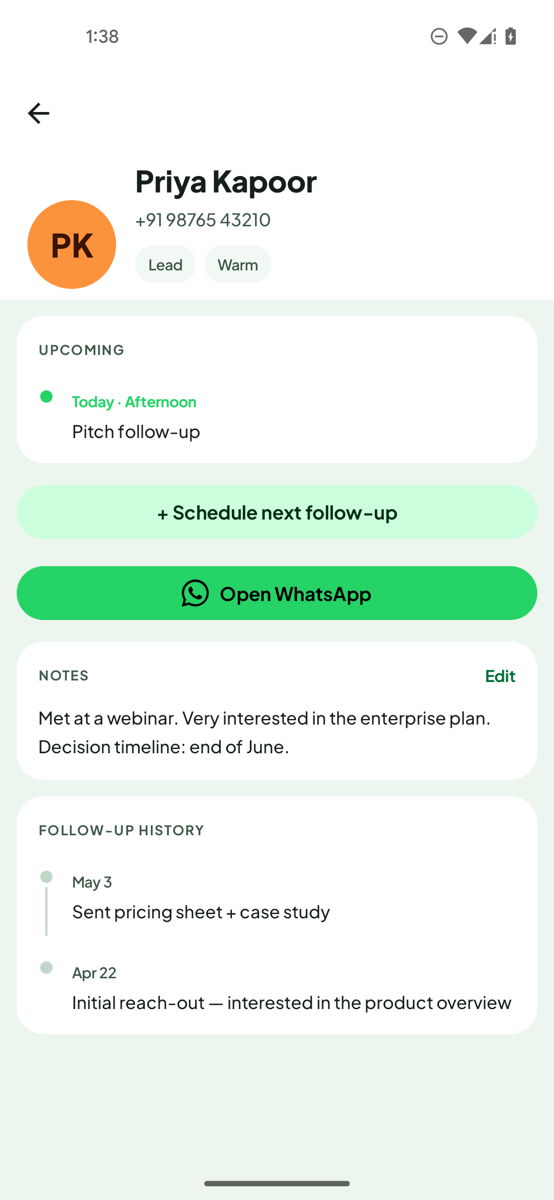
Here are WhatsApp message templates for follow-ups you can copy and paste today. Replace the words in brackets, keep the message short, and end with one easy question. If you send the same ones often, save them as templates in LeadPing on Android and reuse them in a tap.
Save your go-to messages once. LeadPing stores reusable follow-up templates and reminds you when to send them. Get it on Google Play.
Templates to copy
After sending a quote
Hi [name], just checking you received the quote I sent on [day]. Happy to answer any questions. Does it work for you?
After an enquiry with no reply
Hi [name], following up on your enquiry about [product or service]. Is it still something you're looking for?
Confirming an appointment
Hi [name], a quick reminder about our appointment on [day] at [time]. Does that still suit you?
Gentle second nudge
Hi [name], I know things get busy. I wanted to follow up on [topic]. Should I check back next week instead?
Payment reminder
Hi [name], a friendly reminder that invoice [number] for [amount] is due on [date]. Let me know if you need anything from me.
After a meeting or call
Hi [name], thanks for your time today. As discussed, [next step]. I'll check back on [day].
Last message
Hi [name], I'll stop chasing so I don't clutter your chat. If [topic] comes up again, message me any time.
Tips that keep follow-ups welcome
- Keep it to two or three lines.
- Use their name and refer to the earlier message.
- Ask one clear question they can answer with a word.
- Space follow-ups out, and stop after a couple. See how to follow up on WhatsApp without being annoying.
Save them in LeadPing
These steps are for Android.
- Open LeadPing and go to Library, then Templates.
- Tap + to create a template and give it a name.
- Write the message. Variables such as
{{name}},{{first_name}},{{my_name}}and{{phone}}fill in for each lead, for example: Hi {{first_name}}, following up on our recent conversation. - When you schedule a follow-up for a lead, pick a template.
- When the reminder is due, tap Open WhatsApp on the notification. The chat opens with your message already typed. You press send.
LeadPing never sends the message for you. The free version keeps up to 10 templates, and LeadPing Plus lifts that limit.
FAQ
- Are these WhatsApp Business message templates? No. They are plain messages you copy and send yourself. WhatsApp Business API templates are a different, pre-approved feature and are not covered here.
- Can I use them in WhatsApp Business? Yes, the same text works in WhatsApp or WhatsApp Business.
- How many templates can I save in LeadPing? Up to 10 on the free version.
- Does LeadPing fill in the name automatically? Yes, if the template uses a variable such as
{{name}}.