How to Save a WhatsApp Status Before It Disappears (Android)
WhatsApp statuses vanish after 24 hours. Here's how to save or download them on Android — by screenshot, screen recording, file manager, or a status saver app.
Published October 14, 2026

You viewed a status worth keeping — a friend's photo, a video, an announcement from a business — and you already know how this ends. In 24 hours it is gone. WhatsApp Status updates disappear after 24 hours, and WhatsApp has no save button for other people's statuses.
This guide walks through the genuine ways to save a WhatsApp status on Android — from tools already on your phone to a dedicated WhatsApp status saver app — with each option's limits stated plainly, so you can pick what fits.
Who runs into this
- One specific photo or video you want to keep before it expires.
- Your own posts you would like to look back on later.
- Business or community statuses — menus, flyers, announcements — you need on file.
- Anything you keep missing, because you only think of saving it hours later.
Option 1: Screenshot or screen recording
Both are built into Android — nothing to install.
Screenshot a photo status:
- Open the status full-screen in WhatsApp.
- Press Power and Volume down at the same time. If that doesn't work, press and hold Power for a few seconds, then tap Screenshot. If neither works, your phone manufacturer's support site has the exact steps for your model.
- The screenshot lands in your Photos or Gallery app, in the Screenshots collection.
Record a video status:
- Swipe down twice from the top of your screen.
- Tap Screen record — you may need to swipe right to find it, or tap Edit and drag it into Quick Settings.
- Choose whether to record audio, then tap Start. The recording begins after the countdown.
- Let the video status play through, then stop the recording from the Screen recorder notification.
Why it's good: zero setup, works on virtually every Android phone, and photos keep their original quality.
Where it falls short: it's manual and one at a time. A screenshot of a video gives you a still frame, and a screen recording captures the whole screen — including WhatsApp's status viewer around the video. Anyone who can see a status can screenshot or record it, so treat statuses as semi-public, and only save what you have a reason to keep.
Option 2: Copy the files with a file manager
If your goal is to download WhatsApp status photos and videos on Android without installing
anything, a file manager is the lightest tool. When you view a status, WhatsApp keeps a
temporary copy of it on your phone, in a hidden .Statuses folder inside its media folder.
The exact path varies between phones and WhatsApp versions: on Android 11 and later it is
usually under Android/media/com.whatsapp/WhatsApp/Media/.Statuses, and on older phones
under WhatsApp/Media/.Statuses.
- Open your phone's file manager — many Android phones include one, and Files by Google is a popular option from the Play Store.
- Browse to internal storage, then to the folder path above (on Android 11 and later: Android, then media, then com.whatsapp, then WhatsApp, then Media).
- Show hidden files if your file manager doesn't reveal the folder automatically.
- Open .Statuses, select the files you want, and copy or move them to a folder like Pictures.
Why it's good: you get the real original files, you control exactly where they land, and no app gets ongoing access to your storage.
Where it falls short: only statuses you have actually viewed are in that folder — viewing is what makes the copy. A video status is saved only after it plays all the way through. And Android 11 and later restrict which folders apps can browse, so some file managers cannot open the Android folder; if yours cannot, a status-saver app that asks you to pick the folder is the workaround.
Option 3: Ask the contact to resend it
Sometimes the simplest path is to ask. If the status is a photo or video you need — a flyer, a menu, an invitation — ask the person to send it to you in chat. It lands in your chat media, you can save it from there, and it does not expire.
Why it's good: you get the original file directly from the source, at full quality, with no tools involved.
Where it falls short: the contact knows you asked, and it only works if they are willing and still have the file. It is right for one-off needs between people who know each other — not for anything you would rather keep quiet.
Option 4: Save your own statuses with status archive
If the status you want to keep is one you posted yourself, WhatsApp has a built-in answer. Your status archive keeps your own expired statuses on your phone after the 24-hour viewing window ends, visible only to you.
Why it's good: it is WhatsApp's own feature, needs no extra app, and your posts stay available for you to look back at.
Where it falls short: the archive is rolling out gradually and may not be on your phone yet, and it covers your own statuses only — it cannot keep anyone else's.
Option 5: A status-saver app
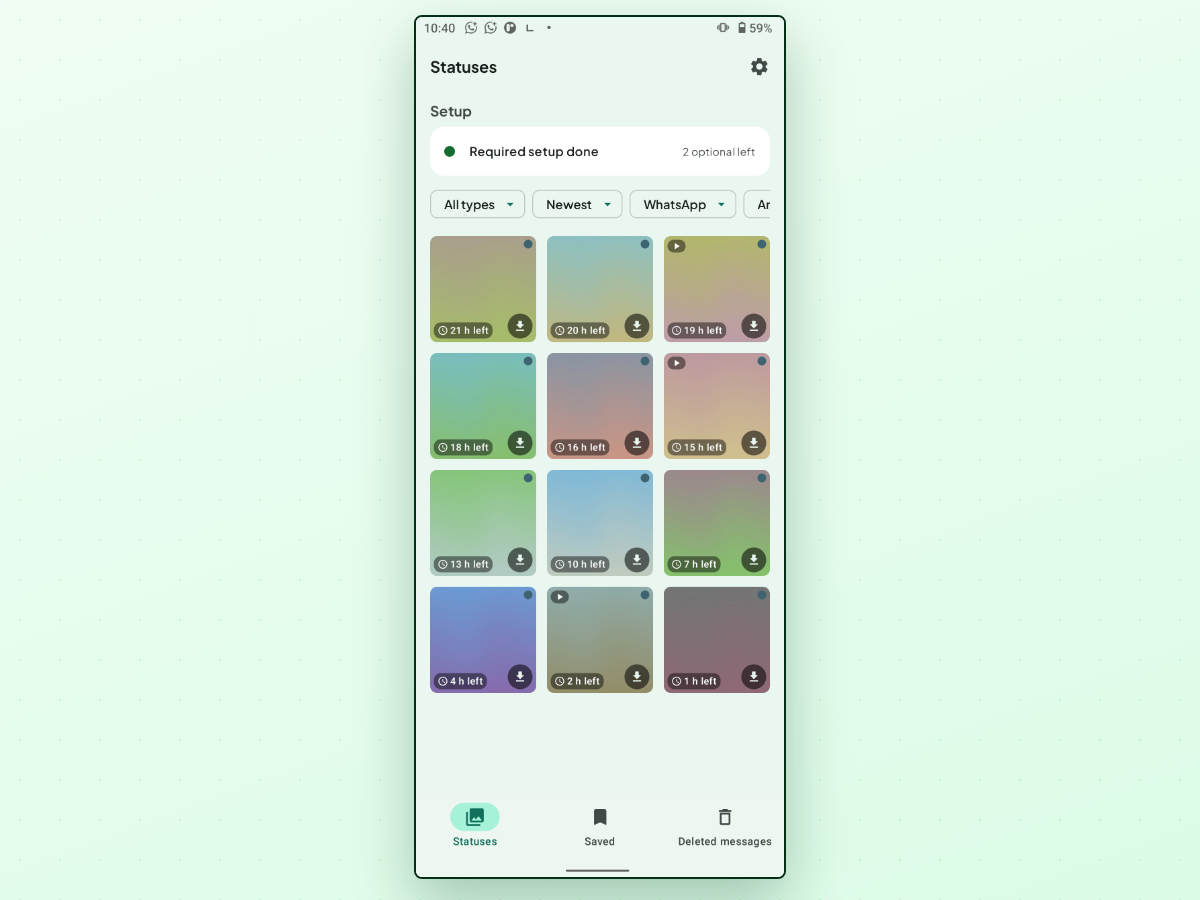
Dedicated status saver apps automate what the file manager does by hand: they read the folder WhatsApp already wrote to, and copy the statuses you choose into a gallery folder your other apps can see. The tradeoffs are consistent across the category, so know them before installing any of them:
- You grant read access to one folder — the one WhatsApp wrote statuses to. It is a deliberate, limited grant, but it is a trust decision.
- Battery savers can interrupt background checking. Some phones aggressively restrict apps running in the background; on those phones you may need to exempt the app.
- No app can promise to catch a status the instant it is posted. How quickly a new status shows up depends on what your phone allows in the background.
StatusPing is one Android option in this category. It lists the statuses on your phone with an expiry countdown on each one — how many hours are left — and lets you save one or many at a time. Saved statuses are copied into your own gallery folder, where your gallery app and backup tool can see them, and the app's library adds search, filters, and a full-screen viewer. It works with both WhatsApp and WhatsApp Business, needs no account or sign-in, and is not affiliated with WhatsApp or Meta.
Saved into your own gallery
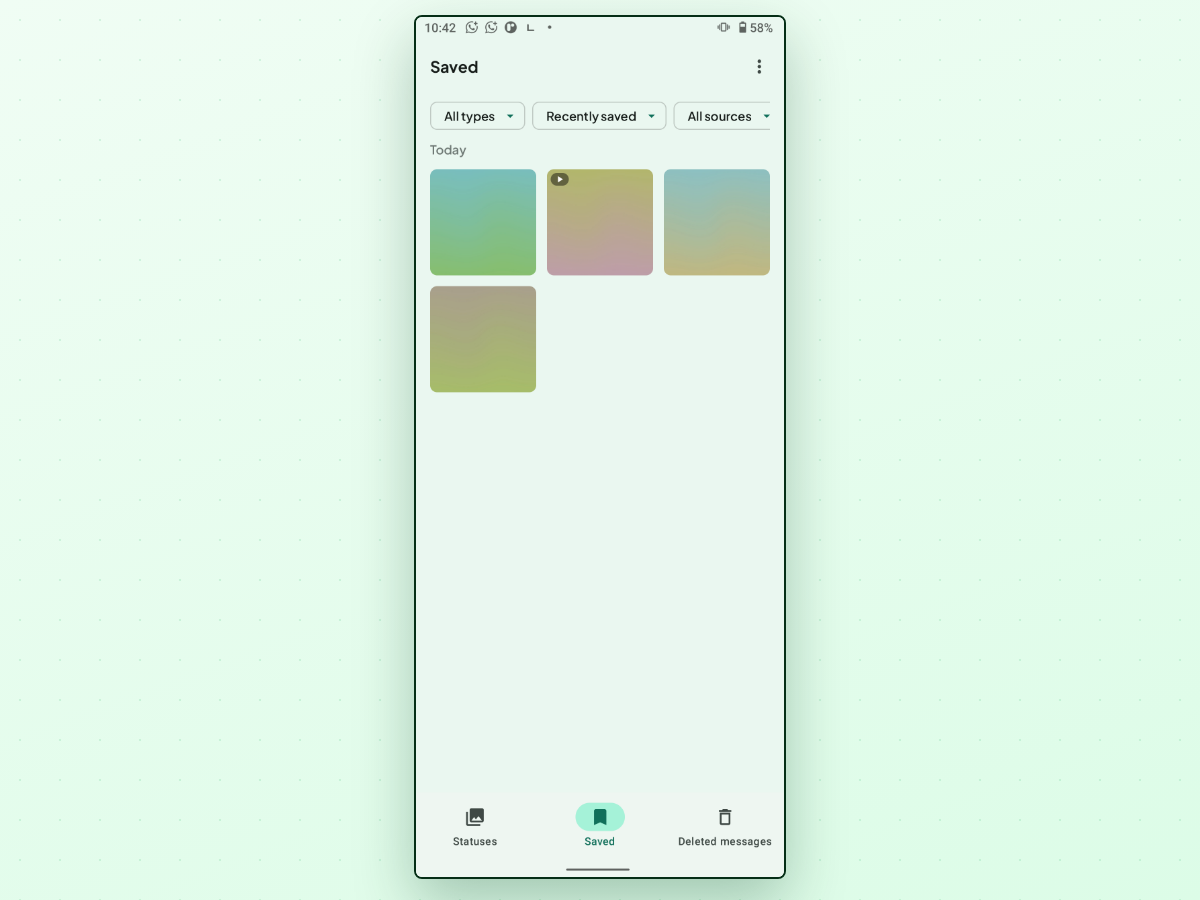
Keeping a status copies it into a folder you own, so the copy does not expire when the original disappears. In StatusPing's Saved tab, kept statuses appear with search, type and source filters, and sorting by recently saved, oldest, or largest — and you can save a single status, select many at once, share, or repost straight from the app.
Background watching and battery
If you would rather not open the app every time, StatusPing can watch for new statuses and auto-save them. Under Settings → Watching, Find new statuses has three options: Off (checked only when you open StatusPing), Regularly (checked in the background every so often, with a short delay), and Continuously (checks while StatusPing is running; Android requires a permanent notification for this and it uses more battery). A Setup card at the top of the Statuses tab lists the folder access, notification and battery settings, and on some phones an auto-start setting.
Choosing between the options
- One photo, right now → a screenshot. Zero setup, already on your phone.
- A video status → screen recording, or let a saver app handle it.
- You keep missing statuses → a status saver app with auto-save and a countdown.
- It is your own posts → WhatsApp's status archive.
- It is one file from someone you know → ask them to resend it.
Frequently asked questions
Does the other person know if I save their status?
Saving a status is a local action on your phone — the file is already on your device when you view it, and making a copy is not reported to anyone. WhatsApp itself may show the poster that you viewed it, depending on your read-receipt setting. Anyone who can see a status can screenshot or record it, so treat statuses as semi-public: keep what you need, and don't reshare someone's photo or video without asking.
Does a status-saver app need my WhatsApp account?
No. StatusPing reads a folder WhatsApp has already written on your own phone. It does not sign in to WhatsApp or connect to its service, and it is not affiliated with WhatsApp or Meta.
Why is a video status missing from the folder?
A video status is saved only after it plays all the way through. Watch it once in full in WhatsApp, then check the folder again.
If you want to save WhatsApp statuses without racing the 24-hour clock, StatusPing is one Android option built for exactly that — get it on Google Play.