How to See Old Notifications on Android (Even After You Clear Them)
Cleared a notification by accident? Here is how to see old notifications on Android: built-in notification history, the source app, and notification log apps.
Published October 14, 2026

You unlock your phone, pull down the notification shade, and tap "Clear all" out of habit. A split second later, your heart drops. In that stack was a one-time verification code you were waiting for, an address someone messaged you, or a delivery update with an arrival gate code. Once cleared, the banner is gone from your status bar.
If you are trying to see old notifications on Android, the good news is that Android does provide tools to review dismissed alerts. The catch is that availability, retention limits, and setup requirements vary depending on your Android version and phone manufacturer.
This practical guide walks through the genuine ways to review dismissed alerts on Android: the built-in system history, manufacturer variations, the source app workflow, and dedicated notification log tools. We also cover the strict limits of each option so you know what can and cannot be recovered.
Can you recover cleared notifications on Android?
Before tapping through menus, it helps to understand how Android handles notification data.
When an app posts a notification, Android displays it in the system tray. When you swipe that notification away or tap "Clear all", Android dismisses the visible item.
Can you recover cleared notification android alerts retroactively?
- If built-in Notification History was already turned on: Yes, you can view alerts dismissed within the past 24 hours directly in your phone settings or notification shade.
- If built-in Notification History was turned off: No system feature logs those past alerts retroactively. Android does not maintain a hidden historical backlog before the setting is enabled.
- If the notification came from a messaging or email app: The underlying message usually still exists inside the originating app, even if the notification banner was swiped away.
- For long-term records: Third-party notification log apps can archive alerts continuously, but only starting from the moment you install them and grant notification access.
Knowing this distinction saves time: if your phone's built-in history toggle was off when you cleared the alert, navigating system settings will not bring back that specific dismissed banner. However, enabling the feature now means recent swipes can be reviewed for up to 24 hours.
Method 1: Android built-in Notification History
Recent versions of Android include a native notification history android feature on Pixel devices and many other phones. This feature maintains a rolling 24-hour log of recently dismissed and snoozed alerts.
Because this setting is disabled by default on many devices, you must turn it on before it begins saving alerts.
How to turn on Notification History
On a Pixel or similar phone (exact menu names vary by version and maker):
- Open your phone's Settings app.
- Tap Notifications.
- Tap Notification history.
- Turn on Use notification history (or toggle the switch to On).
Once switched on, your device logs every notification that arrives and is dismissed, keeping them for up to 24 hours.
How to view dismissed notifications
After the feature is active, there are two ways to open your history:
- From the notification shade: Swipe down from the top of your screen to reveal your notifications. Scroll to the very bottom of your active alerts and tap the History button.
- From Settings: Go to Settings > Notifications > Notification history.
The screen displays two sections: Recently dismissed, showing the most recent banners you cleared, followed by alerts grouped by app from the past 24 hours. Tapping an alert in this list takes you directly to the source app.
Where built-in history falls short
While built-in notification history is convenient, it comes with strict boundaries:
- 24-hour retention window: Notifications older than 24 hours automatically disappear.
- No search function: If you receive hundreds of alerts a day across multiple group chats and apps, finding a single snippet requires scrolling manually through every entry.
- No filtering or pinning: You cannot pin a critical alert to prevent it from cycling out of the 24-hour window, nor can you filter exclusively by message type or keyword.
- Clearing risk: Turning the feature off clears its saved history, so leave it on.
Method 2: Notification history on Samsung Galaxy phones
Samsung Galaxy devices running One UI include notification logging, but Samsung places the setting inside a sub-menu.
If you use a Samsung Galaxy device, the menu path differs slightly from Pixel and stock Android phones.
How to enable and view history on Samsung One UI
On a Samsung Galaxy phone:
- Open your phone's Settings app.
- Tap Notifications.
- Tap Advanced settings.
- Tap Notification history.
- Tap the toggle switch at the top to turn it On.
Once enabled, this screen organizes your dismissed alerts into chronological groups and app-specific dropdowns. Tapping any app row expands the notifications received from that service over the preceding 24 hours.
Like stock Android, Samsung's built-in tool is capped at a rolling 24-hour window and cannot recover notifications that arrived prior to turning the toggle on.
Method 3: The legacy Settings widget notification log
On older versions of Android, and on select phones running close-to-stock software, Android maintained an internal developer log accessible via a hidden home screen widget.
While modern Android versions have largely replaced this shortcut with the dedicated Notification History screen, it remains a useful fallback on older handsets or custom launcher setups.
How to check for the Settings shortcut widget
- Touch and hold an empty space on your home screen.
- Tap Widgets.
- Scroll through the widget picker to find Settings (or Settings shortcut).
- Drag the Settings shortcut widget onto your home screen.
- A list of system destinations will appear. Scroll down and tap Notification log.
If your device software supports it, tapping this new home screen icon opens a raw system log showing recent notifications, package names, and timestamps.
Limitations of the legacy log
- Manufacturer availability: Many phone makers do not include this shortcut, and newer Android versions have largely replaced it.
- Technical presentation: The screen was built as an internal debugging tool. It often shows raw system tags, package strings, and unformatted metadata rather than clean conversation previews.
- No search tools: It is a plain list with no search or filtering.
Method 4: Check the source app directly
When you dismiss a notification banner, remember that the notification is merely a broadcast surface. In many cases, the original information remains stored inside the app that generated it.
Before assuming a piece of information is permanently gone, check these common sources:
- Messaging apps (WhatsApp, Telegram, Signal): If someone sent you a message and you swiped away the pop-up, the unread message sits waiting in that chat thread. The only exception is if the sender subsequently deleted the message using an unsend feature.
- SMS and two-factor codes: If you swiped away a bank OTP or delivery verification code, open your default SMS app (such as Google Messages or Samsung Messages). The text message remains in your inbox.
- Email (Gmail, Outlook): Swiping an email notification does not delete the email. Check your primary inbox, Updates tab, or Spam folder.
- E-commerce and ride delivery apps (Amazon, Uber, DoorDash): Delivery status updates, driver arrival notices, and order receipts are typically logged inside the app's dedicated "Messages", "Notifications", or "Order History" tab.
Where checking the source app fails
This manual workaround does not solve every problem:
- Deleted messages: If a chat contact deletes a message before you open the conversation, the message text is replaced by a placeholder (such as "This message was deleted").
- Transient alerts: Some apps post progress bars, momentary status alerts, or promotional alerts that do not create an enduring record inside the app database.
- High volume: Searching across ten different apps to locate where a brief alert originated is slow and tedious when you only caught a glimpse of the banner.
Method 5: A dedicated notification log app
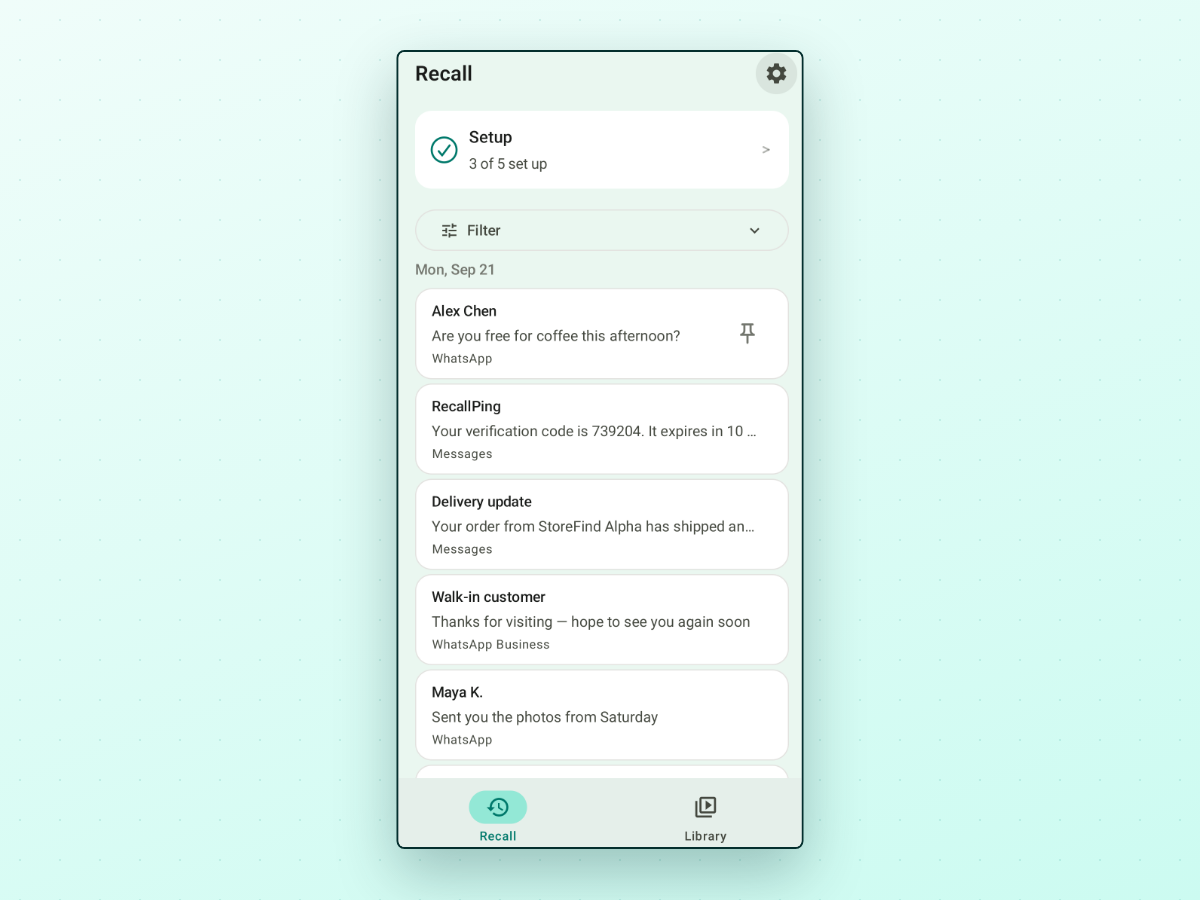
If you regularly need to see old notifications on Android, the built-in 24-hour window and lack of search can quickly become frustrating. This is where dedicated notification logging apps come in.
These utilities run in the background and record notification events as they arrive on your device, creating an organized, searchable personal archive.
How notification log apps work
Android protects notification contents using a dedicated system permission called Notification Access. When you install a notification archive app, Android requires you to explicitly grant this permission in your system settings.
With access granted, the app listens for incoming status bar alerts and stores the text, timestamp, and originating package in a local database.
Important trade-offs to understand
Before installing any third-party notification logger, keep these technical realities in mind:
- They cannot recover past notifications: No third-party app can retrieve notifications that arrived before the app was installed and granted access. Android's security architecture does not allow apps to read retrospective history. Logging begins forward from activation only.
- Notification access is sensitive: A notification logger can see incoming message previews, transaction alerts, and verification codes from all apps you allow it to monitor. You should only grant access to software whose data handling practices are transparent.
Within this category, RecallPing is one Android option designed specifically for managing your notification record. It begins saving alerts forward from the moment you turn on notification access, organizing them into an easy-to-browse timeline.
RecallPing lists what it has saved in a timeline you can browse, so you can review what arrived while your phone was in your pocket.
Pinning and filtering notifications you need later
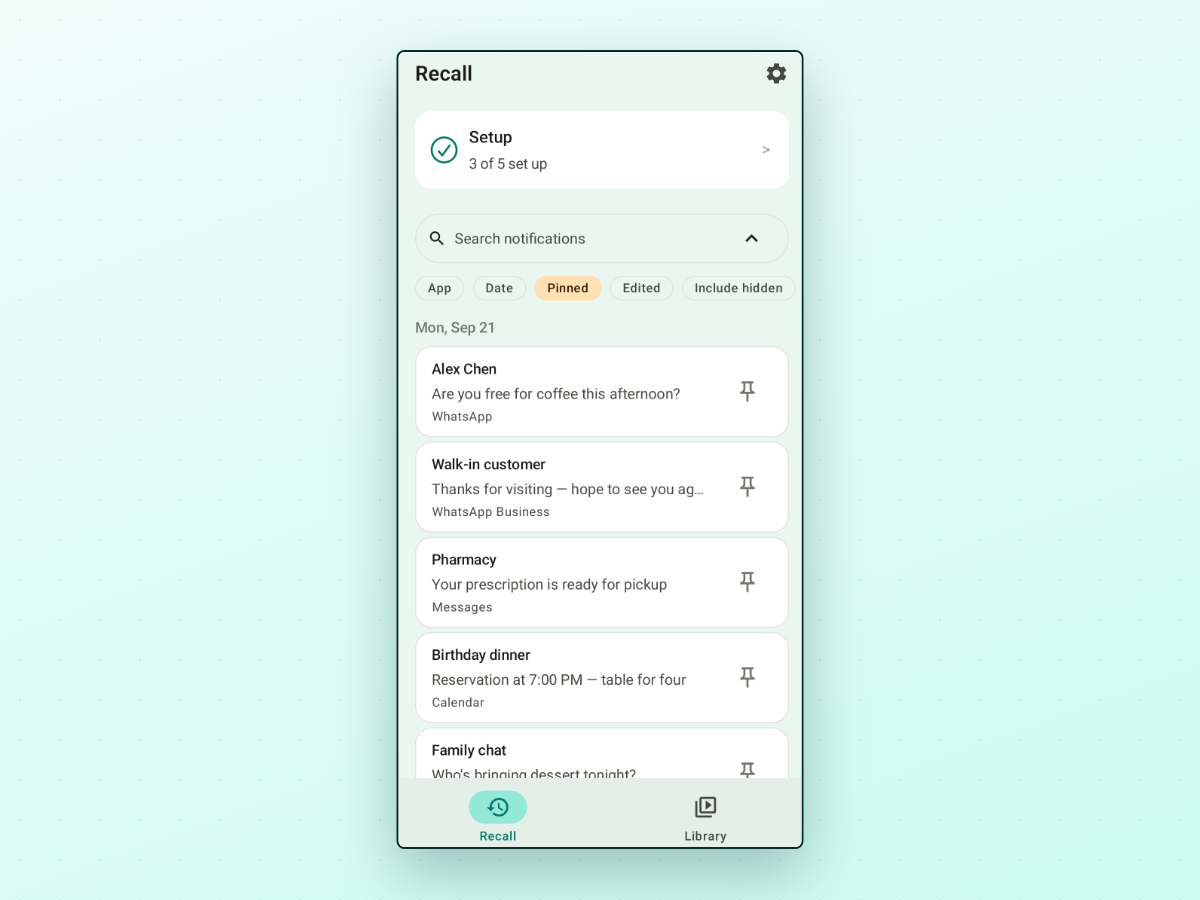
One of the biggest limitations of standard Android notification history is that every alert is treated equally. A critical tracking number disappears after 24 hours just as quickly as a weather update.
Dedicated tools solve this by providing search, filters, and pinning controls.
In RecallPing, for example, you can handle high notification volumes with structured tools:
- Full-text search: Type a keyword, sender name, or phrase into the search bar to locate specific alerts across all recorded apps instead of scrolling through hundreds of entries.
- Pinning important items: Pin an alert—such as a gate entry code, a recipe note sent in a chat, or a reservation time—to mark it as pinned. Pinned items remain easily accessible whenever you need them.
- Filter chips: Narrow down your list by tapping filter chips for App, Date, Pinned, or Edited messages.
- Revision history: When a messaging sender edits a text after sending it, RecallPing logs the revision so you can see both what arrived initially and what was updated.
- Screen security: For devices containing sensitive communications, RecallPing includes an optional app lock that utilizes your phone's existing device lock or biometric prompt.
Privacy and permission considerations
Because notification data can contain personal communications, verification codes, and financial alerts, understanding how an app handles your data is essential.
When evaluating notification history tools on Android, look for these privacy factors:
- On-device storage: Notification text and sender details should remain on your physical phone in the app's private storage database. They should not be transmitted to remote servers or stored in third-party clouds.
- Transparent network usage: Most modern Android apps connect to the internet for basic functionality like serving display ads or sending diagnostic crash reports. For instance, RecallPing uses the network for ads and for crash and usage diagnostics, and keeps your saved notification text on your device.
- Independence: RecallPing is an independent Android utility developed by PingApps Lab. It is not affiliated with, sponsored by, or endorsed by Google, Samsung, Meta, WhatsApp, or any other third-party service whose notifications it records.
Choosing the right method
Which approach makes the most sense depends on what happened to your notification and how frequently you need to refer back to past alerts:
| Your situation | Recommended approach | What to keep in mind |
|---|---|---|
| Just cleared an alert seconds ago | Built-in Notification History | Requires the feature to already be enabled; limited to the past 24 hours. |
| Looking for an unread chat or email | Check the source app directly | Original message is usually intact unless deleted by the sender. |
| Using an older phone without Android 11 | Settings shortcut widget | Only available on select older devices; technical format. |
| Need long-term records and fast search | Dedicated notification log app | Captures forward from setup; requires Notification Access permission. |
If you only lose a notification once every few months, turning on Android's built-in Notification History in your phone's Settings app is usually all you need.
If you find yourself constantly clearing alerts you need to reference days later, or want the ability to search and pin message snippets on your phone, RecallPing on Google Play is one practical option built for this workflow.