How to Schedule a WhatsApp Birthday Message in Advance
Schedule a WhatsApp birthday message to send at midnight or any time — from calendar reminders to yearly recurring sends. Here are the real options, honestly reviewed.
Published October 14, 2026
It's 11:47 pm. Someone's birthday starts in thirteen minutes, and you're wide awake — but you'd rather not send a birthday wish when you can barely keep your eyes open. Or maybe you want to send it at midnight sharp, so it's the first message they see when they pick up their phone in the morning.
As of this writing, WhatsApp has no built-in way to schedule a message for later in regular chats (a scheduling option has been reported in beta testing but is not generally available). That gap is exactly why searching for a whatsapp birthday reminder leads to so many conflicting answers — and why some of the advice out there oversells what the tools can actually do.
This guide walks through the real options for scheduling a WhatsApp birthday message, including their limitations, so you can pick what fits how you actually use your phone.
Who runs into this
The birthday-midnight problem is the most common version, but it's not the only one:
- Yearly recurring dates. A birthday, an anniversary, or a holiday greeting you want to send at the same time every year — without setting a new reminder each time.
- The midnight send. You want the message to land at 00:00 so it's at the top of their chat when they wake up. Sending at 11:47 pm feels too early; setting an alarm for midnight feels fragile.
- Multiple people, same day. Several family members or friends with birthdays in the same month, each needing a personal message — not a single group blast.
- Business birthdays. A salon or barber wants to send a birthday offer to clients, but only to those who've opted in.
If this happens to you once a year for one person, a simple reminder is honestly enough. If it happens across a recurring calendar of people, the answer gets more interesting.
WhatsApp's own limits
Before looking at workarounds, it's worth being precise about what WhatsApp itself does and doesn't offer.
Regular WhatsApp has no generally available scheduling feature. There is no native way to compose a message now and have it send later.
WhatsApp Business has automation tools — but none of them schedule an outbound message for a specific person at a specific time. The built-in tools are:
- Away messages auto-reply to people who message you during hours you define. They're triggered by incoming messages, not by the clock.
- Greeting messages auto-reply to new contacts the first time they reach out, or after 14 days of inactivity.
- Quick replies let you save message snippets and insert them with a few keystrokes — but you still send manually.
- Labels help you organize chats so you can find them later.
These are genuinely useful for handling inbound volume. If your actual need is "send this message to this person at midnight on their birthday," these tools don't do that.
Option 1: A phone alarm or calendar reminder
The lowest-friction approach is to not schedule the message at all — schedule a reminder to send it.
- Draft your birthday message in WhatsApp and leave it in the chat box, or keep it in a note.
- Create a recurring event in Google Calendar (or Samsung Calendar, or any reminder app) for the birthday date, repeating yearly.
- Set the alert for 11:45 pm the night before, or for midnight itself.
- When the notification fires, open the chat and press send.
Why it's good: zero new apps, zero permissions, and nothing sends without you seeing it. It works identically on every platform, and you can set it up in under a minute.
Where it falls short: it depends entirely on you being awake and paying attention when the reminder fires. A reminder you swipe away at midnight is a message that never goes out. For a single person you message every year, this may be fine. For a recurring calendar of birthdays, the manual step gets old fast — and the midnight send becomes a recurring sleep problem.
Option 2: Google Messages scheduled send (SMS only)
Android's default messaging app, Google Messages, has a genuine scheduled send feature. It works like this:
- Open Google Messages and start a conversation.
- Type your message.
- Touch and hold the Send button.
- Pick a suggested time or choose your own date and time.
- Tap Send — the message is queued and will go out automatically.
This is a real feature, documented by Google, and it works well for its intended purpose. But there's a critical limitation for birthday wishes: Google Messages schedules SMS and RCS messages — not WhatsApp messages. The two are completely different apps with different protocols. A birthday reminder you schedule in Google Messages will arrive as a text message, not a WhatsApp chat.
Why it's good: built into the app, no third-party install, and built into the app. If the person you're messaging is fine with a text message, this is the simplest true scheduling on Android.
Where it falls short: it doesn't touch WhatsApp at all. For birthday wishes specifically, many people want the message to land in WhatsApp — where the conversation already lives, where emojis and media work properly, and where the recipient expects to see it. Google Messages can't do that.
Option 3: An automation app such as Tasker or MacroDroid
Android automation apps can fire at a set time and open a WhatsApp chat with your
message already filled in, using a wa.me link (the same link format WhatsApp
documents for click-to-chat).
- Create a time-based rule for the birthday date in the automation app.
- Have the rule open a link like
https://wa.me/<number>?text=<your message>. - At the scheduled time WhatsApp opens on that chat with the text ready.
Why it's good: very flexible, and one rule can do other things on your phone too.
Where it falls short: it is a build-it-yourself approach. The link opens the chat with your text ready, but you still tap send yourself unless you also set up accessibility automation, and the rule needs the phone awake and the screen unlocked. It is more setup than most people want for a birthday message.
Option 4: A dedicated scheduling app
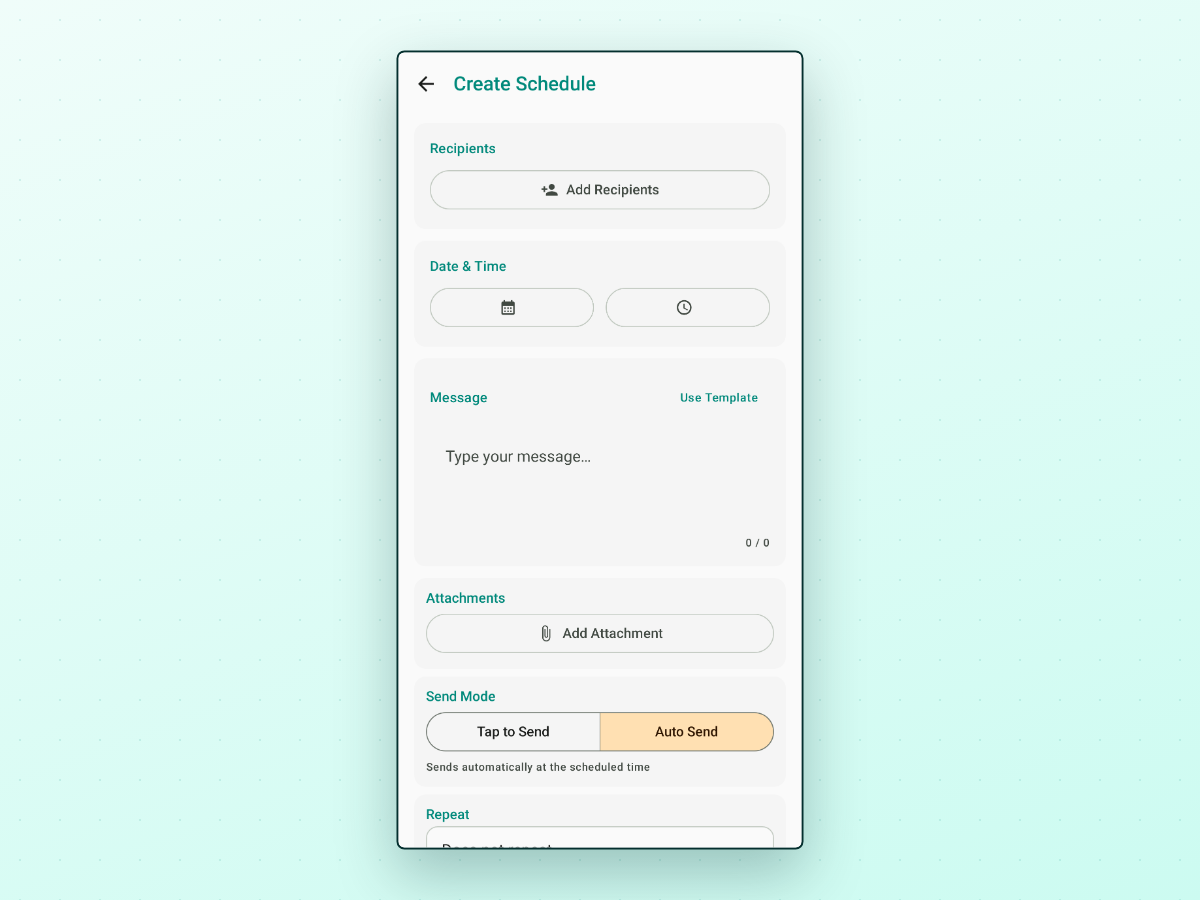
Because WhatsApp offers no scheduling hook, Android scheduling apps work by automating the send on your device: at the scheduled time, the app opens WhatsApp and completes the send using Android's accessibility service. That's true of this whole category of apps, and it has honest consequences you should know before installing any of them:
- Accessibility access is required. Android's accessibility service is the mechanism that lets one app operate another. Granting it is a real trust decision — only do it for an app whose privacy posture you've actually looked at.
- Battery settings can interfere. Some Android manufacturers aggressively restrict background apps, and a scheduler that gets killed overnight can't send your midnight message. On Samsung, Xiaomi, Huawei, and others you may need to exempt the app from battery optimization.
- Your phone has to be on and able to run the app at send time.
- A locked phone needs extra setup. For a midnight send, auto-send has to wake and unlock the screen, which with PlannedPing means storing your device PIN or password in the app (pattern locks are not supported); otherwise use its manual mode and tap to send.
Within this category, the meaningful differences are reliability, whether recurring schedules are supported, and how much control you keep over each send. PlannedPing is one option built for this workflow: it supports both WhatsApp and WhatsApp Business, handles one-time and recurring schedules — hourly, daily, weekly, monthly or yearly (yearly repeats every year), with intervals for the shorter repeats (say, every 2 weeks), specific weekdays for weekly repeats, and an end condition (never, after a number of send attempts, or on a date) — and lets you choose between auto-send and a manual mode where you review and confirm each message before it goes out. It's local-first — no account or login, with your schedules stored on your device — and it walks you through the accessibility and battery setup steps above rather than pretending they don't exist.
For a yearly birthday message specifically, the yearly repeat is the key feature: set it once and it is queued for each year, as long as the accessibility, battery and lock-screen setup stay in place, so check the history now and then. You can save your birthday wording as a Message Template and reuse it each year instead of retyping it.
Birthday message templates you can copy
Whichever option you pick, having the message ready matters as much as the timing. A few starting points:
Simple and warm:
Happy birthday, [name]! 🎉 Hope this year brings you everything you're working toward. Celebrate well!
Short and sweet (for a group or casual contact):
Happy birthday! Hope it's a great one. 🎂
Family:
Happy birthday to my favorite [relation]! So grateful for you. Let's celebrate soon — dinner's on me.
Business (opted-in clients only):
Happy birthday, [name]! 🎉 As a birthday treat, enjoy [offer] on your next visit. Book anytime this month.
Milestone (30th, 40th, etc.):
Happy [age]th birthday, [name]! Here's to another year of good things. Wishing you the best day.
One rule applies to all of these: only schedule messages to people who expect to hear from you. A scheduler is for sending the right message at the right time — not for messaging people who haven't agreed to the conversation. WhatsApp actively enforces its rules against unsolicited messaging, and no tool changes that.
Choosing between them
- One birthday a year for someone close → a calendar reminder is honestly enough. Set it, get the alert, send the message.
- Multiple birthdays on a recurring calendar → a dedicated scheduling app with yearly repeats, so you set it once and it repeats every year.
- You're fine with SMS, not WhatsApp → Google Messages scheduled send is built in.
- You want the message to land in WhatsApp at midnight without waking up → a scheduling app with auto-send, with eyes open about the accessibility and battery setup involved.
If you land in that last group and want to schedule WhatsApp or WhatsApp Business messages from Android, PlannedPing on Google Play is one option built for exactly this workflow.