How to Remember to Reply to a WhatsApp Message Later
Need a WhatsApp reminder to reply later? Learn how to mark WhatsApp chat unread, pin threads, snooze notifications, and remind yourself to follow up.
Published October 14, 2026
You open a WhatsApp message while standing in line or walking into a meeting. You read the note, realize it needs a thoughtful response, and tell yourself: I will reply as soon as I am back at my desk.
Two days pass. The sender pings you with a question mark. You scroll down your chat list, find the conversation buried beneath active group threads, and apologize for dropping the thread.
This is a familiar problem: how to remember to reply to a WhatsApp message later. WhatsApp is designed for real-time messaging, not task management. Standard chats offer no alarm clock, no "remind me in two hours" button, and no follow-up scheduler. The moment you clear an incoming notification, your phone treats it as handled.
If you regularly need a whatsapp reminder to reply—for personal chats, client inquiries, or team discussions—several practical methods can help. Some use built-in WhatsApp gestures, others rely on your operating system, and some use dedicated follow-up tools. Here is an honest look at how each option works, what it does well, and where it falls short.
Why WhatsApp messages get forgotten so easily
Mental notes fail inside messaging apps for three practical reasons:
- Strict chronological sorting: WhatsApp orders your chat list strictly by the timestamp of the latest message. If an unanswered note arrives at 9:00 AM and ten other conversations become active by noon, that message sinks below the visible fold.
- Notification shade dismissal: Tapping a banner or swiping it away clears the alert permanently. Your phone will not prompt you again unless a new message arrives in that same chat.
- Read receipt pressure: If read receipts are on, opening a chat turns the ticks blue. An unintended delay can feel like being ignored, even when you only wanted twenty minutes to draft a proper reply.
Staying on top of unanswered messages therefore requires an intentional system.
Option 1: Mark WhatsApp chat unread
The quickest built-in triage tool is WhatsApp's mark as unread function. It flags a chat so it catches your eye next time you check your inbox.
How to mark a chat unread
- On Android: Tap and hold the conversation in your Chats tab. Tap the three dots menu in the top-right corner, then select Mark as unread.
- On iPhone: In your Chats tab, swipe right on the conversation, then tap Unread (or long-press the chat and choose Mark as unread).
- On Web or Desktop: Hover over the chat, click the down-arrow menu icon, and select Mark as unread.
Capabilities and limitations
When you mark whatsapp chat unread, WhatsApp places a green dot beside the chat. You can also tap the Unread filter pill at the top of your chat list to isolate all flagged threads.
Its limitations are straightforward:
- No time-based alarm: It sets no alert, chime, or vibration. It works only when you actively open WhatsApp.
- Blue ticks stay blue: WhatsApp's documentation confirms that marking a chat unread changes the status only on your device. The sender still sees that you read the message.
- Easily buried: Incoming messages still push the thread down, and opening the chat even accidentally clears the green dot.
Marking unread works for short-term triage, but cannot reliably protect replies due tomorrow or next week.
Option 2: Pin the chat to the top of your inbox
To keep an unanswered thread visible regardless of incoming messages, you can pin it to the top of your Chats tab:
- On Android: Tap and hold the chat, then tap the Pin icon at the top of the screen.
- On iPhone: Swipe right across the conversation and tap Pin.
- On Web and Desktop: Hover over the chat, click the drop-down menu, and select Pin chat.
Pinning anchors the conversation above all incoming chats until you unpin it. However, WhatsApp limits users to three pinned chats. If those slots are taken by family or key work contacts, none remain for temporary reminders. Pinned threads can also cause "pin blindness": when a chat sits at the top for days without a deadline, you start looking right past it.
Option 3: Star key messages for a centralized queue
When someone sends important details—such as an address, dates, or an invoice query—you can star the specific bubble rather than the entire chat:
- How to star: Long-press the message bubble inside the chat, then tap the Star icon on the toolbar.
- How to review: On Android, tap the three dots on the Chats screen, then Starred messages. On iPhone, open Settings, then Starred.
Starring collects bookmarked requests across all contacts into one list. But like pinned chats, starring is passive. WhatsApp never alerts you to check your starred list, so unless you make a habit of reviewing that screen, starred items stay out of sight.
Option 4: Use WhatsApp Business labels (Business app only)
If you use WhatsApp Business on Android or iPhone, labels offer structured categorization for conversations needing a reply:
- Long-press a chat in your conversation list and tap the Label icon.
- Select an existing label (such as "Pending reply") or create a new label with a custom name and color.
- To view tagged chats, on Android tap the three dots, then Labels; on iPhone open Settings > Business tools > Labels.
WhatsApp Business supports up to 20 labels, making it easy to create a dedicated "Reply needed" bucket. However, labels are restricted to the WhatsApp Business app; personal accounts do not have them. Additionally, labels lack timed alerts—they organize chats you remember to inspect, but cannot ping you at a scheduled hour.
Option 5: Snooze notifications via Android
If you use Android and catch an incoming WhatsApp message while its alert is still in your notification shade, Android's built-in snooze feature can bring it back later.
Enabling notification snoozing on Android
Per Google's official Android support documentation:
- Open Settings > Notifications.
- Toggle Allow notification snoozing to ON.
How to snooze an alert
- When a WhatsApp alert arrives, swipe down to open the notification shade.
- Tap the down arrow on the WhatsApp alert card and tap the Snooze icon.
- Select a duration: 15 minutes, 30 minutes, 1 hour, or 2 hours.
When the timer ends, your phone re-delivers the notification with a fresh ring or vibration, exactly like a new message.
Limitations
- Must act before opening: Snoozing works only while the alert sits in your shade. Once opened or dismissed, the alert cannot be snoozed.
- Short intervals: Android presets cap out at two hours; you cannot snooze a message until next week.
- Android only: iOS does not provide an equivalent per-notification snooze duration selector for third-party messaging alerts.
Option 6: Set phone reminders or voice tasks
For delays extending into tomorrow or next week, task managers and voice assistants can set timed alarms:
- Voice assistants: Say "Hey Google, remind me to reply to Alex on WhatsApp tomorrow at 10 AM" or "Siri, remind me to text Sarah at 3 PM."
- Task managers: Apps like Google Tasks, Apple Reminders, or Todoist let you schedule dated reminders that alert you at a specific hour.
The friction with task managers is the disconnect from the conversation. When a generic "Reply to Alex" reminder pops up, you must unlock your phone, search for the contact in WhatsApp, and recall what was discussed. That extra step often leads to dismissing the alarm and forgetting again.
Track follow-ups with a dedicated reminder app
If you handle client inquiries, consultations, or customer conversations where missing a reply carries real cost, general task lists and unread dots often fall short. You need a way to schedule a dated follow-up and jump straight into the conversation when the time arrives.
One focused option built for this workflow is LeadPing. It acts as a lightweight follow-up tracker for WhatsApp on Android and iPhone, connecting your conversation schedule directly to the right chat.
Instead of managing a complex CRM or pasting notes into a detached calendar app, you save the contact, set when you plan to follow up, and let the app remind you.
Scheduling a dated follow-up
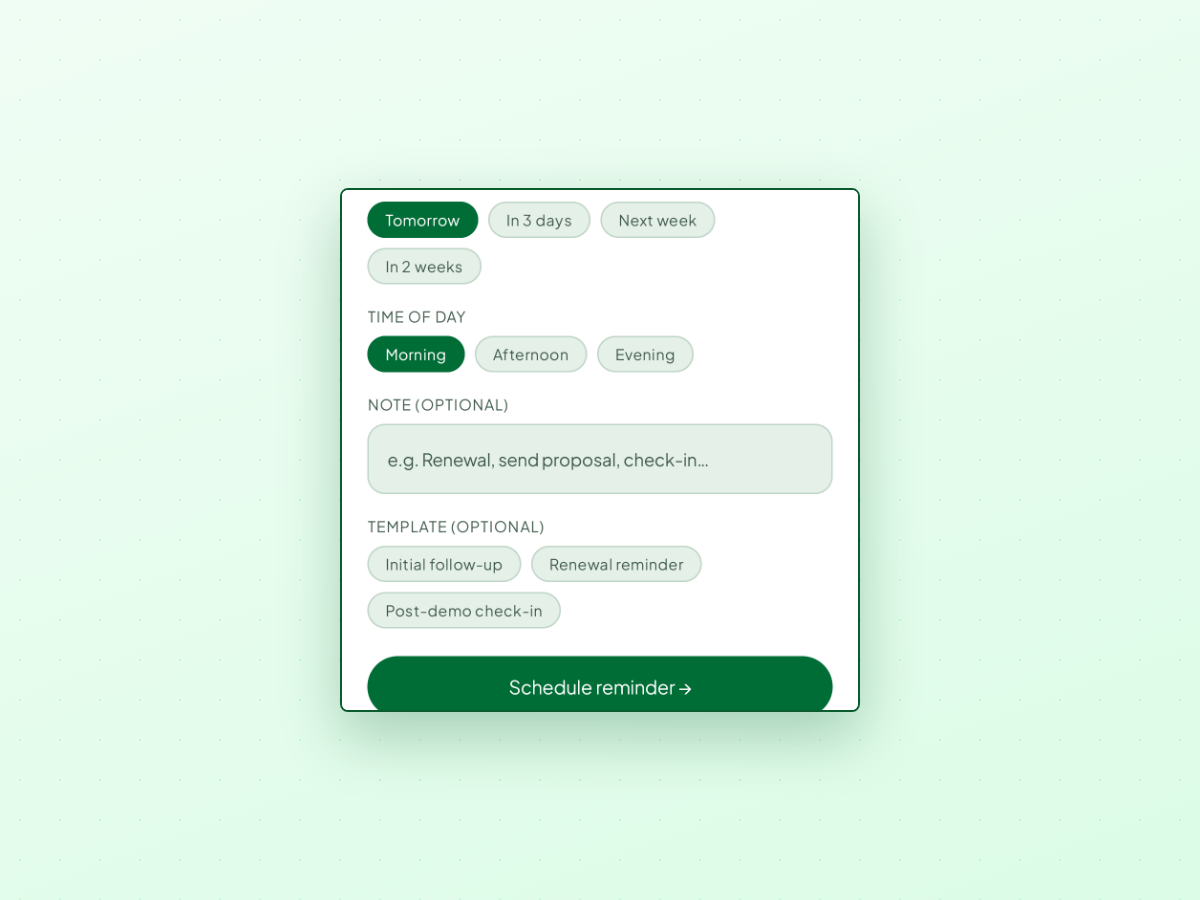
When a conversation needs a later response, you can schedule the follow-up in a few taps:
- Quick date chips: Select Tomorrow, In 3 days, Next week, or In 2 weeks, or pick a custom calendar date.
- Time of day: Choose Morning, Afternoon, or Evening chips, or set a specific hour.
- Optional notes: Add a short reminder note—such as "Send revised quote"—so you know what to write without re-reading the whole thread.
Because LeadPing is local-first, no account creation or login is required. Your saved contacts, notes, and reminders remain on your device.
Open the right chat when it is time to reply
When a reminder fires in LeadPing, it provides an immediate entry point back to the chat.
Inside the Today tab, follow-ups are grouped by when they are due:
- Overdue items appear at the top if a previous follow-up window passed.
- Scheduled replies for today are organized under Morning, Afternoon, or Evening sections.
- Each row includes a direct WhatsApp button.
Tapping the WhatsApp button opens WhatsApp directly into that contact's chat thread. If you saved a follow-up note, it can be filled into the message field ready for your review.
LeadPing does not send messages for you: you check the text, adjust the wording, and tap Send yourself.
LeadPing is available on Google Play for Android and on the App Store for iPhone.
Choosing the right reminder method
Rather than forcing one workaround for every situation, match the tool to your timeframe:
| Situation | Recommended method | Why it works |
|---|---|---|
| Busy for the next hour (driving, in meetings) | Android Notification Snooze | Hides the alert and re-delivers it after the snooze period. |
| Glanced at a message, replying shortly | Mark WhatsApp chat unread | Keeps a visible green marker in your inbox until you sit down. |
| High-priority thread active today | Pin chat to top | Anchors the conversation at the top of your screen above incoming chats. |
| Sorting customer inquiries | WhatsApp Business labels | Color-codes chats by stage across your customer list (Business app only). |
| Important follow-up due tomorrow or next week | Dedicated tracker (LeadPing) or Google Tasks | Delivers a timed alert with time-of-day slots and a direct route to the chat. |
Practical habits to avoid losing messages
Along with technical reminders, a few daily habits make keeping up with replies much easier:
- Do not open messages when you cannot act: Leave incoming alerts in your notification shade until you have time to triage them.
- Flag immediately if opened accidentally: If you open a chat while checking something else, mark it unread before exiting the app.
- Batch replies twice a day: Reserving two dedicated windows—such as late morning and late afternoon—gives you focused blocks to clear unread chats without constant context switching.
- Attach context to future dates: When a reply must wait, decide the next step immediately and note what you need to say.
If you want a dedicated way to track warm WhatsApp conversations, schedule follow-up alerts, and jump straight into the right chat when it is time to reply, LeadPing is one practical option designed for this workflow on both Android and iPhone.