How to Set Up WhatsApp Auto Reply on Android
WhatsApp auto reply on Android is built into WhatsApp Business, not personal WhatsApp. Compare away messages, helper-app limits, templates, and safe setup.
Published September 24, 2026
Someone messaged you on WhatsApp while you were driving, in a meeting, or asleep. They needed a quick “got it” or “I’ll call you back,” and hours later the chat still shows only their side of the conversation.
That gap is what people mean when they search for WhatsApp auto reply on Android. The honest starting point: regular WhatsApp does not ship a true auto-reply you can turn on for every personal chat. WhatsApp Business adds limited built-in messages. Everything else on Android is a helper that listens for notifications and tries to send a reply through WhatsApp’s own notification actions — with real limits, permissions, and responsibility on your side.
This guide walks through those paths in order: built-in Business tools first, then what works on personal WhatsApp without pretending, then how notification- based apps behave, copy-paste message templates, and one safety-first option if you need more control than Business alone provides.
The short answer
| Approach | Works on personal WhatsApp? | Works on WhatsApp Business? | Sends without you opening the chat? |
|---|---|---|---|
| WhatsApp Business Away message / Greeting message | No | Yes (Business account) | Yes, within Meta’s Business rules |
| Quick replies (shortcuts you tap) | No | Yes | No — you still send manually |
| Star / pin + reminder to reply later | Yes | Yes | No |
| Third-party notification-listener apps on Android | Yes, if WhatsApp posts a reply action | Yes | Sometimes — depends on notifications, battery, and grouping |
None of these are made or endorsed by WhatsApp. Automated replies may conflict with WhatsApp’s terms for your account type or region. Use conservative wording, reply only to people who reasonably expect a response, and treat any automation as your responsibility — not a guarantee of delivery or account status.
WhatsApp Business away message and greeting message
If your number runs on WhatsApp Business, Meta provides two related tools under Business tools (exact menu labels can shift between versions):
- Greeting message — typically sent when someone messages you for the first time, or after a long inactive period, depending on how you configure it.
- Away message — an automatic reply while you mark yourself away or outside the schedule you set.
A practical setup flow:
- Open WhatsApp Business → ⋮ (menu) → Business tools.
- Choose Away message or Greeting message.
- Write the text, set Recipients (often everyone, contacts, or excluding some lists — wording varies by version), and define Schedule or away status as the screen offers.
- Turn the message On and send yourself a test from another number.
Strengths: No extra app, no notification access, and the reply is officially part of the Business product.
Limits: Does not help auto reply on personal WhatsApp with the consumer app. Triggers are coarse compared with keyword rules. You cannot easily say “reply with template A when they mention pricing, template B when they mention hours” without leaving Business or adding another tool. If you mainly schedule outbound reminders rather than inbound auto-replies, see How to Schedule WhatsApp Messages on Android.
Auto reply on personal WhatsApp: what actually works
The standard WhatsApp app on Android has no global setting that sends an automatic text reply to every incoming message. Forum posts that claim otherwise usually mix up Business features, quick replies, or third-party apps.
What you can do on personal WhatsApp without automation:
- Quick replies in WhatsApp Business only — not available in personal WhatsApp.
- Manual templates — keep two or three saved messages in your notes app and paste when you are back online.
- Do Not Disturb + a status line — reduces interruptions but does not message people for you.
- Follow-up discipline — if the real problem is remembering to reply later, a lightweight CRM-style workflow may fit better than auto-reply; see How to Follow Up on WhatsApp Without Being Annoying.
If you need true auto-reply on a personal number, the realistic Android options are third-party tools that use notification access, described next — or moving the line to WhatsApp Business for the built-in away/greeting path.
How third-party WhatsApp auto reply on Android works
Apps in this category — including helper tools not affiliated with WhatsApp — generally follow the same Android pattern:
- You grant notification access so the app can read incoming WhatsApp notifications.
- When a notification arrives, the app checks your rules (who, which app, keywords, hours, limits).
- If checks pass, it fills WhatsApp’s inline reply action using Android
RemoteInput— the same “Reply” field you would type into from the shade, not a separate unofficial API.
That means delivery is indirect: the app hands text to WhatsApp; WhatsApp still decides whether the send succeeds. Many apps log “sent” as “handoff succeeded,” not “message visible in chat.”
Common failure modes (any notification-based auto-reply app, not just one product):
- Notifications off or muted for a chat — no notification, no trigger.
- Grouped or summary notifications — the app may see a bundle, not each message; some implementations skip group summaries on purpose.
- No reply action exposed — if WhatsApp’s notification has no inline reply, nothing to automate.
- Battery optimization / OEM killers — the listener stops until you exempt the app and open it again.
- Notification dismissed before the send runs — the original notification may be gone.
- Your own outgoing messages — good apps ignore echoes to prevent reply loops.
Third-party auto-reply apps are not made or endorsed by WhatsApp or Meta. We cannot promise whether a given automation pattern is allowed for your account; use allowlists, low volume, and human-like delays if you use them at all.
Match incoming messages with rules
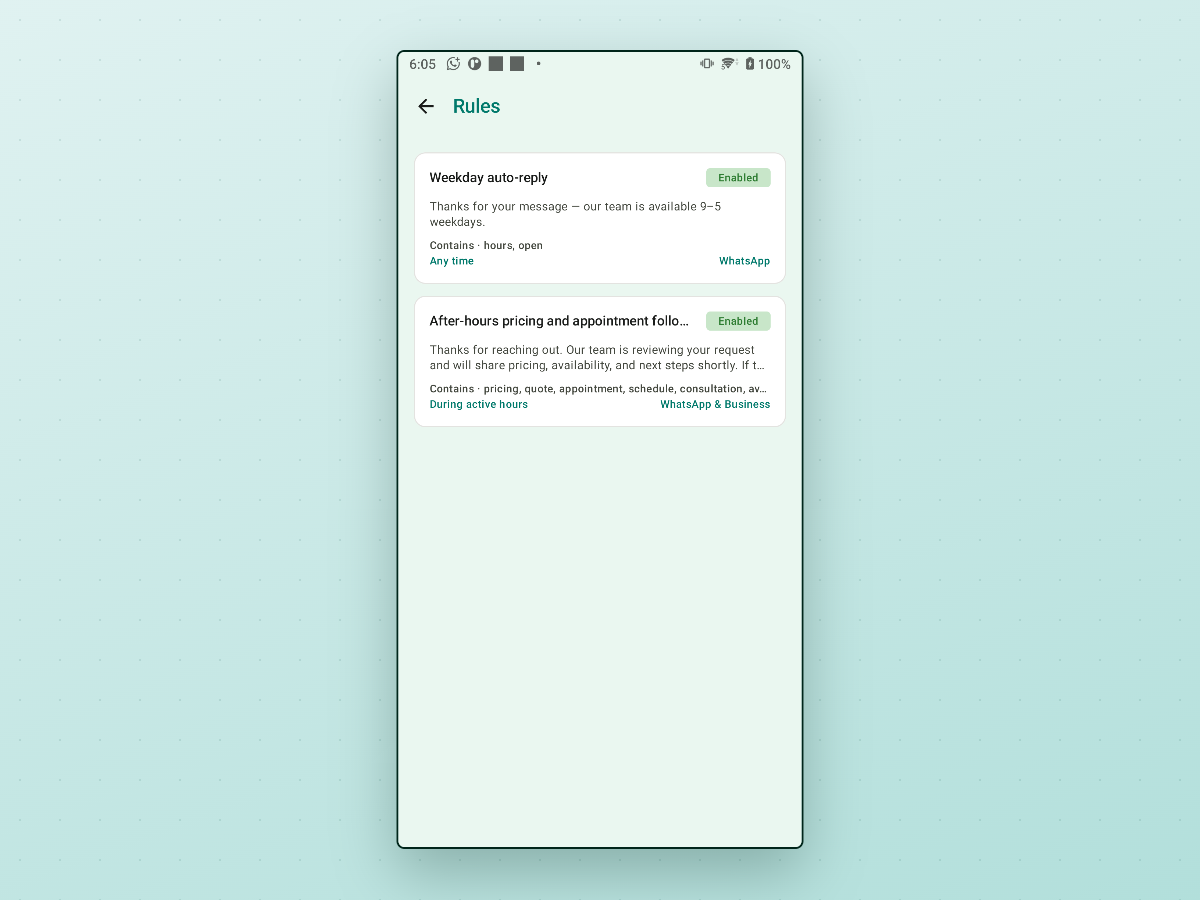
If you outgrow Business away messages — different text per keyword, separate rules for WhatsApp vs WhatsApp Business, or stricter “who is allowed” control — rule-based apps are the next step.
In AutoReplyPing, a rule ties together:
- Target app — WhatsApp, WhatsApp Business, or both.
- Match type — all messages, contains, exact phrase, starts with, or
wildcard (
*glob). - Reply text — typed inline or linked from a template.
- Schedule — any time, or during active hours only (per rule).
Rules run in sort order; the first enabled rule that matches wins. Groups stay off until you change the group reply policy under Reply Targets.
Reuse reply templates with placeholders
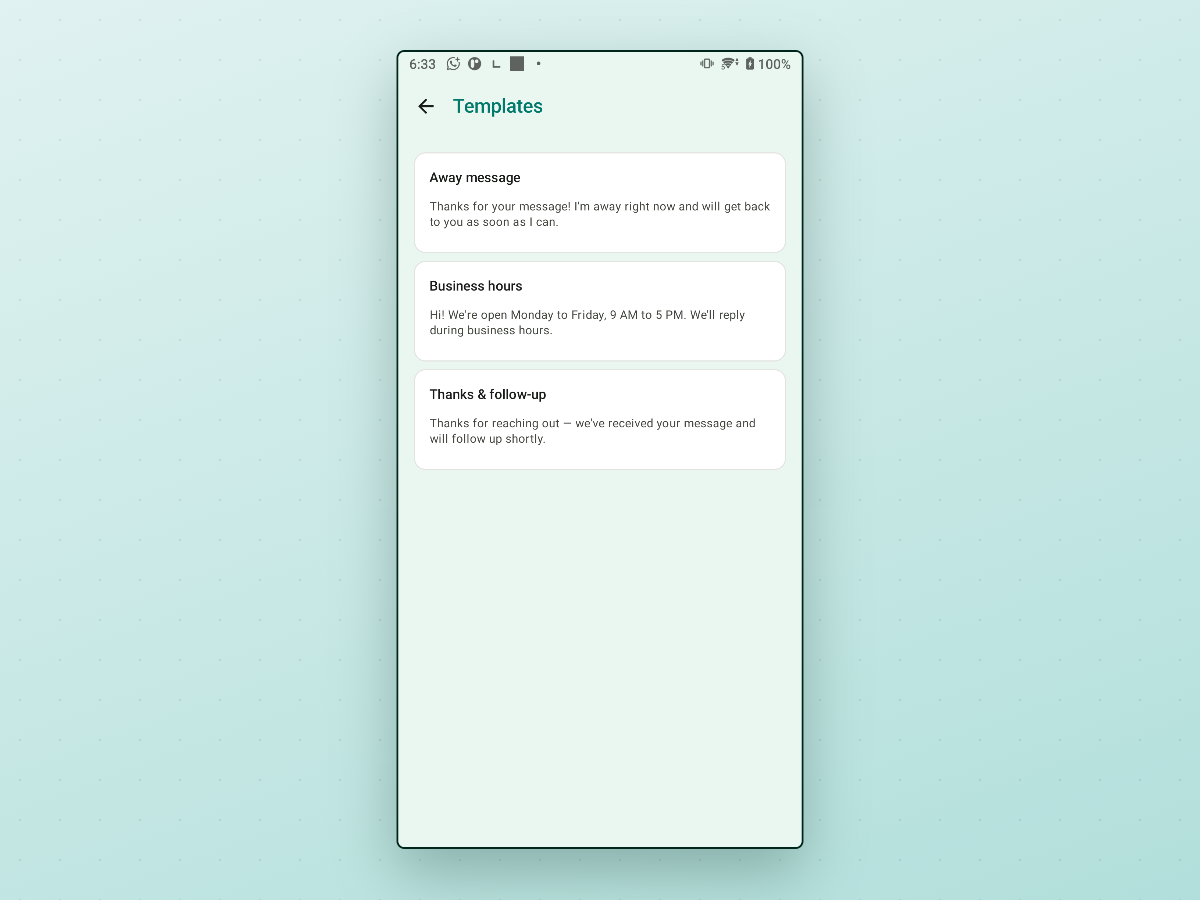
Templates keep wording consistent. AutoReplyPing supports placeholders such as
{recipient_name}, {recipient_first_name}, {recipient_last_name},
{current_date}, {current_time}, {current_datetime}, {current_day},
{day_of_month}, {current_month}, {current_year}, {tomorrow_date}, and
{tomorrow_day} — resolved when the reply sends.
Link a template to a rule, or configure Active hours to Send away template outside your window instead of skipping silently.
Copy-paste auto-reply message templates you can use
Adapt these before sending; swap bracketed bits for your name, hours, or link.
Away (generic)
Thanks for your message — I’m away from my phone right now and will reply when I’m back. If it’s urgent, call [number].
After hours (small business)
Hi — thanks for reaching out. Our team replies Monday–Friday, 9:00–17:00 [timezone]. We’ve seen your message and will respond on the next working day.
Driving / busy (personal, low automation)
I’m driving and can’t type right now. I’ll read this properly when I stop — if it’s urgent, call me.
Appointment confirmation hold
Got your message about an appointment. I’m checking the calendar and will confirm a time shortly — usually within a few hours on business days.
Pricing / quote intake (Business)
Thanks for asking about pricing. Send [photos / room count / date] and I’ll reply with a quote during business hours.
For outbound follow-ups after you do reply manually, example wording lives in WhatsApp Business Follow-Up Message Examples.
Where AutoReplyPing fits
AutoReplyPing is one Android option built for allowlist- first auto-replies on both WhatsApp and WhatsApp Business — not affiliated with WhatsApp or Meta. It is local-first (no account required for core auto-reply features) and centers on guardrails rather than blasting every chat.
Setup (high level):
- Install AutoReplyPing and open Setup Center — grant Notification access, confirm the listener is connected, and exempt the app from battery restrictions if Android prompts you.
- Under Library → Reply Targets, choose who may receive replies (for example Selected chats only and allow specific contacts, or block everyone else by default). Global blocks win over rules.
- Create at least one Rule and optional Templates.
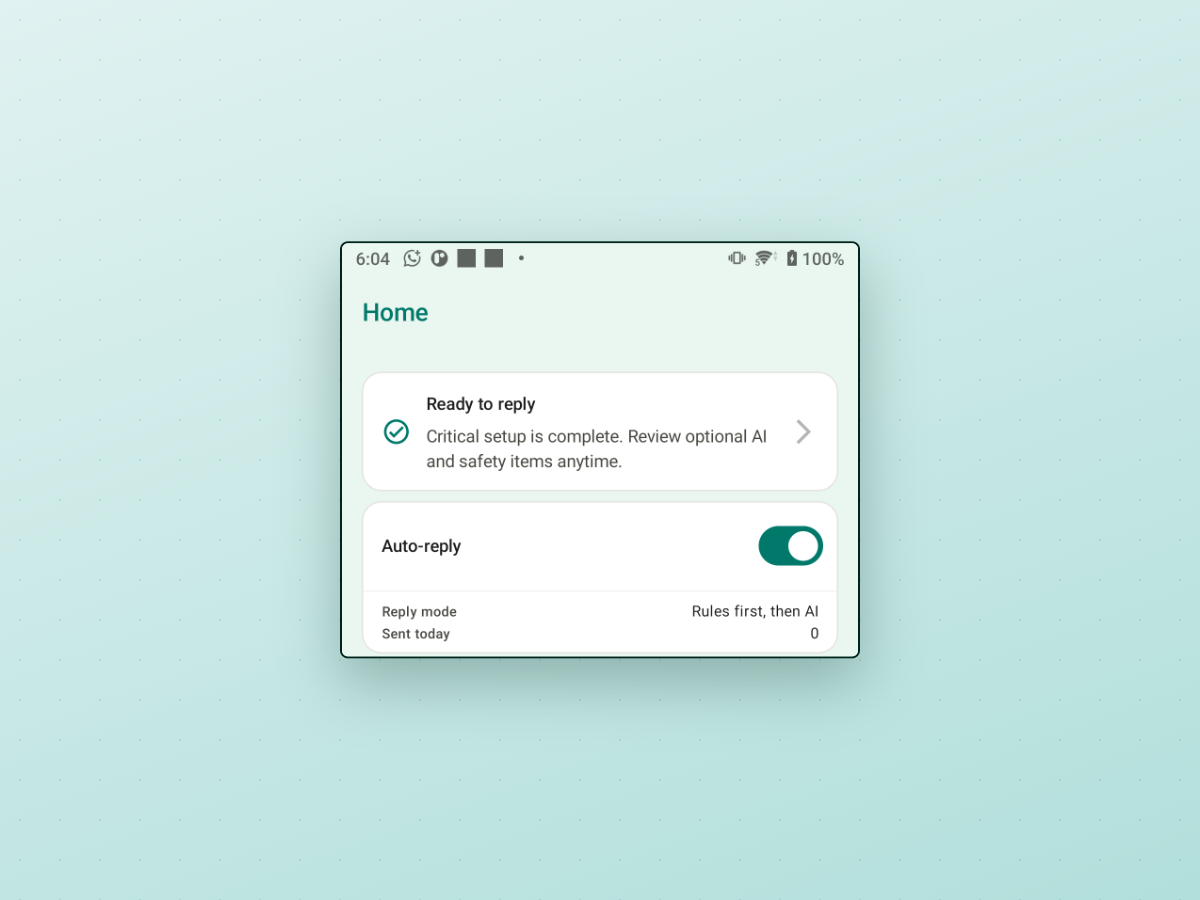
- Turn Auto-reply on from Home and pick a Reply mode — Rules only, Rules first, then AI, or AI only (optional AI replies when you configure them in AI Replies).
Safety controls in the app include daily caps, per-chat daily caps, wait time between replies to the same chat, active hours with optional away template, echo/loop protection, and group policies (Do not reply in groups, Selected groups only, or All groups). The app records delivery outcomes (Sent, Skipped, Blocked, Failed, Outside hours, Cooldown, Not allowed, No reply action, Notification gone) so you can see why a message did not send when you review activity in the app.
AutoReplyPing reads notifications and sends through WhatsApp’s reply action; it does not bypass WhatsApp’s UI or spam safeguards. If you also schedule outbound messages separately, Manual vs Auto WhatsApp Scheduling explains how that differs from inbound auto-reply.
If you want a focused auto-reply workflow with rules, templates, and active hours, AutoReplyPing on Android is one option worth comparing to Business away messages alone.
Frequently asked questions
Does regular WhatsApp have auto reply on Android?
No. The consumer WhatsApp app does not include a built-in automatic reply to all incoming chats. WhatsApp Business provides away and greeting messages; personal numbers need manual replies, reminders, or a third-party notification-based helper on Android.
How do I set auto reply in WhatsApp Business?
Open WhatsApp Business, go to Business tools, and configure Away message or Greeting message with your text, recipients, and schedule. Menu names may vary slightly by version — look under Business tools rather than chat settings.
What is the difference between a WhatsApp greeting message and an away message?
Both send automatic text without you typing each time. A greeting message typically welcomes someone when they first write or return after a long gap. An away message fires while you are marked away or outside the hours you set. Exact triggers depend on the Business settings screen on your phone.
Can a third-party app auto reply on personal WhatsApp?
On Android, some apps use notification access and WhatsApp’s inline notification reply action. They only work when WhatsApp posts a reply-capable notification, the chat is allowed by your rules, and the phone has not killed the listener. They are not official WhatsApp features and may not work for muted chats, group summaries, or every message type.
Is it safe to use WhatsApp auto reply apps?
We cannot guarantee account outcomes. Automated replies may violate WhatsApp’s terms for some accounts or regions. Prefer allowlists, low volume, active hours, and delays; avoid unsolicited bulk messaging. AutoReplyPing is not made by WhatsApp — use it responsibly and check delivery outcomes in the app when something looks wrong.