Can You Set an Auto Reply on Personal WhatsApp? (Android)
Can you set an auto reply on a WhatsApp personal account? Compare WhatsApp away message options, built-in workarounds, and auto reply without Business.
Published October 14, 2026
You are driving, in an important meeting, or trying to disconnect for the evening. Your phone buzzes with a WhatsApp message asking an urgent question. You cannot answer right now, but leaving the chat unanswered feels dismissive.
In email, this is straightforward: you turn on an out-of-office responder and let the server acknowledge incoming notes. But when you look through your personal WhatsApp settings on Android for an equivalent whatsapp away message, you hit an immediate dead end.
The plain answer: no, standard personal WhatsApp has no built-in auto-reply feature. Meta does not include an away message switch or automated responder in consumer WhatsApp Messenger.
That missing feature is why searches for a whatsapp auto reply personal account or how to set an auto reply whatsapp without business are so common. People want their personal line to acknowledge messages when they are unavailable, without turning their account into a commercial storefront.
While personal WhatsApp lacks a built-in switch, you have genuine options on Android. This guide examines the realistic routes—from WhatsApp Business tools and passive profile signals to dual-SIM setups and Android notification-based auto-reply apps—so you can weigh the tradeoffs and choose what fits your communication.
Why personal WhatsApp omits an away message
Consumer WhatsApp is designed for direct, reciprocal conversations between individuals. In Meta's product design, automated messaging belongs to commercial workflows—customer intake, support routing, and operating hours.
Omitting automated responders from consumer accounts also avoids known technical headaches: infinite reply loops between two automated accounts, constant reply interruptions inside active group chats, and the privacy hazard of broadcasting your personal travel schedule to any unsaved contact who texts you.
Because consumer WhatsApp omits this tool by design, solving the problem requires choosing an alternative approach.
Option 1: WhatsApp Business away and greeting messages
The most capable official auto-reply feature in the WhatsApp ecosystem is built into the WhatsApp Business app, available on Android through Google Play. If your primary need is handling customer inquiries or freelance communication, moving your line to WhatsApp Business provides native automation maintained directly by Meta.
According to official WhatsApp Help documentation, WhatsApp Business includes two built-in messaging tools under Business tools:
- Away message: Automatically responds to incoming messages when you are away from your phone or outside your operating hours.
- Greeting message: Welcomes people who message you for the first time, or after 14 days of inactivity.
How to set up an away message in WhatsApp Business
- Open WhatsApp Business > tap More options (three dots) > Business tools > Away message.
- Turn on Send away message, then tap the text box to enter your custom response.
- Under Schedule, choose Always send, Custom schedule, or Outside of business hours (requires setting business hours in your profile).
- Under Recipients, choose Everyone, Everyone not in address book, Everyone except..., or Only send to....
- Tap Save.
Note: Your phone must have an active internet connection for away messages to trigger and send.
While reliable, this route requires switching to the WhatsApp Business app, labels your account publicly as a "Business Account" with badges on your contact card, and sends the same text to all matched contacts regardless of what they asked.
Option 2: About text and Status updates as passive signals
If you prefer to stay strictly within personal WhatsApp without installing secondary apps or changing account types, you can use your About info and Status updates as manual signals. These tools do not generate automated replies, but they let you state your availability publicly.
Updating your About text
Your WhatsApp "About" appears on your profile and below your name in contact lists. According to WhatsApp's Help Center, here is how to edit your About text on Android:
- Open WhatsApp > tap More options (three dots) > Settings.
- Tap your profile picture, then tap the pencil icon next to About.
- Type your custom update (up to 50 characters, with emoji support)—such as "Away until Monday. Urgent? Please call."—and tap Save.
Posting a 24-hour Status update
For higher visibility among your address book, post a temporary text update to your WhatsApp Status:
- Open the Updates tab in WhatsApp and tap the pencil icon next to Status.
- Type an update—such as "Traveling with limited connectivity through Friday. Will reply when back."
- Set your privacy audience (My contacts, My contacts except..., or Only share with...) and tap Send.
The limitation is passive visibility: people messaging an existing chat thread rarely check your profile text or status feed first, and they receive no in-chat confirmation.
Option 3: Android Do Not Disturb and muting (What they actually do)
Many Android users wonder whether system focus features—such as Android's Do Not Disturb, driving modes, or Samsung's Modes and Routines—can automatically reply to WhatsApp messages.
These operating system tools do not send automated replies:
- Android Do Not Disturb: Google's official Android Help documentation details how Do Not Disturb silences alerts, vibrations, and visual heads-up popups (
Settings > Sound & vibration > Do Not Disturb). It is an inbound filter, not an outbound messenger. It silences alerts on your device, but it cannot compose or send an auto-reply back to incoming WhatsApp chats. - Android Auto driving replies: When driving with Android Auto, Google offers canned responses like "I'm driving right now." However, Google's documentation notes that this is not an autonomous background responder. It requires you to physically tap the reply button on your screen or speak a confirmation voice command.
- Samsung Modes and Routines: While Samsung lets you schedule Do Not Disturb or mute sounds based on time or location, it provides no native action block to compose or send automated WhatsApp messages.
- Muting WhatsApp chats: Muting an individual chat inside WhatsApp stops notifications for 8 hours, 1 week, or Always, but sends no reply to the sender.
Option 4: Run WhatsApp Business on a second number
If you need automated away messages for professional contacts but want to keep your personal chats free of business labels, running two WhatsApp apps on a single Android phone is often the cleanest official solution.
Meta officially supports running both WhatsApp Messenger and the WhatsApp Business app concurrently on the same device, provided each app is registered to its own unique phone number.
Modern Android devices make this practical:
- Dual SIM or eSIM: With a dual-SIM or physical SIM plus eSIM setup, register your personal number on WhatsApp Messenger and your second number on WhatsApp Business.
- Separation of roles: Keep personal contacts on consumer WhatsApp without automation, and direct client or freelance conversations to your Business line.
- Official away messages active: On the Business number, enable the official Away message feature. Inquiries outside working hours receive an automated reply without touching your personal chats.
The tradeoff is the overhead of maintaining a second active phone number and managing two separate chat lists.
Option 5: Android notification-based auto-reply apps
If you need automated replies sent directly into your personal WhatsApp chat threads without converting your account to WhatsApp Business, the functional route on Android is using a third-party auto-reply companion app.
Because Meta does not offer an open auto-reply API for consumer WhatsApp, these Android tools use system notification actions to reply on your behalf. Android provides an operating system mechanism called the NotificationListenerService. Helper apps use this mechanism through a four-step workflow:
- Notification access: You grant notification access in Android Settings (
Settings > Apps > Special app access > Notification access). - Inbound message detection: When a WhatsApp message arrives, Android displays a notification. The helper app reads the sender name and message text from the notification shade.
- Rule evaluation: The app checks whether the message matches your criteria—such as approved contacts, keyword rules, and active hours.
- RemoteInput reply: If checks pass, the app uses Android's
RemoteInputAPI to insert text into WhatsApp's native "Reply" notification action and triggers the send. This is the exact mechanism Android uses when you tap "Reply" directly in the notification shade.
This architecture enables an auto reply whatsapp without business on personal WhatsApp, but it has distinct operating system constraints:
- Notifications must appear: If a chat is muted or WhatsApp notifications are silenced, no notification is posted, leaving the helper app with nothing to read.
- Do Not Disturb blocking: If Android's Do Not Disturb hides incoming WhatsApp notifications, the listener cannot detect messages until DND turns off.
- Grouped notifications: Bundled notifications that collapse individual reply actions can cause helper apps to skip replying to prevent misattribution.
- Battery optimization: Android OEM battery management can close background listeners. You must explicitly exempt the app from battery optimization (
App info > Battery > Unrestricted). - Terms of service risk: WhatsApp's terms may not permit automated replies from a personal account, and an account restriction is possible. Helper apps are independent of WhatsApp, and you are responsible for how you use automated replies.
- Spam safeguards: Helper apps are independent utilities not affiliated with or endorsed by WhatsApp, Meta, or Google. Automated replies should always be conservative, restricted to people who expect to hear from you, and paced with cooldown timers.
Match incoming messages with rules
Within the category of notification-based auto-reply apps, AutoReplyPing is one Android option designed around conservative, allowlist-first principles rather than indiscriminate replies.
AutoReplyPing is local-first, meaning your rules, templates, and history logs are stored on your device with no user account or login required for core features. It works across WhatsApp, WhatsApp Business, or both apps simultaneously.
Rather than broadcasting a generic reply to every incoming ping, AutoReplyPing lets you build focused rules:
- Target application: Choose whether a rule monitors standard WhatsApp, WhatsApp Business, or both.
- Match criteria: Match all incoming messages, exact phrases, phrases containing specific keywords, messages starting with defined words, or wildcard (
*) patterns. - Active hours: Restrict the rule to execute only during specified hours (such as evenings or weekends), or allow it to run whenever the master auto-reply switch is enabled.
- Reply text: Type custom text directly or link the rule to a saved template.
- Allowlist boundaries: Under Reply Targets, you can restrict replies to approved contacts only. Group replies remain off by default.
Rules execute in sequence; the first enabled rule that matches an incoming message handles the reply.
Safety guardrails and delivery outcomes
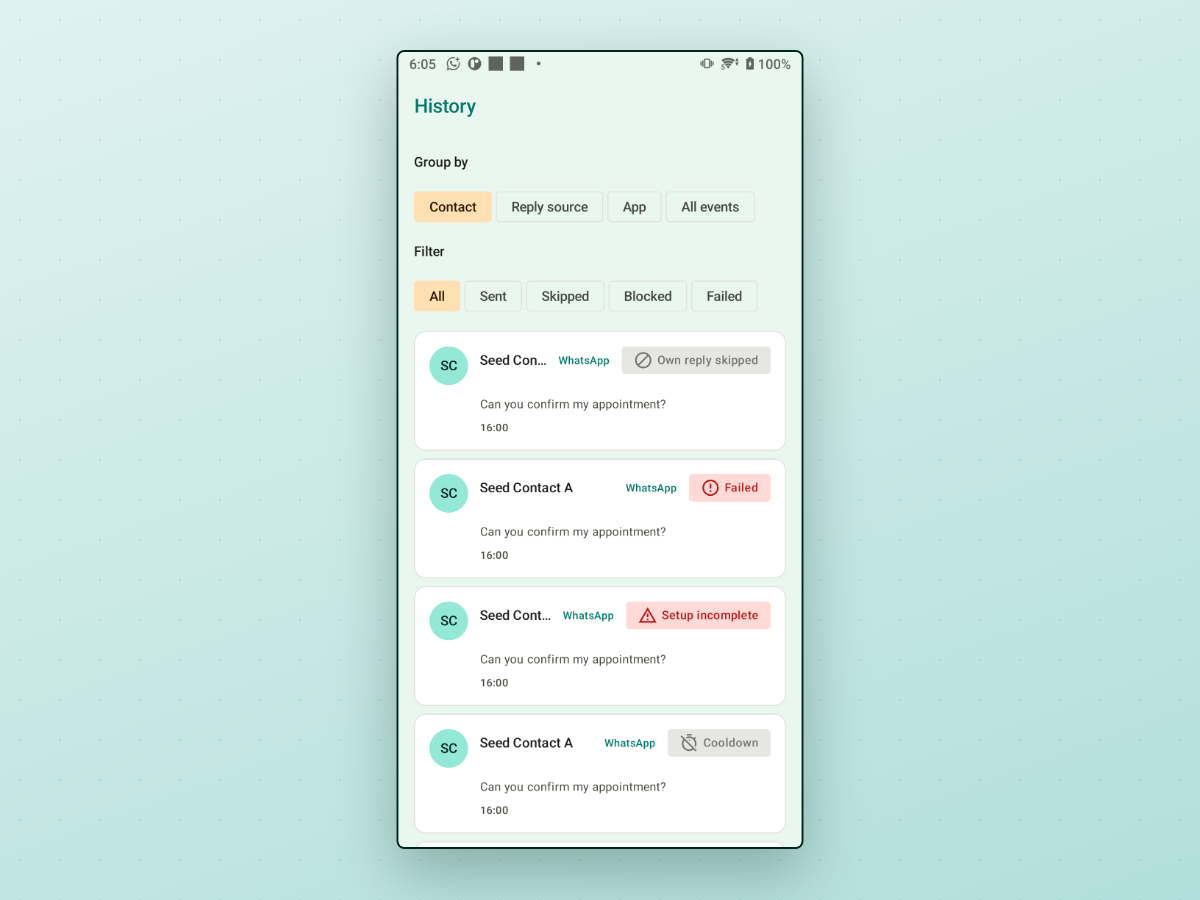
To prevent messaging loops and unexpected automation, AutoReplyPing includes several built-in guardrails:
- Per-chat cooldowns: Configurable wait times between replies ensure the app does not send multiple automated notes if a contact texts several times in one minute.
- Daily safety caps: Limits on daily replies per chat and total replies across the app keep automation conservative.
- Loop and echo protection: The app ignores self-replies and outgoing echoes, preventing two automated phones from pinging each other indefinitely.
- Transparent delivery history: Under the History tab, AutoReplyPing logs every event with a clear outcome badge:
- Sent: The reply was handed off to WhatsApp. Delivery is not confirmed until the message appears in the chat.
- Cooldown / Waiting between replies: A reply was held back because the contact received an automated reply recently.
- Skipped (Own reply): The notification was identified as an echo from your own sent message.
- Blocked (Safety limit): A configured daily cap stopped the send.
- Failed: Auto-reply started but WhatsApp did not accept the reply.
- Setup incomplete: Setup was not finished (for example notification access), so the reply could not send.
This visibility lets you review why a reply was sent or skipped without guessing.
Comparing your options: Which route fits your needs?
To decide which approach matches your workflow, compare the primary options side by side:
| Approach | Works on personal WhatsApp? | Sends automated reply? | Key setup requirement | Best use case |
|---|---|---|---|---|
| WhatsApp Business away message | No (requires Business app) | Yes (built-in) | Phone number converted to Business; active internet connection | Professional inquiries, client intake, operating hours |
| WhatsApp About / Status | Yes | No (passive profile text) | None (native feature) | Vacation notices, extended leave where passive signals suffice |
| Android Do Not Disturb | Yes | No (silences alerts only) | System setting configuration | Quiet focus or sleep without communicating status |
| Dual SIM with Business app | Yes (via second number) | Yes (on Business line) | Second SIM or eSIM number | Keeping personal line casual while automating client line |
| Android notification app (AutoReplyPing) | Yes | Yes (via notification actions) | Notification access; battery optimization exemption; WhatsApp notifications must appear; may conflict with WhatsApp terms | Custom away rules and keyword replies on personal WhatsApp, with that risk in mind |
Copyable away message templates for personal WhatsApp
Whichever method you use, keeping your reply concise, polite, and clear about emergency alternatives helps avoid misunderstandings:
Vacation and extended time off:
"Thanks for reaching out! I'm traveling and away from my phone until [Date]. If it's urgent, please call me directly. Otherwise, I'll reply once I'm back!"
Driving or in transit:
"I'm driving and can't check WhatsApp safely right now. I'll read your message as soon as I reach my destination. If you need me right away, please call."
Deep focus or meetings:
"Hi! I'm in focused meetings right now with notifications paused. I'll be checking messages around [Time] and will reply then."
Weekend or evening downtime:
"Thanks for messaging. I'm stepping away from screens for the evening. I'll catch up on messages tomorrow morning!"
General away template (with placeholders):
"Hi {recipient_first_name}, thanks for messaging. I'm away from my phone right now ({current_time}) and will respond as soon as I'm back."
Choosing what works for you
If your communication revolves around clients, appointments, or business services, the cleanest solution is moving those conversations to WhatsApp Business, where official away messages and business tools are supported natively by Meta.
If you occasionally want quiet hours without alerting everyone who reaches out, updating your About text or enabling Do Not Disturb will silence your phone without adding complexity.
If you need automated away messages directly on your personal WhatsApp line on Android—without converting your personal account to a business profile—a notification-based helper app provides a practical alternative. If you choose that route, use conservative rules, exempt the app from battery optimization, and restrict replies to contacts who know you. Be aware this may conflict with WhatsApp's terms, so weigh that risk first.
For Android users looking for controlled, allowlist-first auto-replies with customizable rules and clear delivery logs, AutoReplyPing is one option built for this workflow.